


You can view reports Reportstab. Select the report you want to view from the left side.
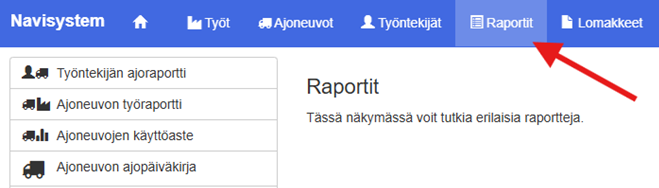
Report content #
Employee driving report: The employee driving report shows all the selected employee's trips by vehicle. The report shows the start and end times of the trip, the starting and ending points, the duration of the trips, the distance, the average speed, and any comments. The user can review the details of individual trips, track the employee's mileage and time spent driving, and download the summary for further use. The purpose of the diary is to support working time tracking and vehicle usage reporting.
Vehicle work report: The vehicle work report shows the total working hours of vehicles and accessories when the driver has marked himself as the driver of the vehicle. Multiple vehicles and accessories can be selected for the report. The report can be set to show the total hours of operation of the vehicle or accessory and broken down by, for example, office hours or non-office hours.
Vehicle utilization rate: The vehicle utilization report describes how much of the total time or days a vehicle has been in actual use. The report can be used to monitor fleet utilization and assess the adequacy and efficiency of vehicles. If carbon dioxide emission estimates have been entered into vehicles, the utilization report also includes emission estimates on a kilometer and hour basis.
Vehicle logbook: The driving log report allows you to view the journeys of an individual vehicle. The vehicle's driving log shows all journeys for the selected period, including start and end locations, times, durations and distances. The log also records the time spent driving, total kilometres and carbon dioxide emissions. The user can add or edit descriptions of journeys and check the driving routes on a map. The purpose of the log is to facilitate the monitoring and accounting of vehicle use, for example to separate work and private journeys and for taxation purposes.
Employee hourly report: The employee's hourly report shows the working hours for the selected period by day. The report shows the work tasks, start and end times, total working hours, possible work and billing achievements, and comments (and, if necessary, location information for check-in and check-out). The report can be used to monitor the employee's working hours, the number of hours worked, and changes in shifts. The user can view the information, make corrections, and approve work entries. The purpose of the hourly report is to support working time tracking, time accounting, and payroll.
Acknowledgement report: The acknowledgement report shows approved and unapproved hours (Employee, Supervisor, Supervisor, Invoicer, Payer).
Vehicle utilization rate: The vehicle utilization report tracks the usage of selected vehicles over a selected time period. The report shows, among other things, the first and last time of driving, distance driven, driving time, vehicle categories associated with the vehicle, and CO₂ emissions.
Salary information: The Salary Information report is compiled from the user's hourly records, to which various salary interpretations related to salary payment have been added, such as normal working hours, salary bonuses, expense reimbursements, and sliding rules.
Note! The Salary Information report is only available if salary rules have been defined for the company. Please contact our customer support if your company needs a customized Salary Information report.
Salary report: The Salary Report view allows you to view an employee's working hours, bonuses, and expense reimbursements for a selected time period. The user selects an employee and a time period, after which the report creates a summary of the recorded hours, projects, and reimbursements. The report shows daily working hours and, if applicable, any overtime and bonuses, as well as expense reimbursements, such as mileage reimbursements. The breakdown summary shows jobs by project.
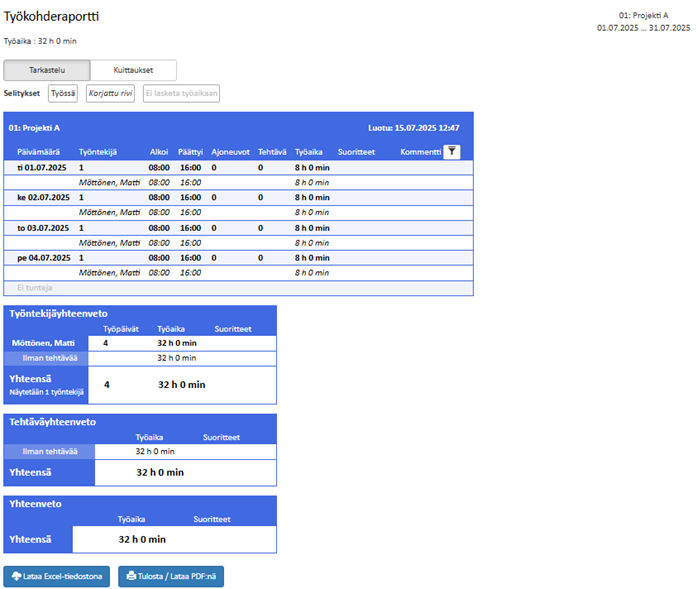
Work item report: The work item report allows you to view the work hours and tasks recorded for a specific work item during a selected period. The report shows, among other things, employee-specific working days, start and end times and duration, employee-recorded achievements and comments. The report makes it easy to check job-specific work entries, summaries and employee attendance information.
Monthly report: The monthly report shows the total working time entered by employees, both by work item and by employee.
Work site report #
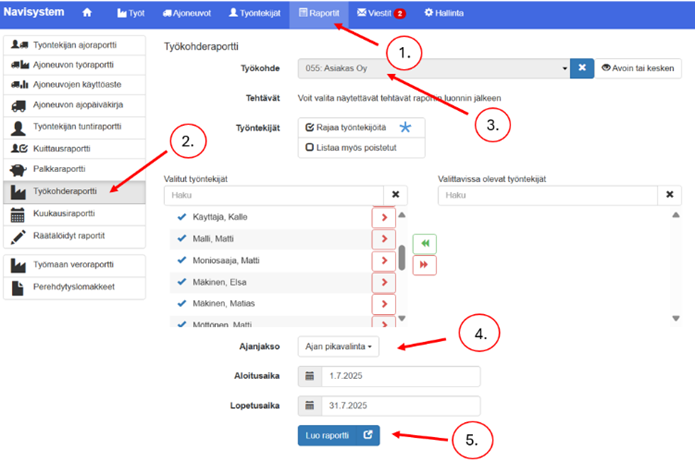
A work item report is created as follows:
- Open Reports-view
- Select from the left side Work site report
- Select the work item you want to view or make acknowledgements for.
- The work item report's acknowledgement levels are: Employee, supervisor, manager, payroll, and invoicing.
- Select a report time period or specify start and end times. Time speed dialbutton, you can select the desired period from the drop-down bar. For example, you can select a month or even Throughout historyto view all work done on the work item.
- Once you have made the appropriate report settings, click Finish. Create a report
If necessary, select the task you want to view or edit its details. If no task is selected, all entries for the work item are displayed in the report.
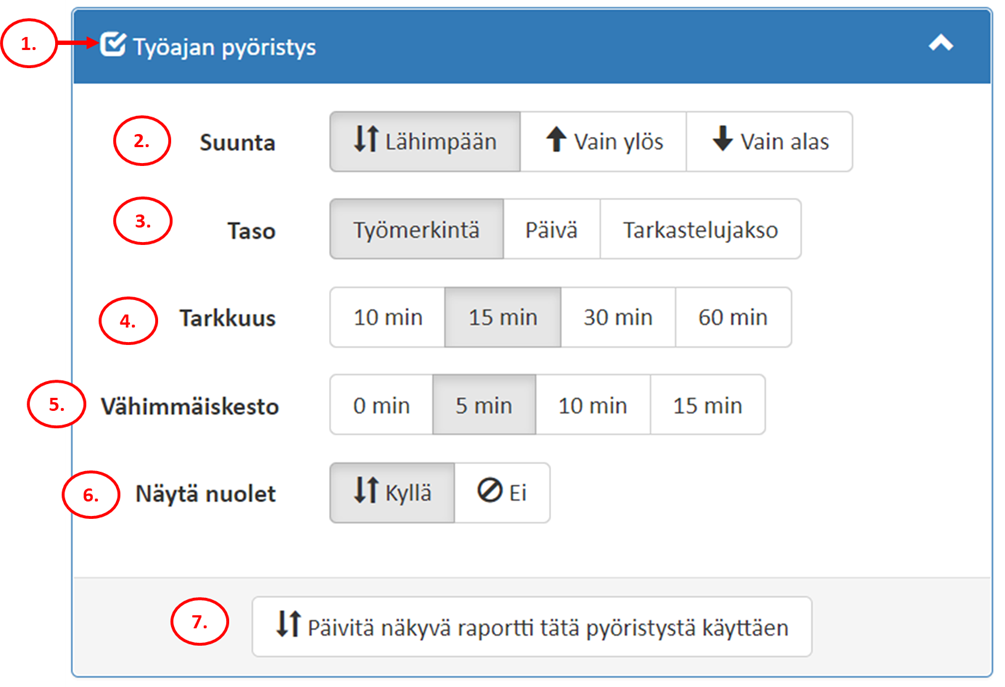
Work item report rounding tool #
- Tab Rounding of working hours for the use of
- Select the rounding direction
- Choose whether working hours rounding should be performed for individual entries, daily hours, or the entire review period.
- Select rounding precision
- Select the minimum duration of the entry
- Mark all rounded entries with arrows
- Once you have selected your settings, run the report here
Employee time report #
You can find the employee's hourly report in the section: Reports-tab > Employee hourly report.
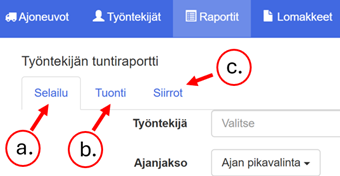
This report contains three sections:
a. Browsing that includes employee hour reports
b. Import, which allows you to import working hours from Excel to Navisystem
c. Transfers, which allows you to transfer supervisor and hour report viewing rights to another supervisor.
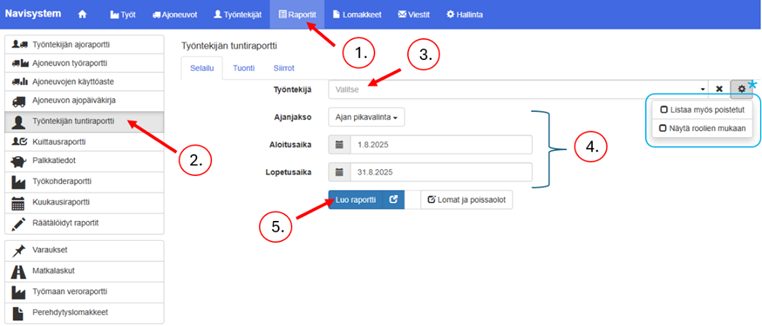
Browsingsection, an employee's hourly report is created as follows:
- Select Reportstab
- Swipe left Employee time report
- Select an employee from the list.
- Select a start time and end time
- Click Create a report
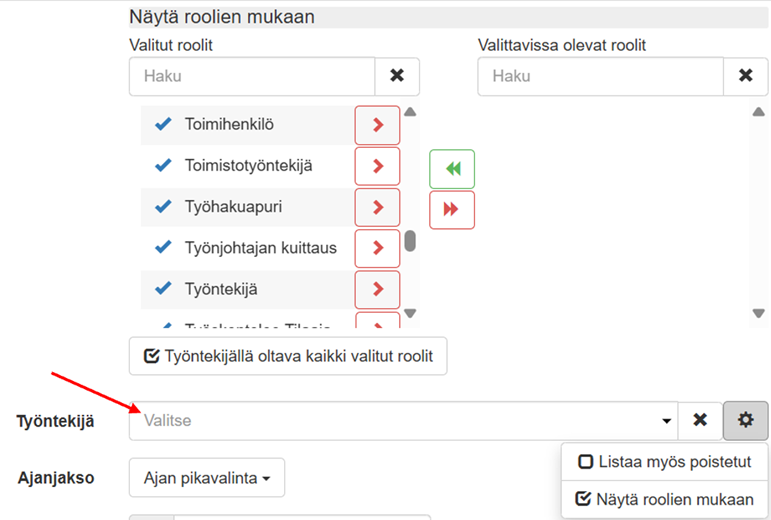
- Select the roles you want to view users with by adding them Selected roles section. In the example in the image, all company employee users, i.e. users who have Officer-role
- Click on the employee selection, which will display a list of employees according to your selection.
Note! If you want the user to have all the roles you selected, click The employee must have all selected roles. Otherwise, if you want the user to have at least one of the roles you selected, make sure that The employee must have all selected roles. option is not selected.
Employee Hourly Report Buttons #
Employee hours report buttons:
- Review – displays the working time for the selected period by day. You can view, for example, work tasks, start and end times, total working time, as well as possible work and billing achievements, sliding changes, and comments attached to the work entry. The location information for check-in and check-out is also displayed in the timestamp row if the location information setting is turned on.
- Show confirmations – Displays confirmations for entries. You can confirm entries or delete confirmations if you have permission to do so.
- Possible acknowledgement levels are: Employee, supervisor, manager, payroll and invoicing.
To edit the acknowledgement category settings, navigate to: Possession > Company information > Advanced settings > Use the acknowledgement function in reports
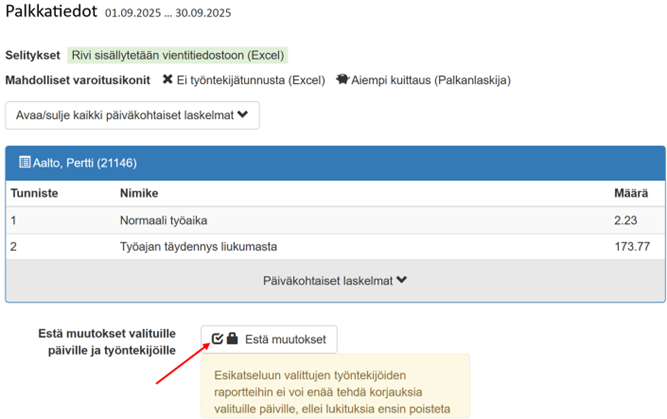
- Lock symbol for the entire report period – You can lock the report for a desired day/period so that no one can edit or add work entries for that period. This function is usually used after the salary payment, when the employees' salaries have been paid based on the data. In this case, we recommend using the option on the Salary information report. Prevent changes for selected days and employees function
- Lock symbol – Lock the entry for a single day. No one can add work entries for that day as long as it is locked. Usually, only the administrator has the right to remove locks from the hourly report.
- Pen & plus symbol – Add a new entry manually
- Circle arrow symbol – remove hand-made annotations or restore original timestamp
- Trash can symbol – remove the mark
- Location symbol – View location information
- Pen symbol – editing entries
- Arrow symbol – View entries below the journal entry
- Arrow symbol in title bar – summarizes or shows details of all entries in the report
- The pen & eye symbol allows you to view how and when a work entry has been edited.
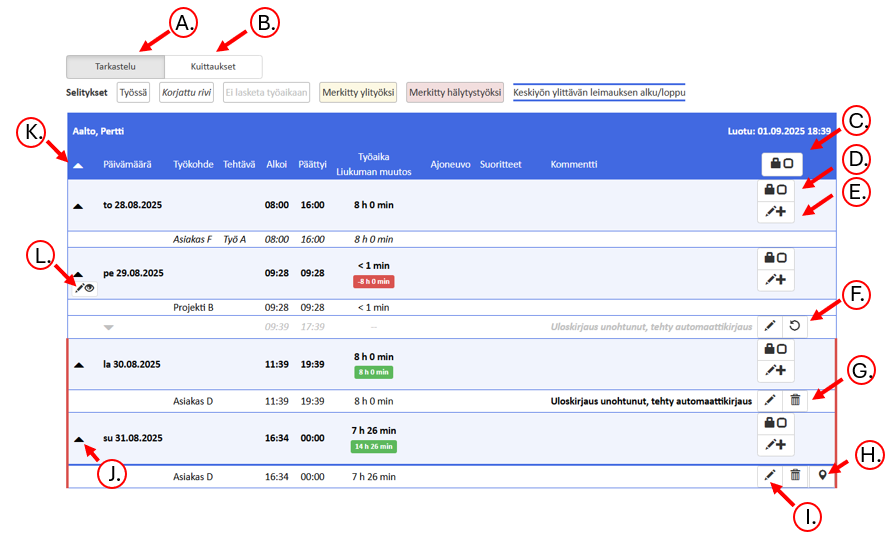
Editing entries in the hourly report #
An administrative user can edit any user's entries.
Kirjausriviä voidaan muokata seuraavasti:
- Click on the pencil symbol on the right side of the entry line.
- Make the changes you want.
- Save changes
Uusia kirjauksia voidaan lisätä seuraavasti:
- Klikkaa kirjausrivin oikeassa reunassa kynä ja plusmerkki-symbolia
- Select a destination and enter other required information
- Save entry
Deleting entries in the hourly report #
Entries can be deleted as follows:
- Click on the trash can symbol on the right side of the entry line.
- Confirm the deletion by clicking the symbol that has turned orange again.
Note! Timestamp entries deleted via the trash can icon can always be restored, meaning that their deletion is never final. If a row has a circle arrow symbol instead of a trash can symbol, the entry row has been edited or added manually. The arrow symbol on the left edge indicates whether the entry was originally a timestamp entry. By clicking on the arrow, you can view the original entries under the correction entry. Clicking on the circle arrow symbol deletes the corrections, meaning that in practice it either:
* returns the original timestamp entry, if one exists
* deletes a handwritten entry
Työmerkintöjen kohdistaminen usealle päivälle #
Navisystemissä on mahdollista lisätä työmerkintä usealle päivälle kerralla. Toiminto nopeuttaa erityisesti pidempien lomajaksojen kirjaamista ja vähentää manuaalisen syötön tarvetta.
Toimi seuraavasti:
- Valitse työkohde.
- Määritä aloitus- ja lopetusaika.
- Select Tee 8 h 0 min merkintä valituille päiville.
- Valitse viikonpäivät, joille merkintä luodaan.
- Tallenna merkintä.
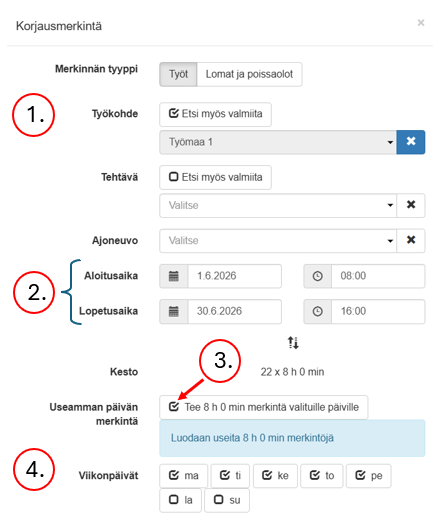
Importing work entries from an Excel file #
If you want to import a lot of work entries into Navisystem at once, one option is to use the Excel import functionality. Only the necessary employee work entries and their working hours (and achievements) are added to the Excel template provided by Navisystem and imported into Navisystem's employee hour report using the Excel import functionality.
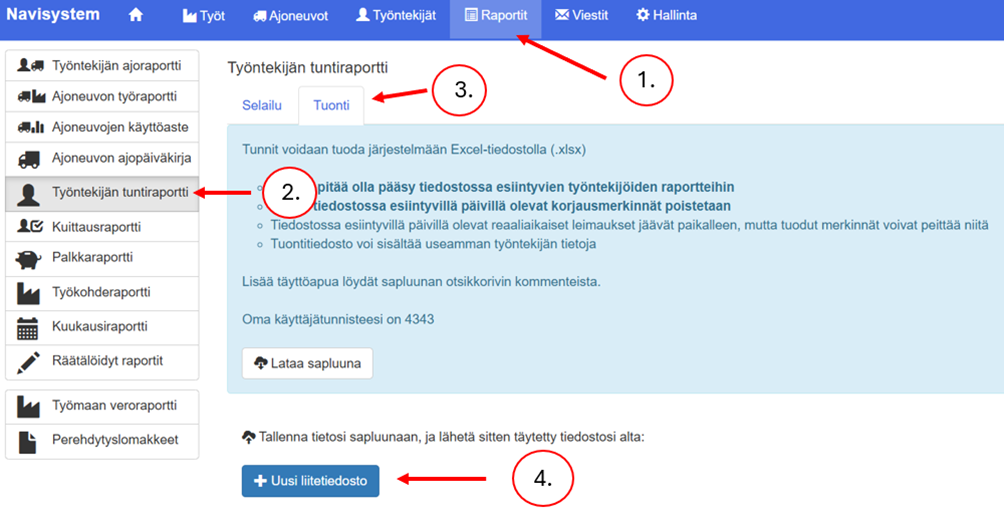
- Open Reports-tab
- Select from the left Employee time report
- Click Import
- In the Import section, select Download templates. Now an Excel file produced by Navisystem will be saved on your computer, which contains a template for filling in employees' hour entries. Save your information to the template, i.e. enter the employees' name information or user ID and the necessary work entries into the Excel file.
- Then send your completed file to Navisystem by pressing select file
Remember to read the instructions in Navisystem and the Excel file carefully. Column-specific instructions appear in Excel when you place the mouse cursor over the red triangle.
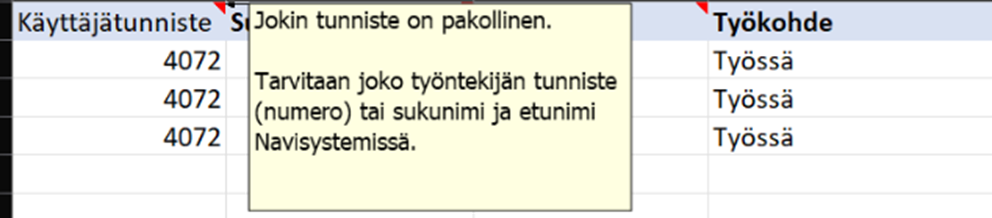
The minimum information below is required for the import. An employee with user ID 4072 has been added At work-working hours for the work item named 15 hours on 6.6.2022 / 7.6.2022 / 8.6.2022 (Note! At work-the destination has been added to Navisystem in advance Create a new work itemfunction)

Good to know about imports
- The name of the work item, task, and deliverable must be created in Navisystem before importing if these do not exist in the system. Otherwise, the import will fail insofar as the required information is not in the system.
- After the import, it is a good idea to check the success of the import in the Browse section by selecting the names of the users affected by the import.
- Before importing to Excel, make sure there are no work entries in the hourly report that should not be deleted. The imported data will overwrite any correction entries for the same days.
- Timestamps are overridden when the import is made for an overlapping period. When the import does not coincide with the timestamp, the timestamps remain in the report.
- If two imports are made for the same time and user, only the entry in the second Excel row will be displayed in the hourly report.
- Navicom user support helps with import-related issues and Navisystem-related challenges, but not with MS Excel usage.
Vehicle logbook #
In our service, the GPS tracker collects driving data from the vehicle and parses it into the vehicle's driving log report in a manner approved by the tax authority. The service records the start and end times of the drive, travel time, kilometers, driving routes, and in some cases also the driving mode selected by the driver, such as work/private driving. It is also possible to manually add driving notes to the driving log.
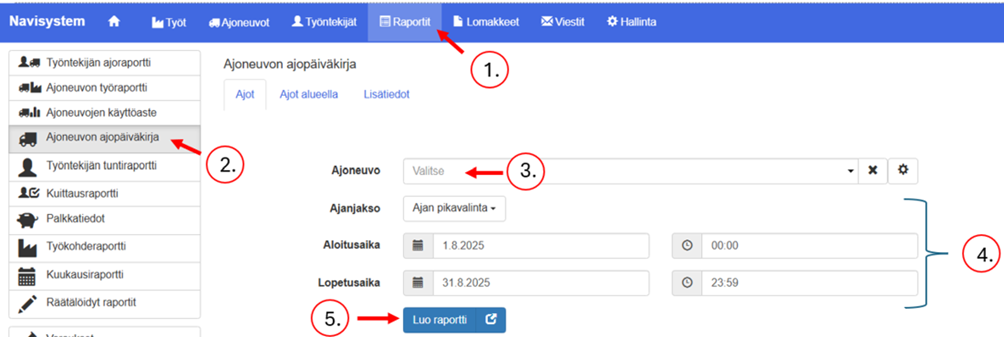
The vehicle logbook is created as follows:
- Open Reportstab
- Select from the left Vehicle logbook
- Select vehicle
- Select a start time and end time
- Click Create a report
Search for rides in a specific area #
Vehicle logbook Rides in the area section allows you to determine whether a selected vehicle (or multiple vehicles) has visited a specific address or a defined area during a selected time period. The user can specify the address or address coordinates (latitude and longitude) and the time period within which visits are viewed. Rides in the area The report shows all trips whose route has hit the selected area.
Principle:
- Select one or more vehicles to review.
- Click Search for rides in the area -checkbox
- Specify the address to be viewed or define the area as a circle on the map.
- Select a time period (one or more days and time).
- Create a report: Navisystem lists all trips whose route has passed through the selected area.
Intended use:
- Verification of visits in customer service situations, e.g. if a customer complains about the lack of sanding, plowing or other services.
- Monitor and ensure that vehicles are operating at agreed locations.
- The report serves as documentation and evidence of the visits made.
The report shows, among other things:
- Date and time
- Start and end point addresses
- Driving duration and distance traveled
- Logged in employees (if used)
- Possibility to add comments and notes
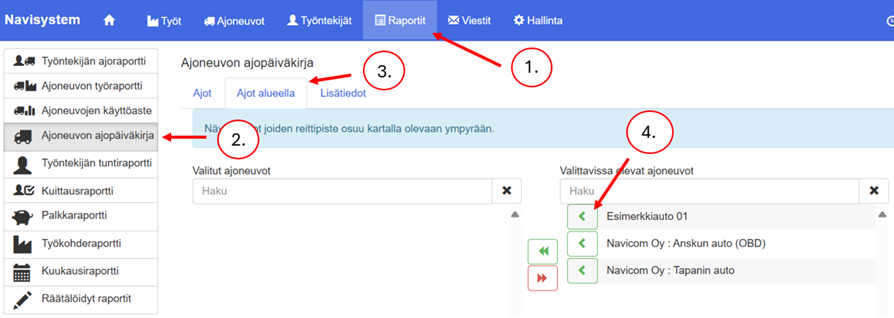
Here's how to create a driving report using the Driving in Area feature:
- Open first Reportstab.
- Select Vehicle logbook on the left.
- Click Driving in the area –button
- Select the desired vehicle from the vehicles list
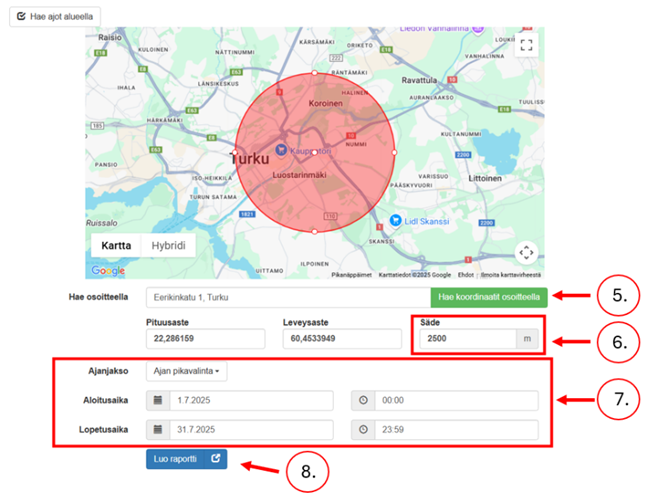
- Enter address Search by address field to search for a location and click Search for coordinates by address. You can also move the area circle on the map by dragging the white dot in the middle with your mouse. The coordinates will change as you move the circle and can also be edited manually if necessary.
- Enter the desired radius for the area circle in meters. You can also use the mouse to grab the points on the edges of the area circle and resize the circle by dragging.
- Select a start and end time or a time range from the shortcut.
- Click Create a report
Vehicle work report #
The vehicle work report shows the total working hours of vehicles and accessories when the driver has marked himself as the driver of the vehicle. Multiple vehicles and accessories can be selected for the report. The report can be set to show the total hours of operation of the vehicle or accessory and broken down by, for example, office hours or non-office hours.
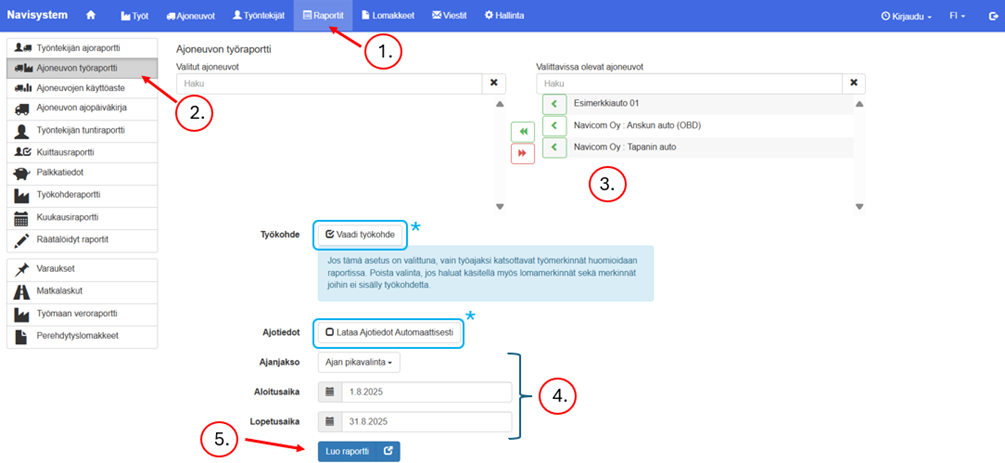
The report is created as follows:
- Open Reports-tab
- Select from the left Vehicle work report
- Select vehicles from the list by clicking on the desired vehicle.
- Select the report period
- Press Create a report –button
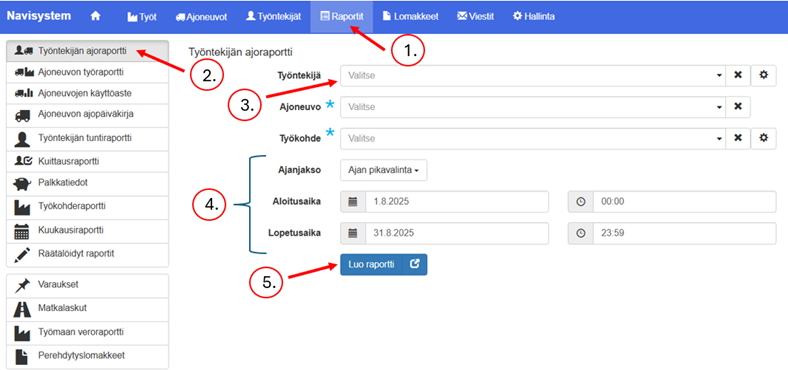
Employee driving report #
The employee driving report shows all the selected employee's trips by vehicle. The report shows the start and end times of the trip, the starting and ending points, the duration of the trips, the distance, the average speed, and any comments. The user can review the details of individual trips, track the employee's mileage and time spent driving, and download the summary for further use. The purpose of the diary is to support working time tracking and vehicle usage reporting.
An employee's driving report is created as follows:
- Open Reportstab
- Select from the left Employee driving report
- Select a job title if necessary
- Select a report period or specify start and end times
- Click Create a report-button
Acknowledgement report #
The confirmation report compiles the confirmation status of different user groups (possible confirmation categories are: Employee, Supervisor, Supervisor, Payroll Accountant and Invoicer) for the selected period. Have all confirmations been made or are there any unrecognized lines in the hourly report? The report allows supervisors to check whether all the necessary information has been approved within the deadline.
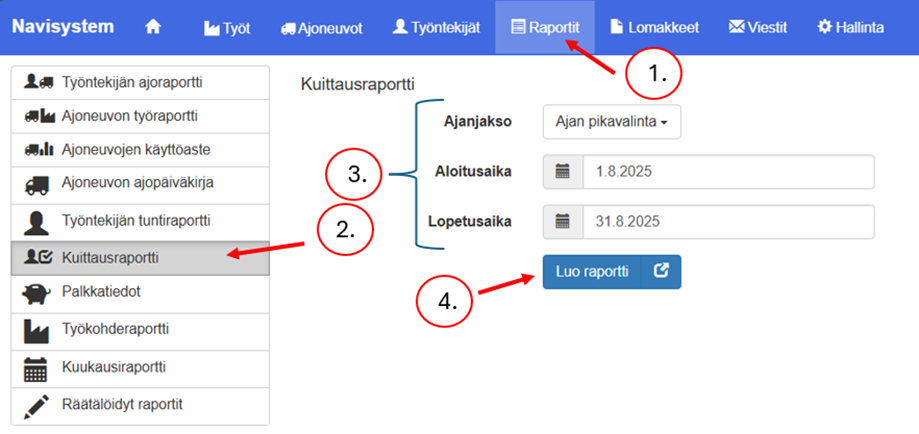
The acknowledgement report is created as follows:
- Select Reports tab
- Select from the left Acknowledgement report
- Select a report time period or specify start and end times.
- Click Create a report-button
You can limit the acknowledgement report as follows:
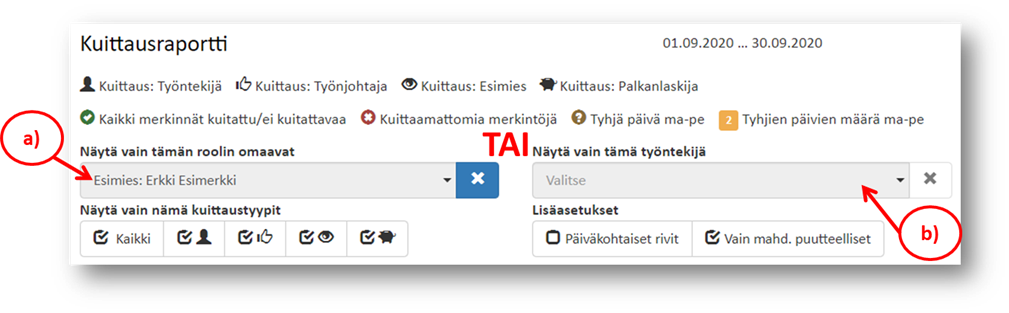
The administrative user can see all users in the acknowledgement report. Supervisors usually only see their subordinates or some other predefined group of employees. If a supervisor's visibility needs to be changed, it is a good idea to send a change request to your salesperson or myynti@navicom.fiInstructions for setting up supervisor and subordinate definitions can be found at from here.
You can limit the list to appear in two different ways:
- only those users who have a specific role
- only a specific employee.
For example, you can choose the role “Supervisor: Erkki Example”, This will display all the people whose supervisor is Erkki Example.
The acknowledgement report can also be limited in the following ways:
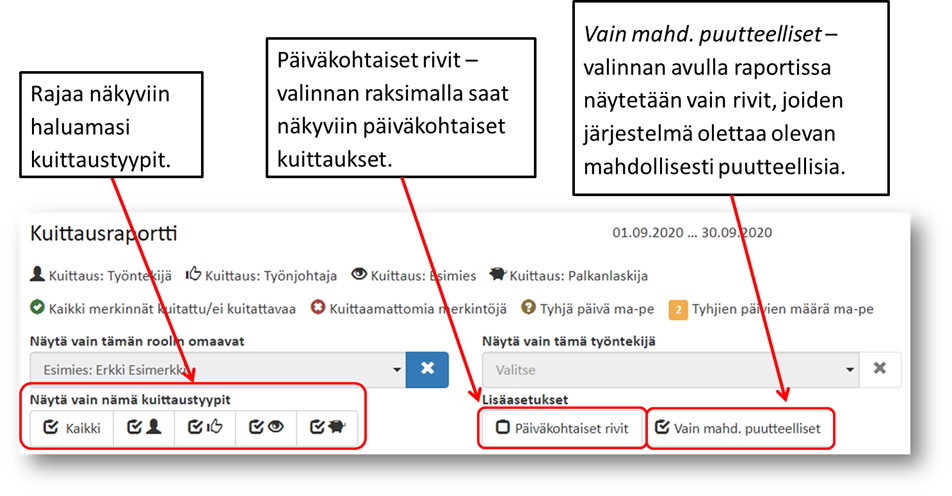
The meanings of the symbols in the report are explained at the top of the report:
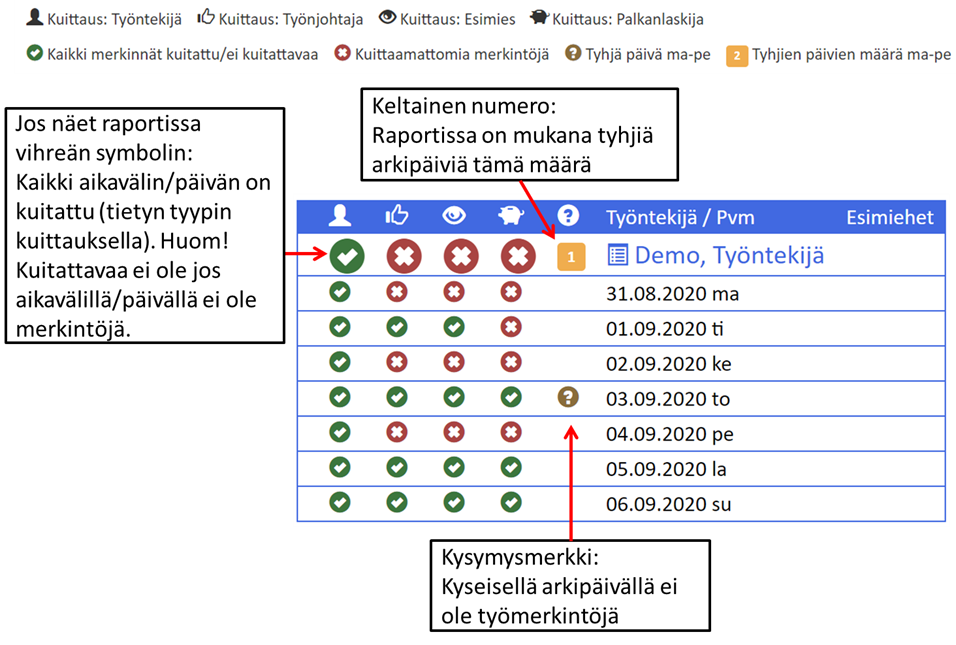
Salary information report #
Salary information report is only available if your company has salary rules defined. Otherwise, a standard report called Salary report. The icon used for both reports is pig (see picture).
The Salary Information report creates salary type distinctions from the work entries compiled in the employee's hourly report. The processing uses a salary interpretation tailored to the company (TES interpretation / local interpretation, etc.). The processing can concern, for example, working hours, holidays, absences, standby leave, salary supplements, expense reimbursements and sliding scale policies. When these settings are made correctly, employees' salaries can be paid correctly based on the work entries made by employees. It is very important for the process to be aware that the accuracy of salary payment depends on the salary interpretations defined in Navisystem. We recommend that you check all salary interpretations to ensure that they also work as defined in practice.
The Salary Information report is created as follows:
- Select Reports-tab
- Select from the left Salary information
- If necessary, select the user role whose employees you want to filter in the list of selectable employees. This is done by clicking Roles > select the role whose users you want to filter in the list (e.g. select role Salary, if you want to pay salaries only to monthly salaried employees. If necessary, ask Navicom customer support for user group roles to support salary payment)
- Next, select the desired users for the report. The selected employees will be moved from the list on the right to the list on the left.
- Set the report start time and end time
- Set working hours rounding if desired. See the Salary Information report rounding tool before use.
- Select Preview Data. Please note that it may take a few seconds to several minutes to generate the report. Note: Currently, there is a limited number of users that can be selected due to software reasons. Reduce the number of selected employees if the report fails to generate.
After creating the report, you can download the report in Excel format if you wish. Select Make a payroll confirmation for exported work entries, if you also want to make payroll receipts for work entries. Receipts are not used in all companies.
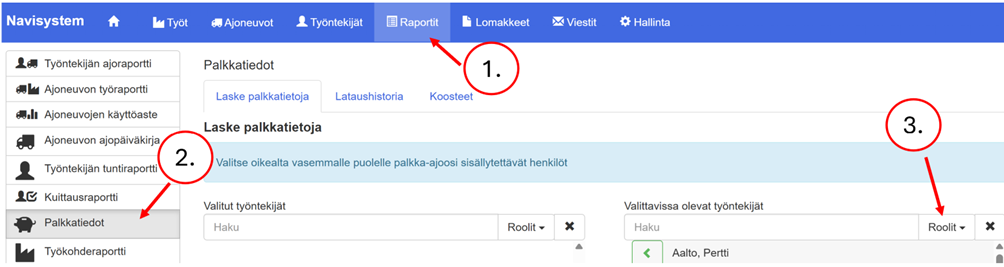
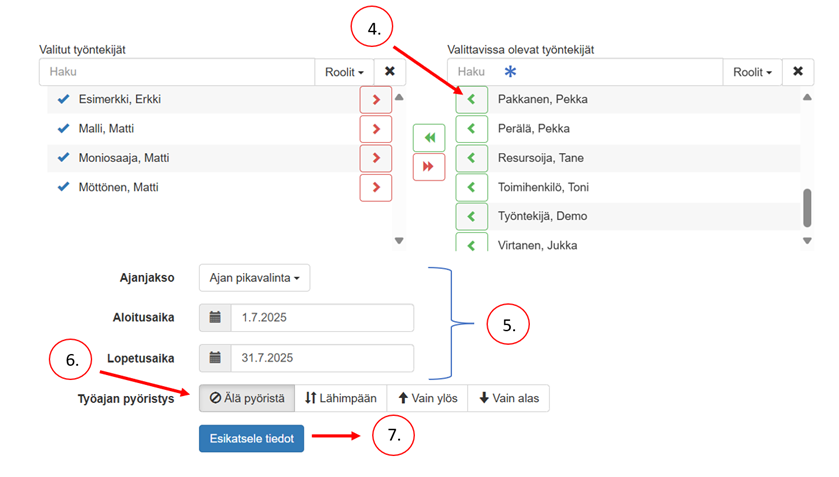
Salary Information Report Rounding Tool #
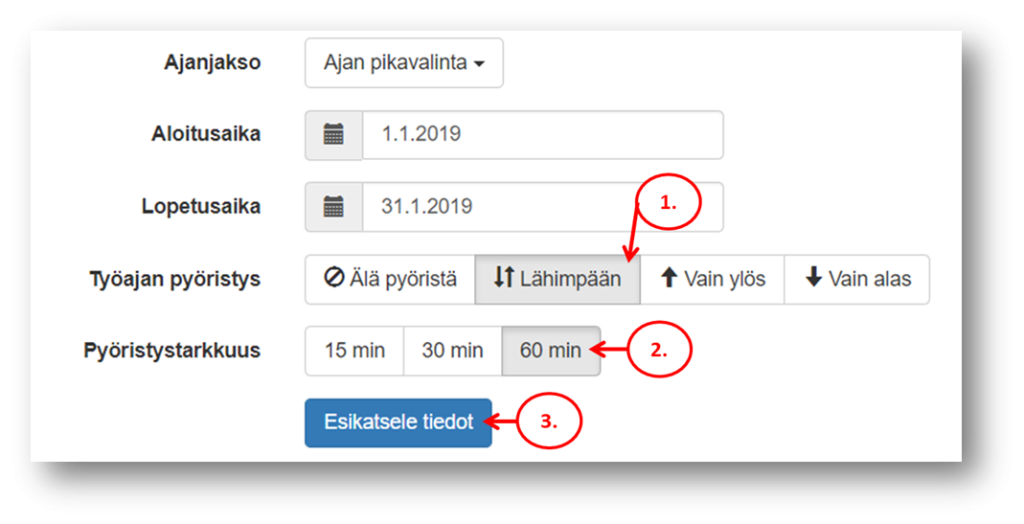
The working hours rounding tool allows you to round the working hours in a report if you wish. However, be careful when using the rounding tool. The rounding tool is used as follows:
- Choose how you want to round working hours (to the nearest, up only, down only)
- Select rounding resolution (15 min, 30 min, 60 min)
- Create a report normally by pressing Preview the data
Monthly report #
The monthly report shows the total working time entered by employees, both by work item and by employee.
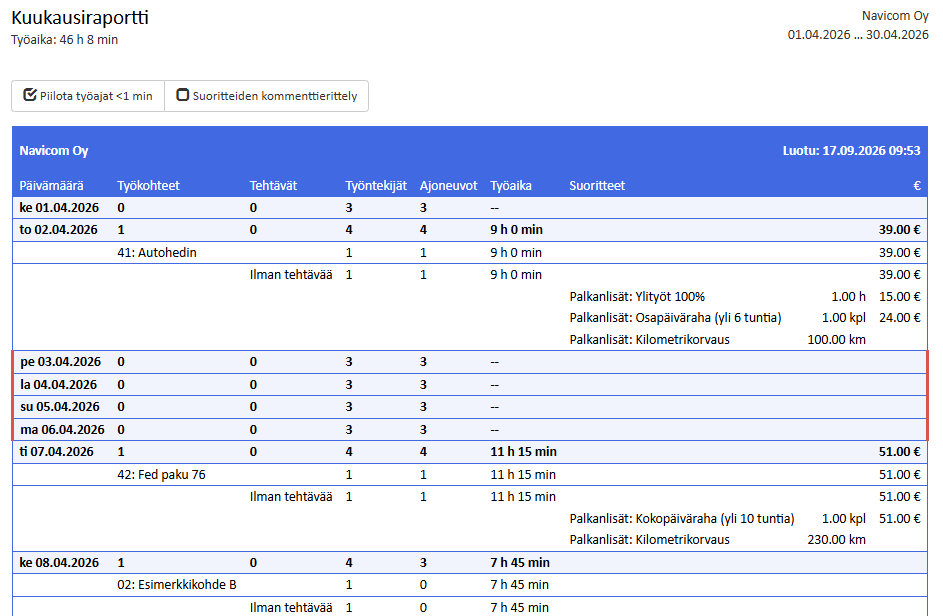
Siirry kuukausiraportin tarkasteluun seuraavasti: Reports- välilehti > Monthly report > valitse haluamasi aikaväli > Create a report
Kuukausiraportin tarkastelu #
Kuukausiraportti näyttää valitun ajanjakson työajat, työkohteet ja työsuoritteet päiväkohtaisesti. Raportista voidaan tarkistaa kunkin päivän työaika sekä siihen liittyvät työsuoritteet ja mahdolliset lisäkorvaukset. Päivärivien alta näkyvät tarkemmat tiedot, kuten työkohteet, työajat ja suorite-erittelyt. Raportin yläosassa esitetään jakson kokonaistyöaika sekä raportointijakso.
Suoriteyhteenvedon tarkastelu #
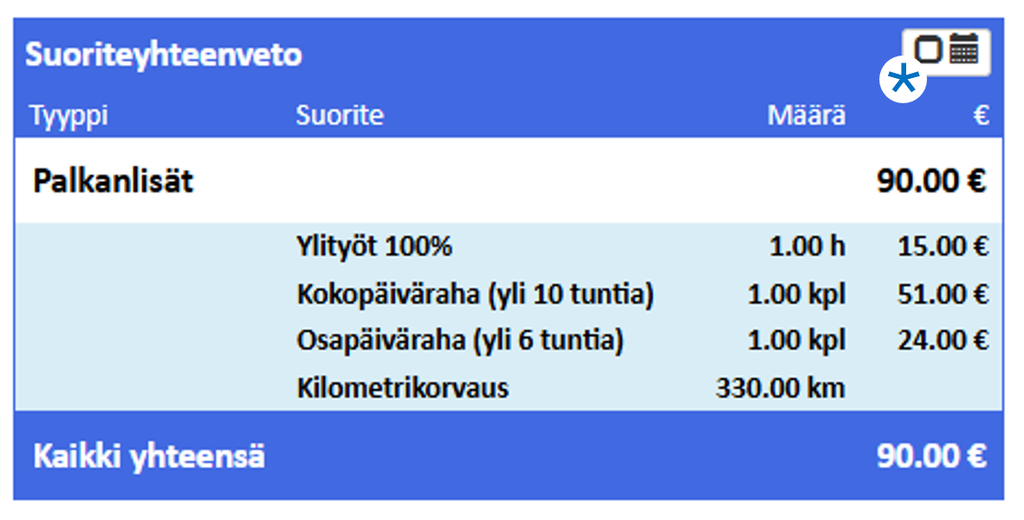
Suoriteyhteenveto näyttää valitun raportointijakson aikana kirjatut suoritteet ja niistä muodostuneet korvaukset yhteen koottuna. Näkymästä voidaan tarkistaa suoritteiden määrät, kuten ylityöt, päivärahat ja kilometrikorvaukset, sekä niiden euromääräiset arvot. Yhteenveto helpottaa suoritteiden kokonaismäärän ja korvausten tarkistamista yhdellä silmäyksellä.
Kuukausiraportin yhteenveto #
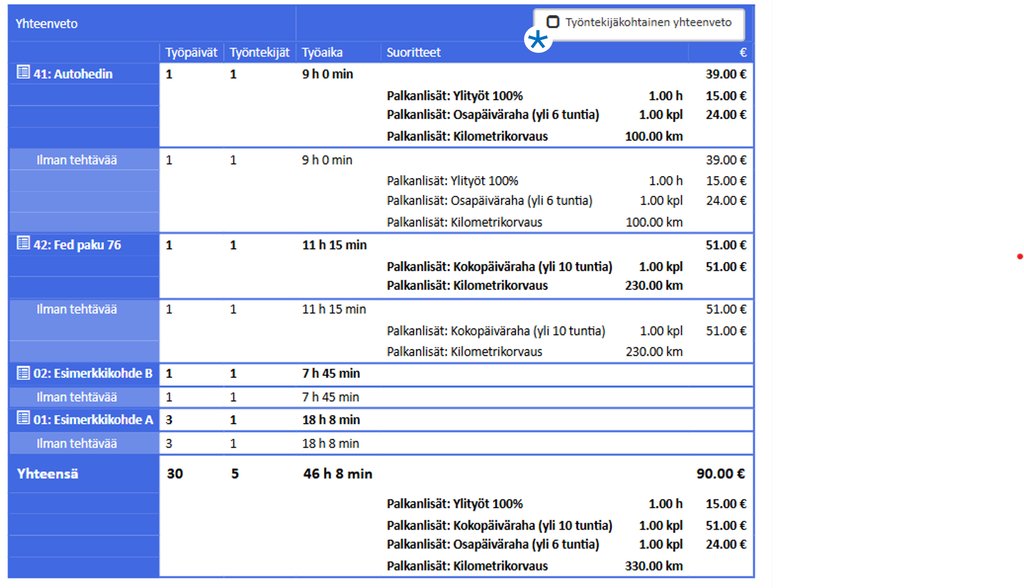
Oletuksena raportti näyttää tiedot kohteittain. Tällöin näet jokaisen projektin tai kohteen osalta työpäivien määrän, työskennelleiden työntekijöiden lukumäärän sekä mahdolliset työsuoritteet, kuten kohteeseen liittyvät palkanlisät ja kilometrikorvaukset. Raportin alareunassa näkyvät koko kuukauden kokonaissummat.
Limiting reports #
Some reports offer the ability to limit the information and work items displayed. These reports include Vehicle Work Report, Vehicle Driving Log, Employee Hour Report, and Work Item Report.
Limiting the details displayed in the report is done as follows:
- Open Reports-tab
- Select Vehicle Work Report, Vehicle Driving Log, Employee Hourly Report, or Work Item Report.
- Create a report
- Put a check mark in the selection box. Edit the information displayed
- Select the information you want to see in the report from the list.
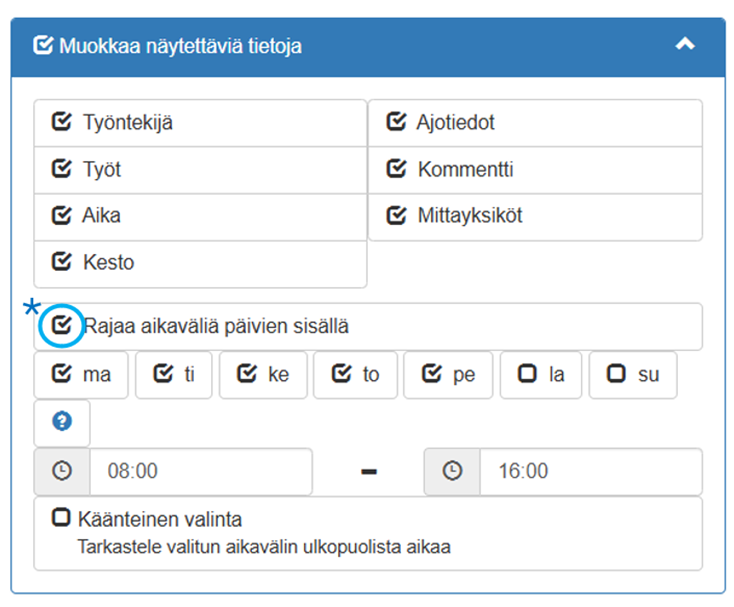
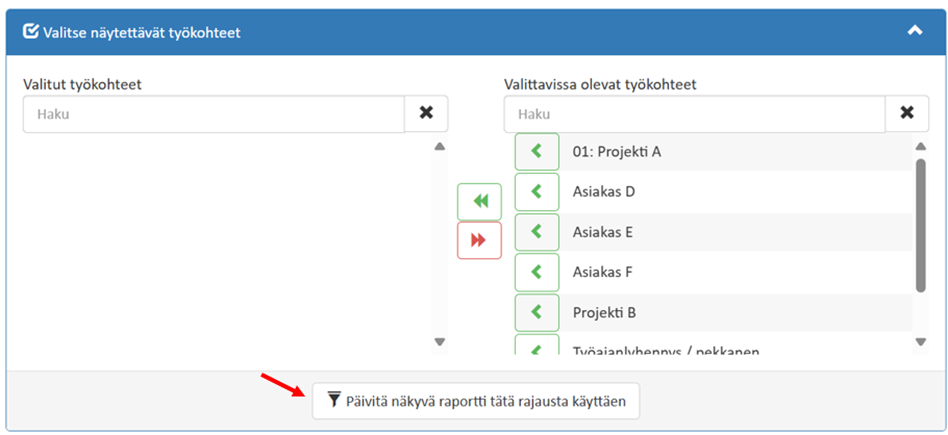
It is possible to limit the work items displayed in some reports. Such reports include the Vehicle Work Report, Employee Hour Report, and Work Item Report. The work items displayed in the report are selected as follows:
- Open Reports-tab
- Select Vehicle Work Report, Employee Hourly Report, or Work Item Report.
- Create a report
- Put a check mark in the selection box. Select the work items to display
- Finally, press Update the visible report using this scope
Create a PDF or Excel file from a report #
The service allows you to create a PDF or Excel file from the report, which is easy to deliver to third parties in file format. The Excel download is especially good if you want to freely edit the data before delivery. If you want to limit the data, we recommend using Edit the information displayed function to eliminate unnecessary information before downloading the report to a file format.
PDF file is created in the following way:
- Open Reportstab.
- Select the report you want and fill in the required information.
- Create a report and click at the bottom of it Print/download as PDF.
- In the print view, select Print.
- Enter a name for the file in the field Filename.
- Select the save destination and press Save
Excel file is created as follows:
- Click at the bottom of the report Download as Excel file-button. You can then freely edit both the name of the Excel file and the information it contains.