

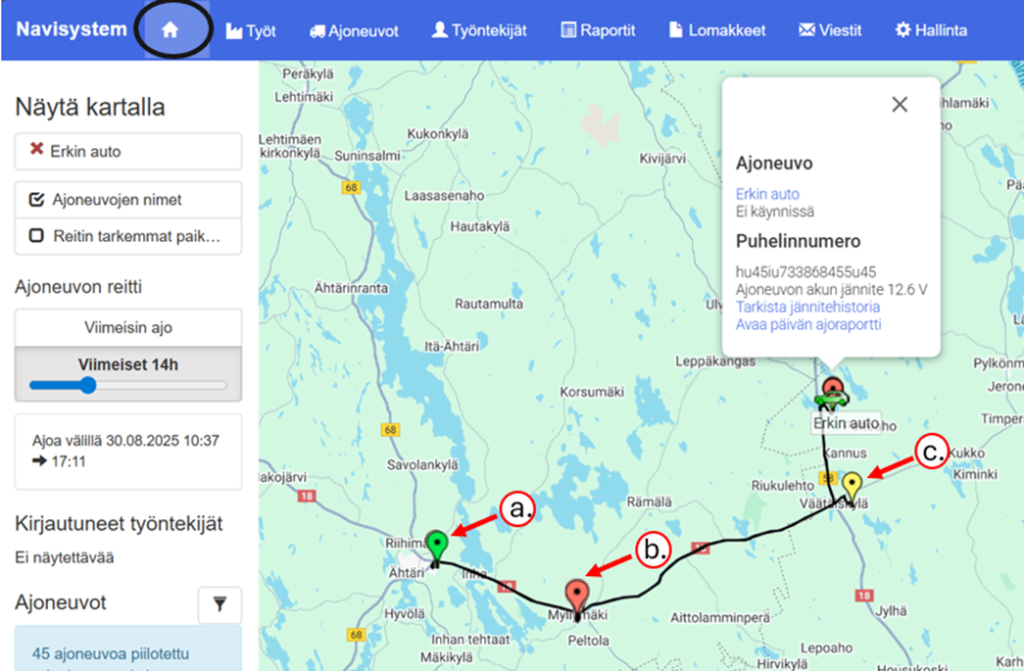
If vehicle tracking is enabled, the map view is used as the starting view. In this view, your company's vehicles, work sites and tasks can be viewed, if address information has been entered for them. You can click on the vehicles, work sites and tasks displayed on the map for more information.
By clicking on a vehicle, the vehicle's route is drawn on the map. You can choose the route viewing interval from 1-48 hours. The selection box in the upper left corner More detailed location information for the route shows more detailed driving information, such as driving speed on the route line. The vehicle map bubble has a direct link to the vehicle's driving log and the vehicle's exact location.
In the map view, you can view the route of the selected vehicle and related information. The route is marked with the following symbols:
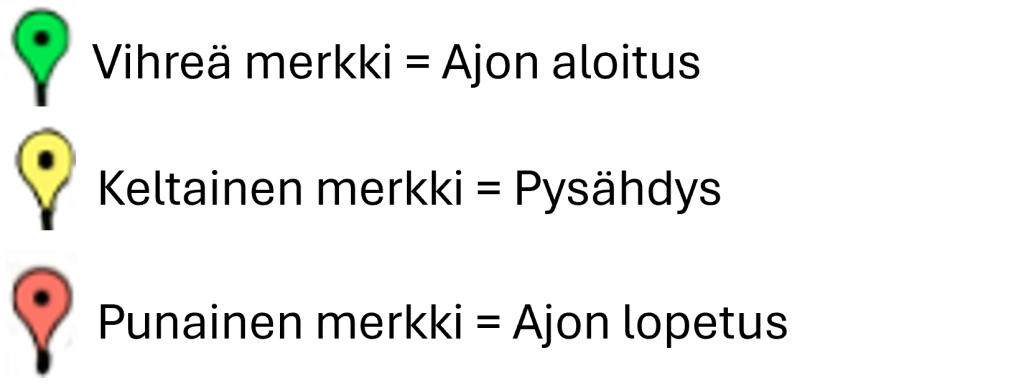
Clicking on any marker will bring up additional information, such as the duration of the stop or the exact time. If you want to track a vehicle, you can click on the vehicle you want to track. Then, in the top right corner of the map view, Follow the selection is activated.
Grouping map markers #
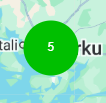
If you have a lot of vehicles in your map view, we recommend grouping the vehicles so that the map view shows the number of vehicles instead of all vehicles being on the map as separate map icons. Below is an example of map grouping - the red ball in the image shows that there are 12 vehicles in Turku.
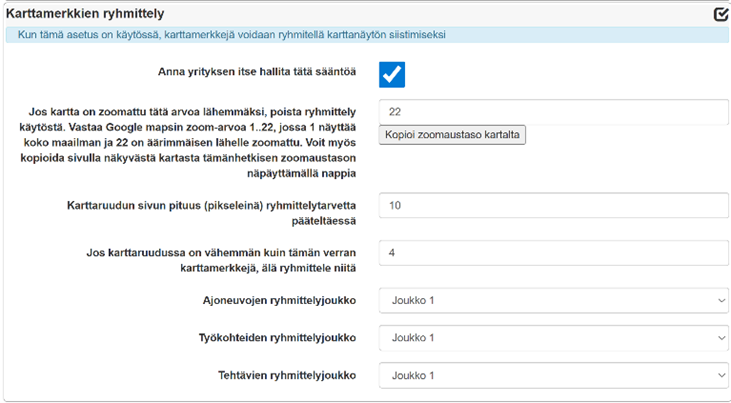
Map marker grouping settings are defined in the section: Possession > Company information > Advanced settings > Grouping map markers