

Invoice confirmations and marking completed work items #
This chapter describes how to make invoice confirmations for work items and mark these jobs as completed. When all jobs related to a work item or its tasks have been confirmed as invoiced, the work item status is automatically updated to invoiced.
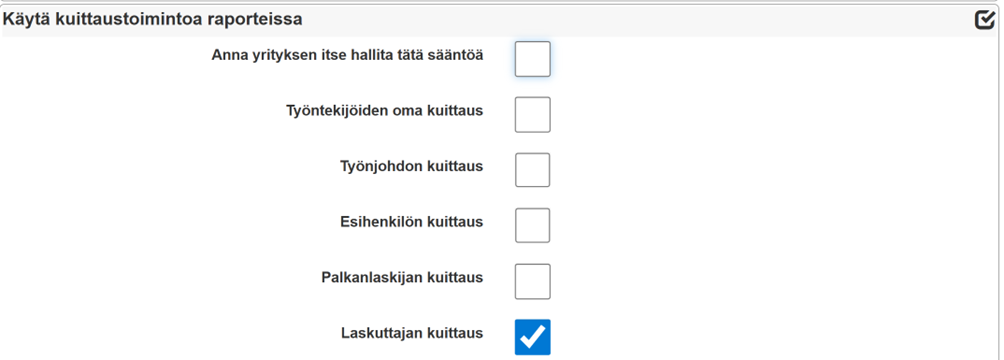
Invoice receipts are defined in the section: Possessiontab > Company information > Advanced settings >Use the acknowledgement function in reports > Select Invoicer's acknowledgement > Save.
Invoice receipts and marking as completed are done in the following steps:
- Creating a work item report
- Making invoice receipts in the work item report
- Marking jobs as invoiced
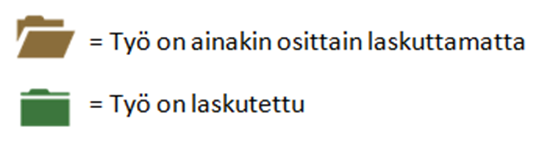
In the Jobs view, it is possible to view the invoicing status of work items and tasks. The symbols in the listing have the following meanings:
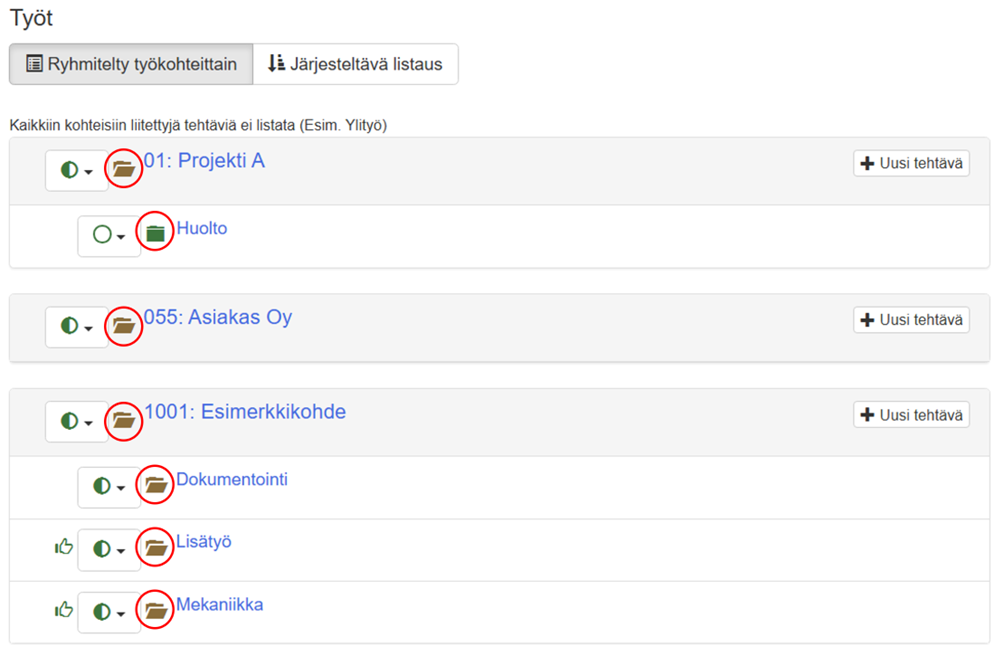
Picture Work-view, where some of the items have been invoiced and some are at least partially uninvoiced:
Making invoice receipts in the work item report #
First, create a work item report:
- Open Reports-view
- Select from the left side Work site report
- Select the work item for which you want to make invoice receipts
- Select a period The whole history, if you want to invoice for all work.
- Click Create a report
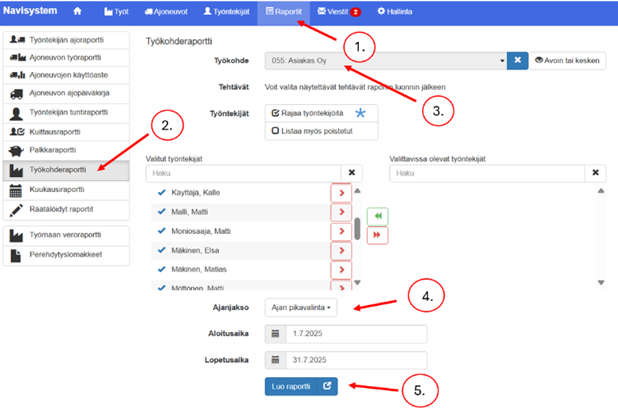
If necessary, select the task to be invoiced. If no task is selected, all entries for the work item will be displayed in the report.
Tee seuraavaksi laskutuskuittaukset työkohderaporttiin seuraavalla tavalla:
- Press Kfloats –button
- Confirm the jobs as invoiced by checking the checkboxes one row at a time. The Invoice Confirmations column has this symbol:
- Voit myös kuitata kaikki kohteen työt laskutetuksi laittamalla ruksin ylimpään laatikkoon
- Finally, press Save selected receipts
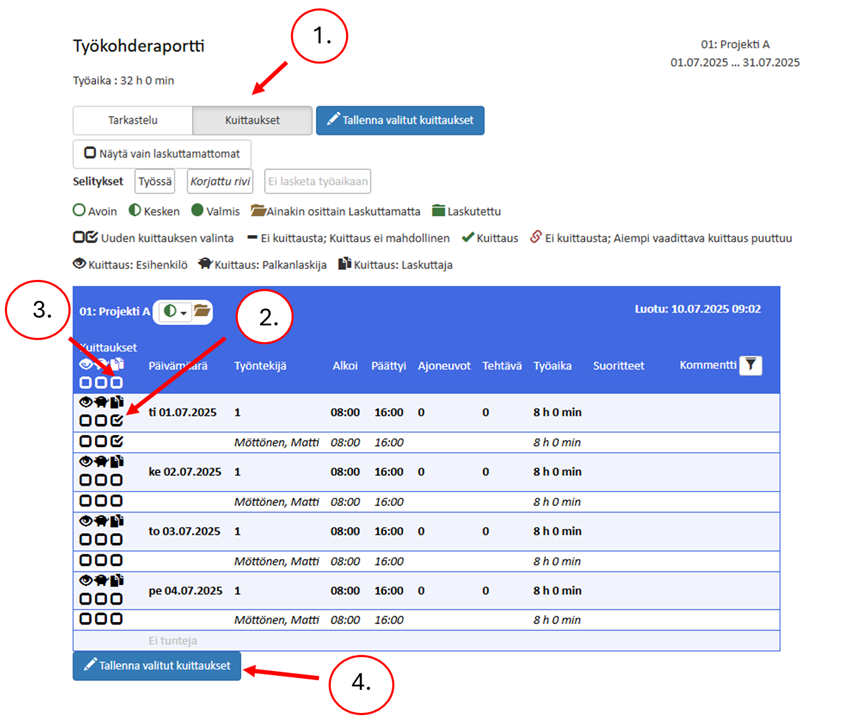
Note! The color of the billing folder changes to green only if the work done on the work item or task has been all marked as invoiced!

Marking a job as complete #
It is recommended to mark a work item as complete only when the work item has been fully invoiced and no more hours will be entered into it. Once a work item is marked complete, it disappears. Work-from the default listing of the view. Completed jobs appear in the listing of already marked work items.
The status of work items is indicated by symbols as follows.

There are two ways to mark a work item as complete:
- Open Work-view
- Click on the task you want to mark as complete.
- Select Edit
- Change Status-selection by selecting the mode Ready
- Finally, select Save
OR
- Open Work-view
- Click on the task Acknowledge completed –button
- Select Open, In Progress, or Completed as the status.
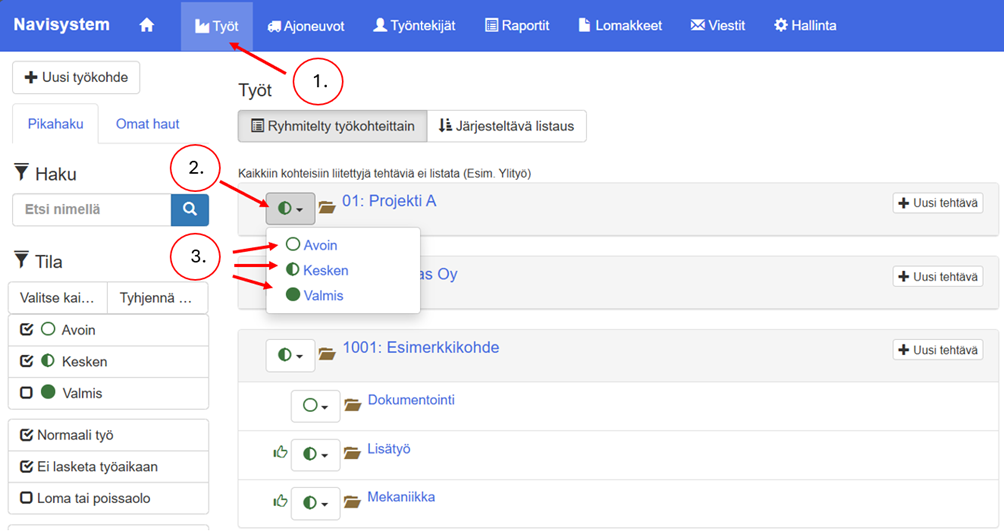
Kun työ on merkitty valmiiksi, se katoaa aktiivisesta työlistauksesta. Valmiiksi merkittyjä töitä voit tarkastella ”Tila”-suodatuksen alla olevalla ”Valmis”-suodatusasetuksen päälle kytkemisellä.
Laskutettavien kilometrien haku #
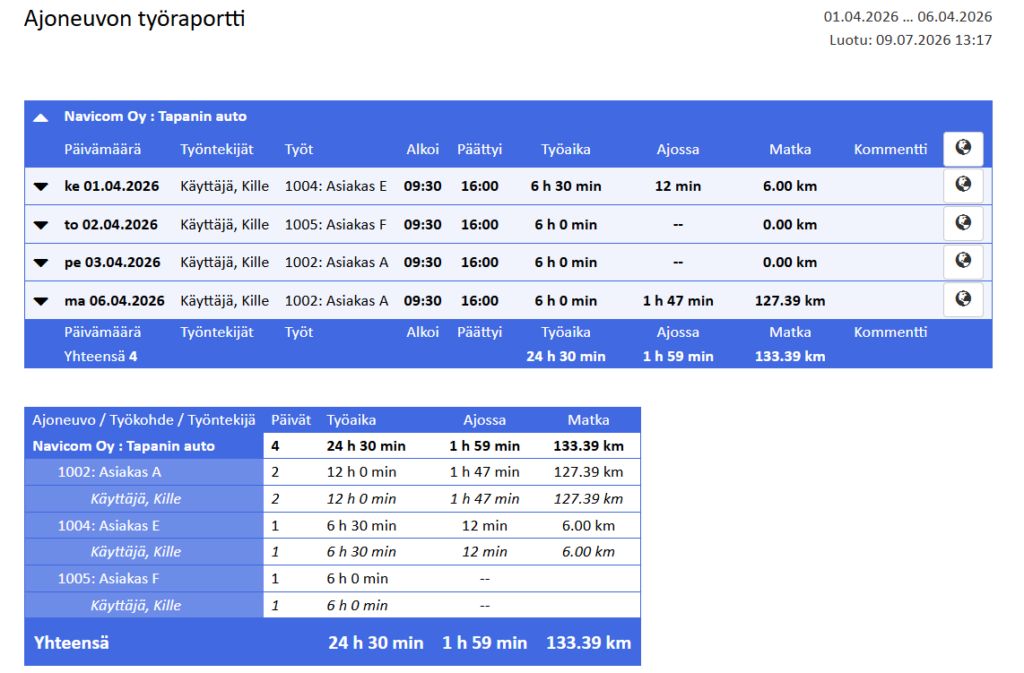
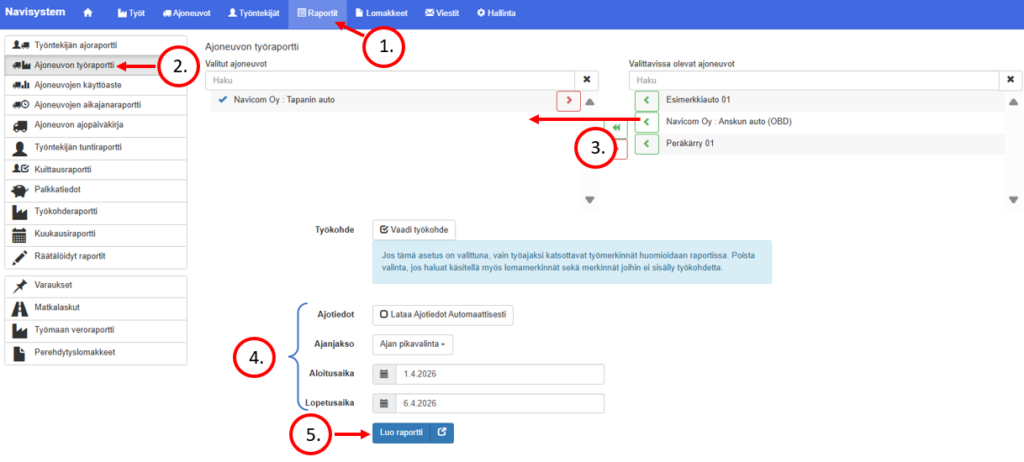
Ajoneuvon työraportin avulla voidaan tarkastella asiakas- tai työkohdekohtaisesti ajettuja kilometrejä. Raportti yhdistää ajoneuvon, työntekijän ja työkohteen tiedot, jolloin laskutettavat kilometrit voidaan erotella luotettavasti laskutusta varten.
- Reportstab
- Vehicle work report
- Valitse ajoneuvo. Varmista että ajoneuvo on ajossa.
- Valitse ajanjakso, jolta haluat laskuttaa
- Create a report
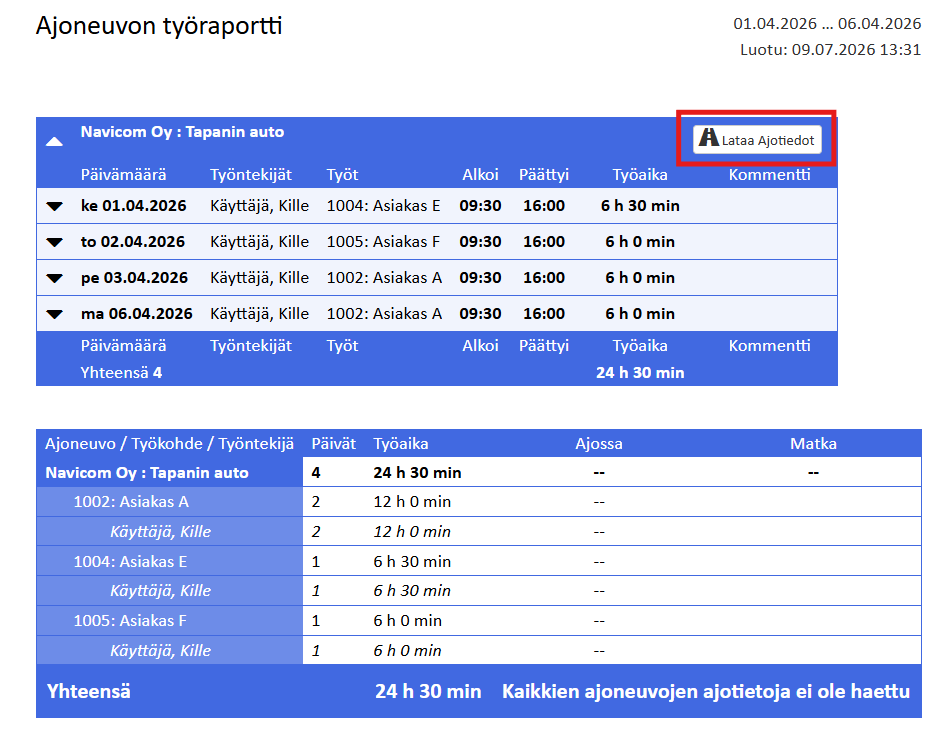
- Press Lataa ajotiedot nähdäksesi kaikki kattavat tiedot
Ajoneuvon työraportin tarkastelu #
Ajoneuvon työraportti kokoaa ajoneuvon työajan, ajoajan ja ajetut kilometrit valitulta ajanjaksolta. Laskutettavat kilometrit voidaan tulkita raportin Matka-sarakkeesta. Päiväkohtaisesta taulukosta nähdään kunkin työpäivän kilometrimäärä, ja raportin alaosan yhteenvedossa kilometrit on koottu työkohteittain ja työntekijöittäin.
Esimerkiksi raportissa työkohteelle 1002: Asiakas A on kertynyt yhteensä 127,39 km, jota voidaan käyttää asiakkaalta laskutettavana kilometrimääränä sovitun laskutuskäytännön mukaisesti. Raportista nähdään lisäksi työn aloitus- ja päättymisajat, työaika, ajossa käytetty aika sekä työpäivien määrä. Kilometerien laskutettavuus tulee aina tarkistaa asiakas- tai projektikohtaisista sopimusehdoista.