

Ajoneuvoja ja lisävarusteita pääset tarkastelemaan verkkopalvelun Conveyance-välilehdellä.
Vehicle management #
Vehicle management is done Possession-tab. You can edit vehicles by selecting Conveyance. Vehicle categories can be created or edited by selecting Vehicle categories. When creating a vehicle class, you specify which roles the vehicles in that class will be visible to. The vehicle class is set for the vehicle, which determines the role visibility.
Create or edit a vehicle class #
Vehicle categories can be added or edited as follows.
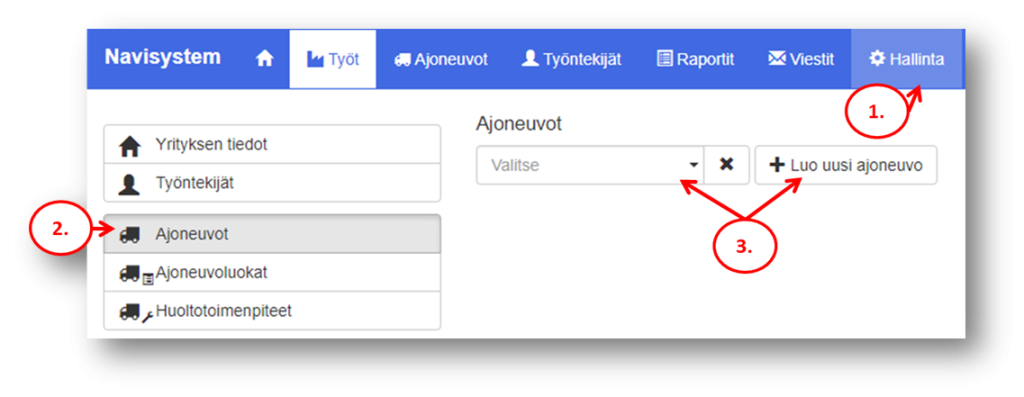
- Select Possession-tab
- Select from the left Conveyance
- Select the vehicle you want to modify from the drop-down menu or alternatively click New vehicle category
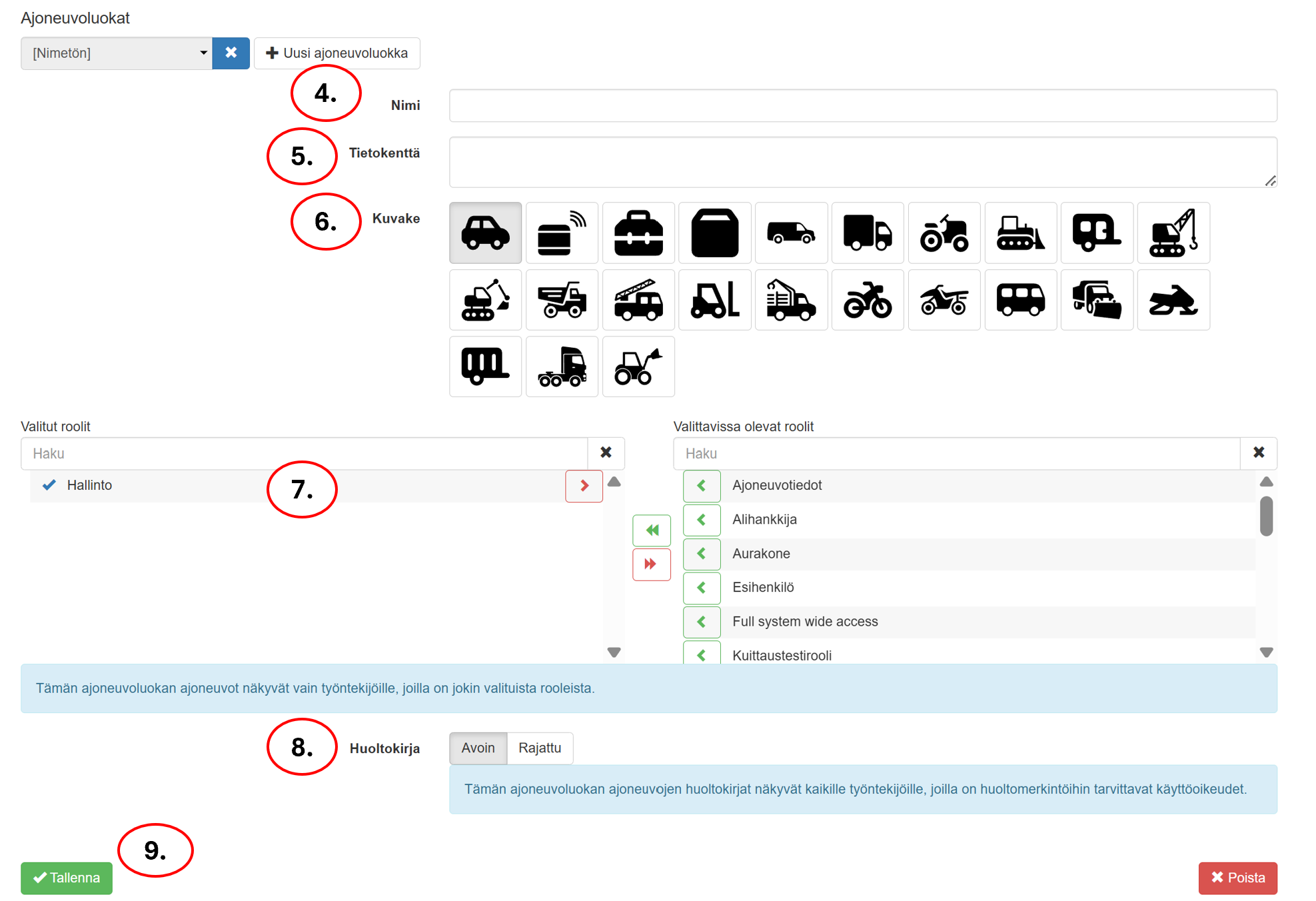
- Name the vehicle class
- You can enter additional information if you wish. To the information field
- Select the icon that will be used to display vehicles in the vehicle category on Navisystem's map views.
- Select all user roles on the left that you want to see vehicles in this vehicle category.
- If you have access to the vehicle maintenance diary service, select Open if you want the vehicle maintenance manager to have access to the maintenance log for vehicles in this vehicle category.
- Select Open maintenance book, if you want the maintenance books of vehicles in the vehicle category to be visible to all employees who have the necessary access rights for maintenance entries.
- Select Limited if you want the vehicle class's maintenance records to be visible to all employees who have the necessary permissions to make maintenance entries and one of the roles for this vehicle class (according to the settings in the image, it should be Administration role to be able to see the maintenance log for this vehicle category).
- Finally, confirm your selections by pressing Save
Ajojen yhdistäminen #
Toiminnallisuuden avulla voidaan yhdistää peräkkäiset ajot yhdeksi ajoriviksi, jos niiden välinen pysähdys on määritettyä aikarajaa lyhyempi. Asetus voidaan määrittää yrityskohtaisesti sekä tarvittaessa ajoneuvokohtaisesti, jolloin ajoneuvokohtainen asetus ohittaa yrityksen oletusasetuksen. Yhdistetyille ajoille tehtävät tila- ja kommenttimuutokset kohdistetaan kaikkiin alkuperäisiin ajoriveihin, jotta tiedot säilyvät myös yhdistämisasetusta muutettaessa.
Ajojen yhdistäminen yksittäiselle ajoneuvolle: Ajoneuvot-välilehti > Valitse haluamasi ajoneuvo > Edit > Advanced settings > Etsi kohta Yhdistä ajoja, jos niiden väli on lyhyt > Aseta kenttään haluamasi aika minuutteina > Save

Vinkki: Mikäli haluat kaikille ajoneuvoille soveltaa samaa asetusta, tee asetus seuraavasti: Possession-tab > Company information > Advanced settings > Etsi kohta Yhdistä ajoja, jos niiden väli on lyhyt > Aseta kenttään haluamasi aika minuutteina > Save muutokset
Modifying vehicle settings #
You can edit vehicles as follows:
- Select Possession-tab
- Select from the left Conveyance
- Select the vehicle you want to modify from the drop-down menu (or alternatively create a new vehicle)
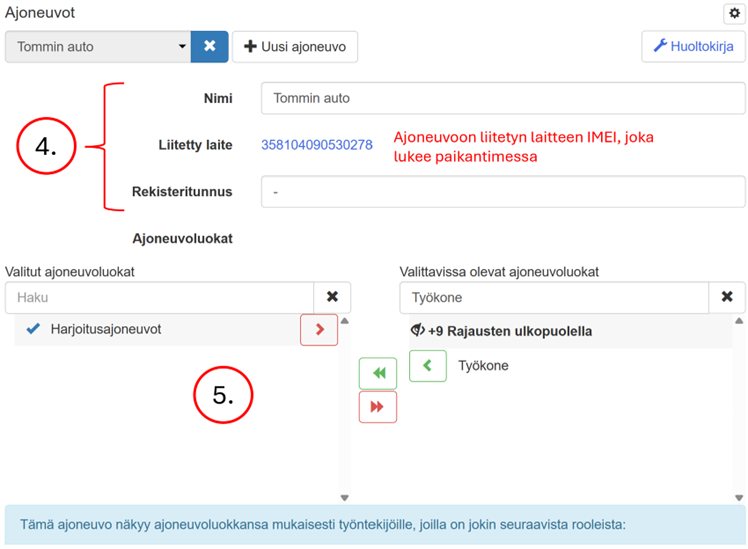
- Name the vehicle, enter the registration number and phone number if necessary
- Select the vehicle categories the vehicle belongs to. Below the field you can see which roles the vehicle appears for in the selected vehicle categories.
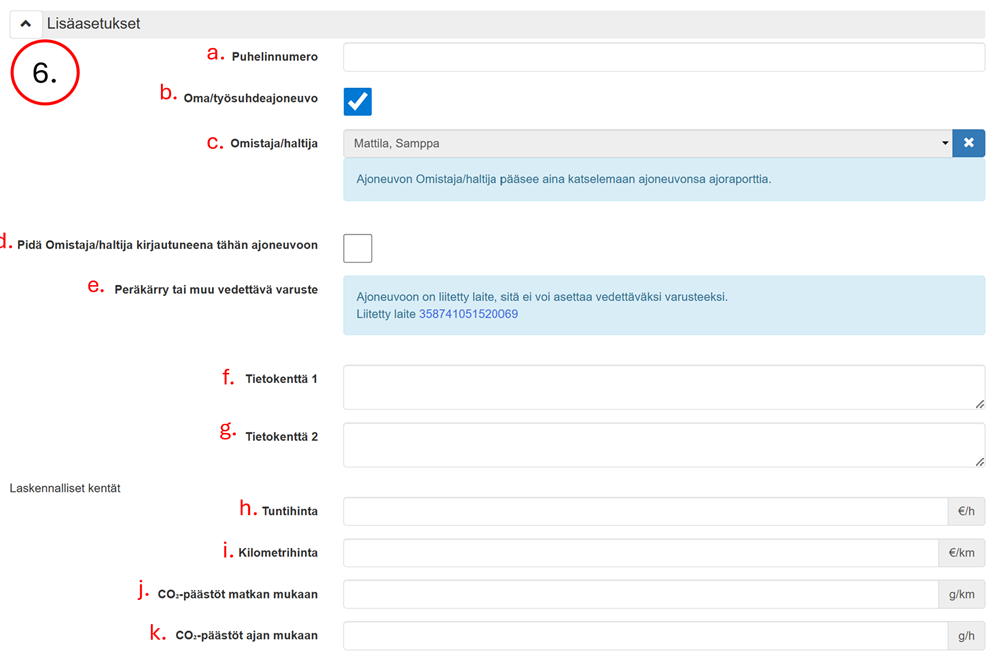
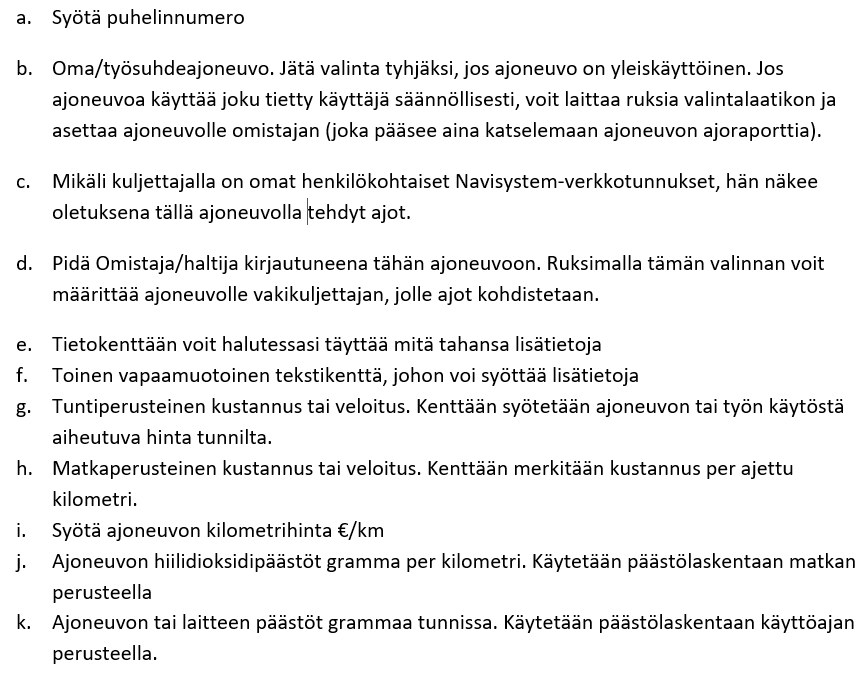
- Advanced settings: These fields are optional, meaning you are not required to enter information.
- Finally, press Save
Adding an accessory #
The accessory is added as follows:
- Select Possessiontab
- Select from the left Conveyance
- Select Create a new vehicle
- Give the vehicle a name, other fields are optional.
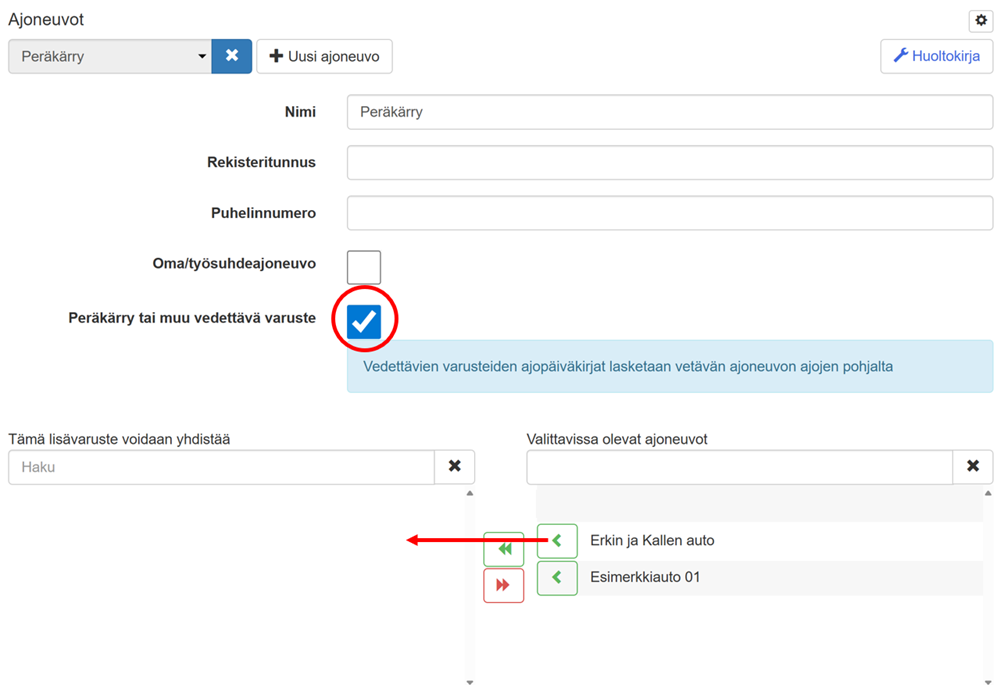
- Put a check mark in the selection box. Trailer or other towed equipment
- Finally, select the vehicles to which the accessory can be attached (if you do not connect any vehicle, the accessory can be attached to any vehicle)
- Finally, press Save
Vehicle maintenance log #
The vehicle maintenance diary works in such a way that the vehicle's maintainer and/or the Navisystem Administrator adds maintenance types, maintenance reminders and monitors the performance of maintenance procedures, thereby maintaining an up-to-date vehicle maintenance diary.
It is a good idea to enter all maintenance types in the vehicle maintenance log before the vehicle maintenance person(s) starts performing maintenance procedures and the related maintenance entries. Once the maintenance types used by the company have been added to the system, the vehicle maintenance person can make entries in the maintenance log. Therefore, make sure that the service is initialized correctly before deployment. The following sections of this guide will help you determine the correct system settings.
Below are descriptions of the different areas of maintenance log service initialization:
- Maintenance procedures/types of maintenance (e.g. oil change, general maintenance, inspection)
- Planned maintenance measures
- Vehicle maintenance information, i.e. initial kilometers/hours of operation (if desired, you can mark the oils used, etc.)
The user responsible for maintenance will receive a maintenance reminder at the selected time (select: text message, email and/or mobile) and the actions taken after the maintenance must be recorded in Navisystem either using the mobile or web application. We recommend marking the maintenance as completed (and adding additional maintenance-related information if necessary) in your own mobile application as the application notifies you of upcoming maintenance.
The Navisystem web application automatically reminds the maintenance technician if a service is due within the next 30 days or if the service is already overdue. This ensures that the vehicle's maintenance remains up-to-date and on schedule.
Adding a vehicle maintenance procedure #
Maintenance types must be added to the vehicle maintenance diary service before creating a maintenance reminder. First, enter the maintenance procedures that your company wants to perform on vehicles. Maintenance can be marked as completed in both the mobile and web applications.
Adding a service type:
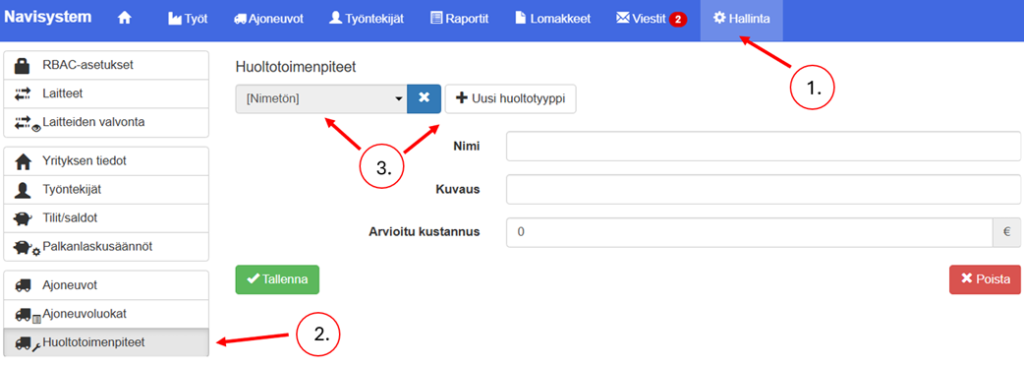
Option 1: Click on the Vehicle Maintenance Booklet in the top right corner. New maintenance type –button and name the maintenance to be performed.
OR
Option 2: Go to Navisystem: Administration > Maintenance operations > New maintenance type
Add vehicle maintenance procedures/types to the system (e.g. oil change, general maintenance, inspection)
Opening the service book #
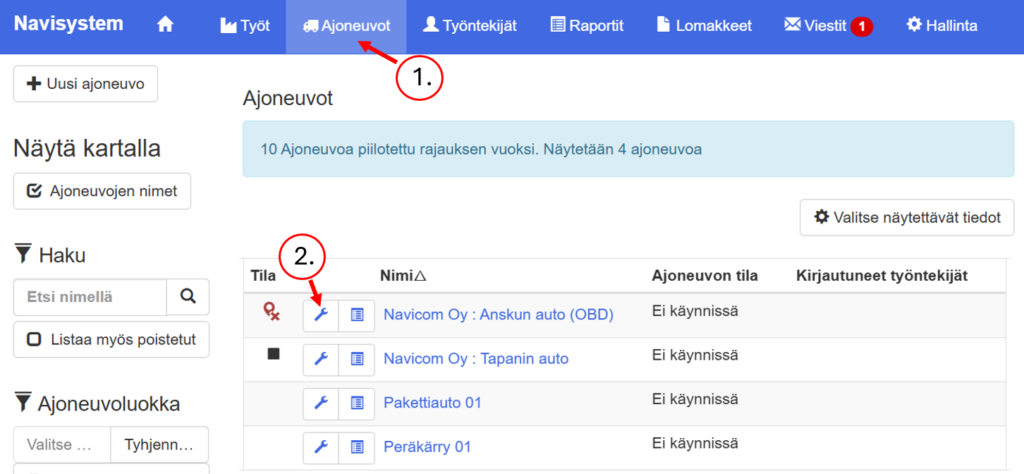
- Select Vehicles tab
- Click the wrench icon: you can view vehicle-specific maintenance information and make maintenance repairs.
Maintenance reminders #
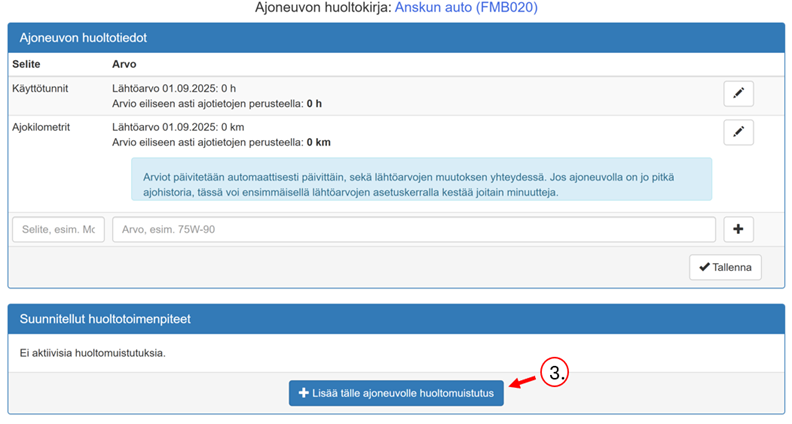
In the vehicle maintenance book, you can set automatic maintenance reminders for vehicles as follows:
- Open Conveyancetab
- Select the vehicle you want and open its service book by clicking the wrench icon next to the vehicle.
- Click Add a service reminder for this vehicle button
- Select a maintenance action, automatic maintenance reminders can be set on three different bases (Note! Filling in the fields is not mandatory)
- a. By time: select the checkbox and text
- b. By operating hours
- c. According to mileage
- If you wish, you can enter the necessary information in the additional information field.
- Enter the estimated cost of the maintenance procedure in the estimated cost field.
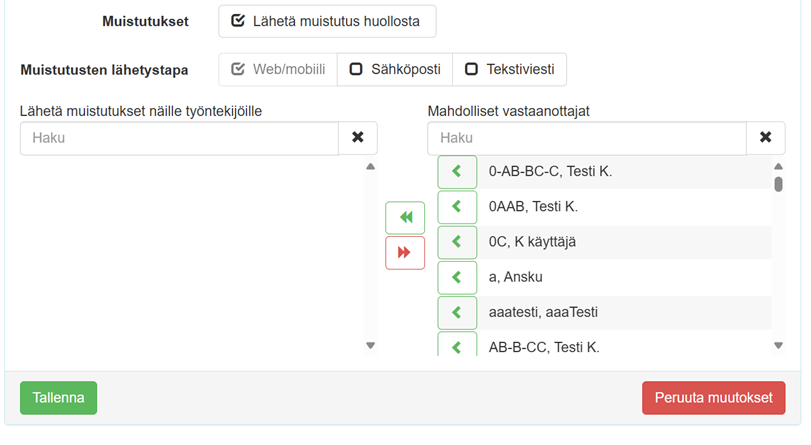
- fill in the blank Send a maintenance reminder if you want to receive a reminder about maintenance
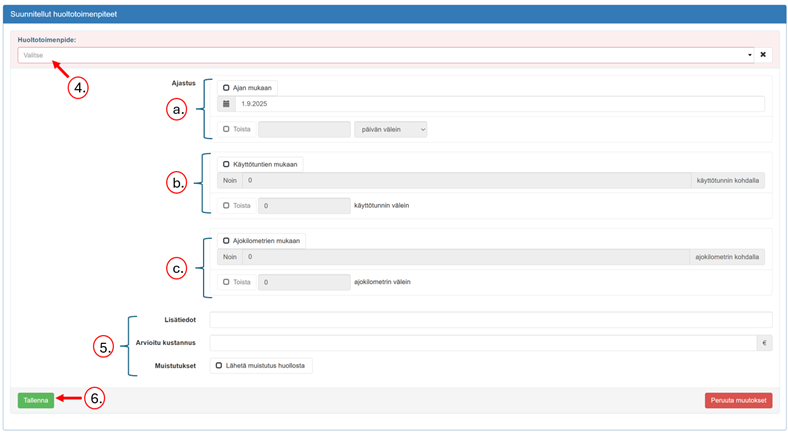
Select the maintenance to be performed (type of maintenance)
AND
Set a maintenance reminder (optional item)
Overdue and upcoming maintenance #
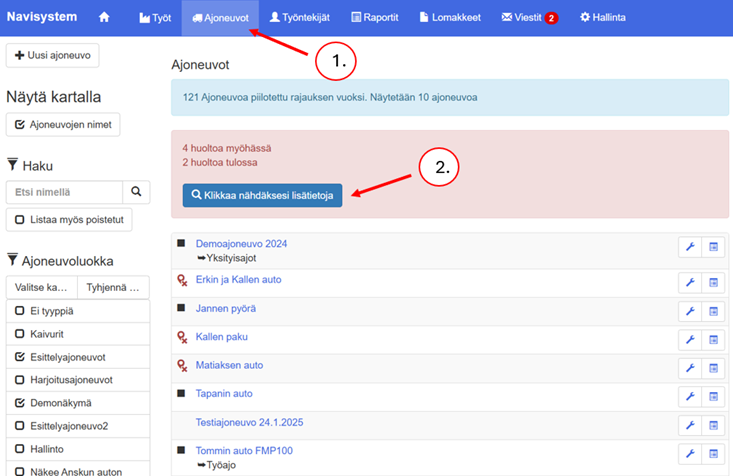
- Select Vehicles tab
- Press Click to see more information
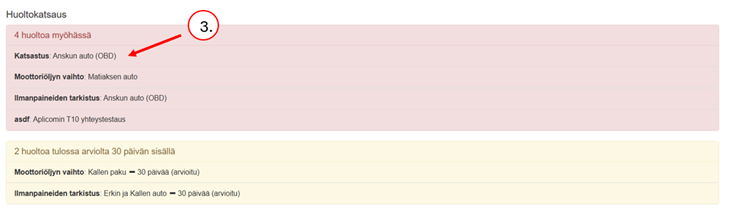
- You can see directly which maintenance is overdue (with a red background) and which is coming up (with a yellow background). Click on the vehicle you want. This will take you directly to the vehicle that requires maintenance.
Vehicle maintenance book maintenance history #
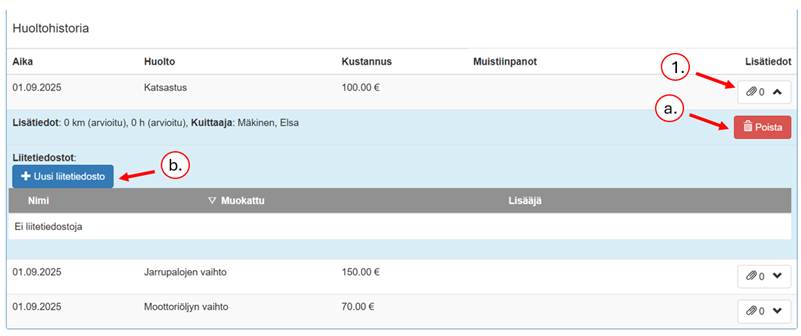
In the maintenance history, you can see what maintenance records have been made for the vehicle, at what time, the costs and any notes.
- You can view more information by clicking on the safety pin symbol.
a. you can delete maintenance entries using the delete button
b. you can add an attachment by pressing New attachment
Vehicle maintenance registration in the online service #
Log in with your username and password at www.navisystem.fi
- Select Conveyancetab
- Click the wrench icon on the row of the vehicle you want to make a maintenance entry for
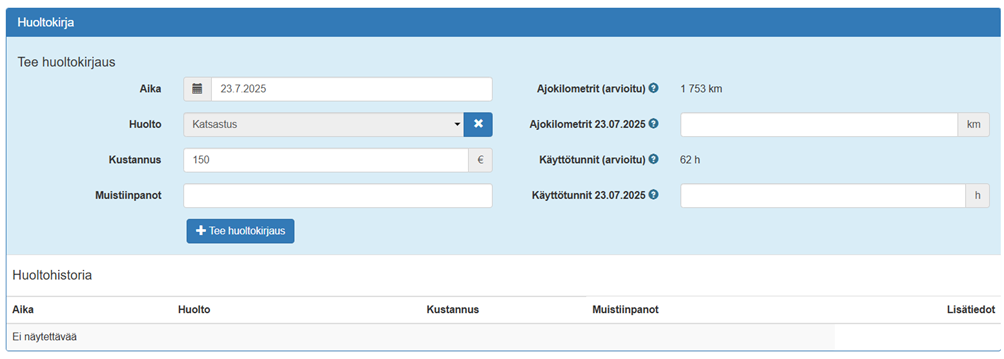
- Scroll to section Make a Maintenance Log
Mark the vehicle as a maintenance repair if the vehicle's fault or deficiency has been repaired.
Time: Select the date the maintenance was performed or is recorded as having occurred. The date will be visible in the maintenance history.
Maintenance: Select the type of maintenance from the drop-down menu, for example inspection or oil change. This will tell you what the procedure involves.
Cost: Enter the maintenance costs in euros without the currency symbol. Used for cost tracking.
Notes: If necessary, write additional information about the maintenance, such as observations, actions taken, or comments.
Mileage (estimated): The system automatically estimates the mileage based on driving data for the selected date.
Mileage: If desired, fill in the value for the maintenance time. If filled in, the initial value of the maintenance data will be updated to this date and value, so future estimates of total quantities will be based on this.
Operating hours (estimated): The system's estimate of the device's operating time in hours based on driving data for the selected day.
Operating hours: If desired, fill in the value for the maintenance time. If filled in, the initial value of the maintenance data will be updated to this date and value, so future estimates of total quantities will be based on this.
Make a maintenance entry button: Save the entered information as a new entry in the service log. Make sure all required fields are filled in before saving.
Maintenance procedures #
Maintenance procedures for vehicles must be entered into the system and marked as completed after maintenance. Maintenance can be marked as completed on a mobile device, tablet or desktop computer. Only employees who have been granted the necessary access rights to use the maintenance service are allowed to make maintenance entries. Send the guardian a personal mobile login link to the navisystem mobile system, if it has not already been sent to navigate to 4.3 Sending a mobile ID).
Adding the Maintenance Marking role: Workforce-tab > Edit > choose a role > Maintenance notes
Note! This role is requested separately from customer support myynti@navicom.fi
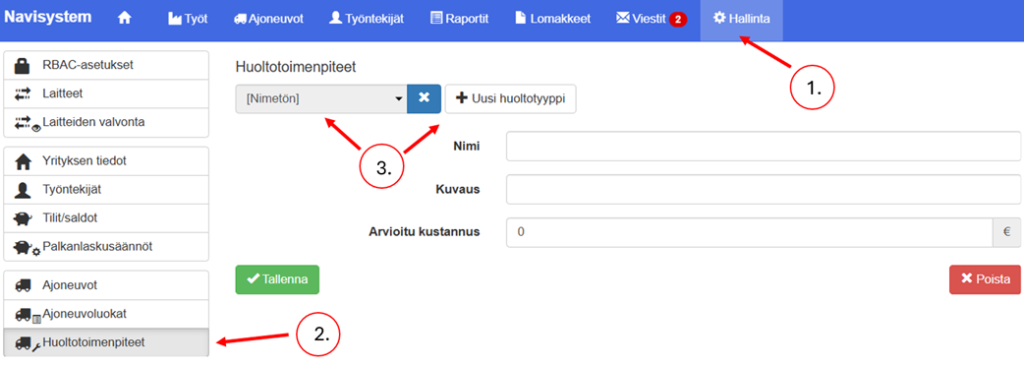
Adding a maintenance action to the system #
Click on the Vehicle Maintenance Booklet in the top right corner. New maintenance typebutton and name the maintenance to be performed.
OR
- Possession – tab
- Maintenance procedures
- New maintenance type
- Add vehicle maintenance procedures to the system
Vehicle maintenance registration in the mobile application #
Make sure that the mobile application has been activated for the Navisystem user responsible for maintenance, i.e. a login link has been sent to the mobile device and the maintenance entries have been authorized.
Note! Administrator: if necessary, contact Navicom customer support regarding rights. myynti@navicom.fi
Adding a maintenance event in the mobile app
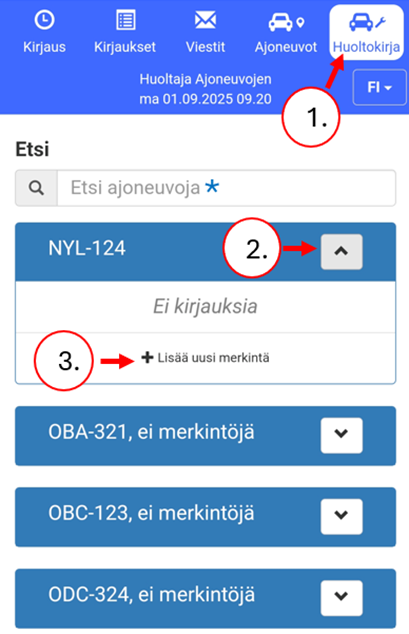
- The service book view in the mobile app opens by clicking on the service book in the upper right corner.
Note! Make sure the employee is assigned the maintenance book role in the employee settings.
- Select the vehicle you want to service and click the arrow next to it.
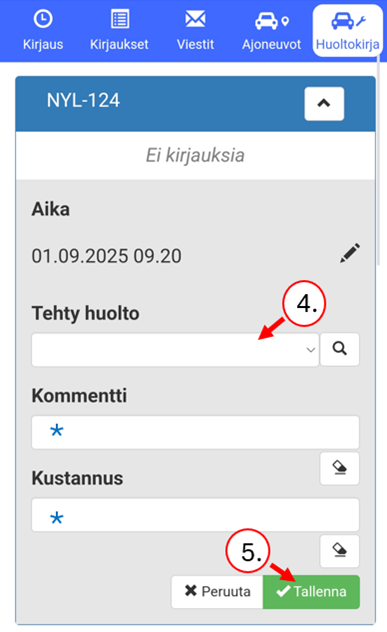
- Click Add new entry
- Select service
- Confirm entries by pressing Save