

In Navisystem, attachments can be saved in both the mobile and web applications. The administrator is recommended to view attachments in work item and task information. If the functionality is hidden from a user group, the service will be activated by Navicom customer support. Please contact your sales representative or (myynti@navicom.fi) I am interested in using attachments for timekeeping.
Enabling the attachment service #
Make sure that the attachment service is activated for your company before you start configuring attachment settings.
Implementing the attachment service includes the following steps:
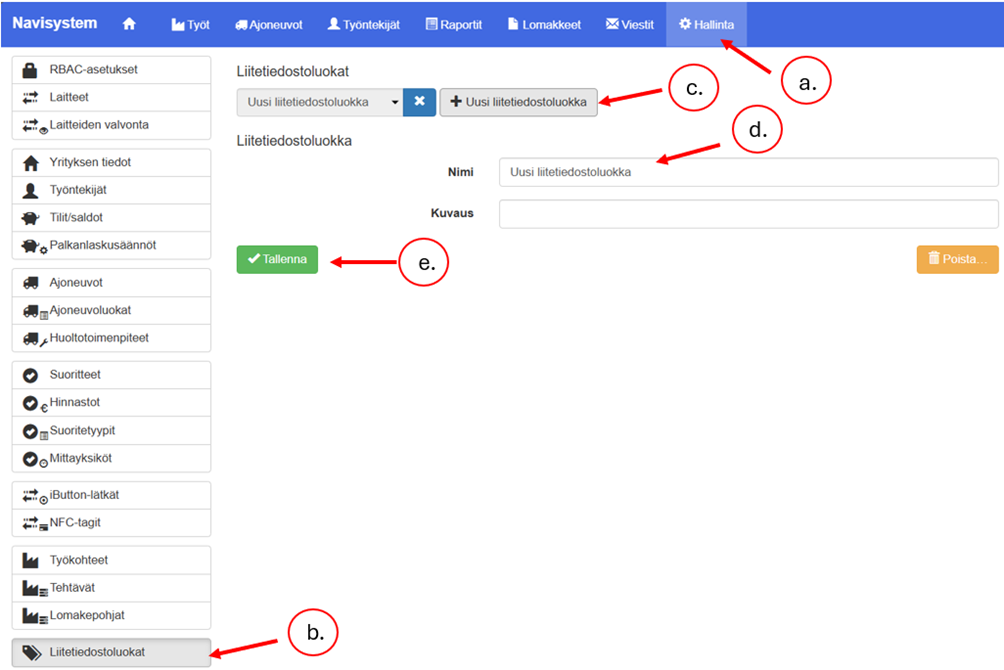
- Open the Management tab
- Select from the left side Attachment categories
- Press New attachment category.
- Enter a name for the attachment category.
- Finally, press Save
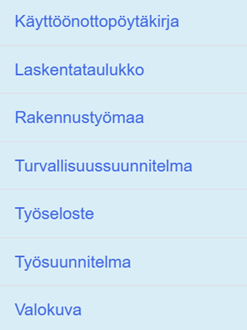
Dividing attachments into their own categories makes it easier to review attachments later. The image lists some possible name options for attachment categories.
Saving an attachment in an online service #
The attachment is saved either to the work item or to the task.
Saving an attachment to a task:
- Jobs tab
- Select a task (which is associated with a work item)
- Edit
- Find a point Attachments
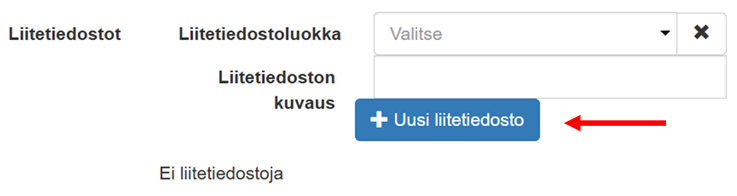
- Click New attachment button
- Select the file you want to attach to the task
To save an attachment to a work item:
- Open Worktab
- Select a job
- Press Editbutton
- Find a point Attachments
- Press New attachment
- Select the file you want to attach to the work item.
Deleting an attachment #
In the work item and task details, you can view and delete attachments saved to the item:
- Open Worktab
- Select a job
- Press Editbutton
- Find a point Attachments
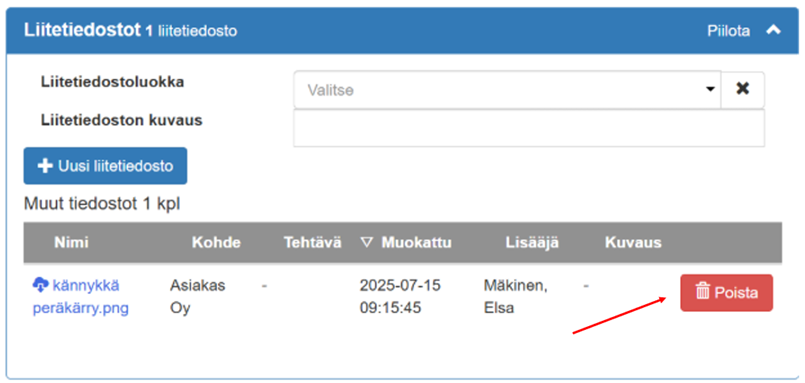
- To see more details about the attachment, press the arrow
- Click on the attachment you want to delete. Delete
Note! If you can't save the image, one of the most common reasons is that the file size is too large.
Saving an attachment in the mobile service #
Attachments are saved to the work item or task Attachmentssection, which is displayed to the employee during time clocking. The service requires access rights to be visible in the mobile app, so make sure that employees have the necessary access rights activated. If necessary, contact your sales representative or the address myynti@navicom.fi
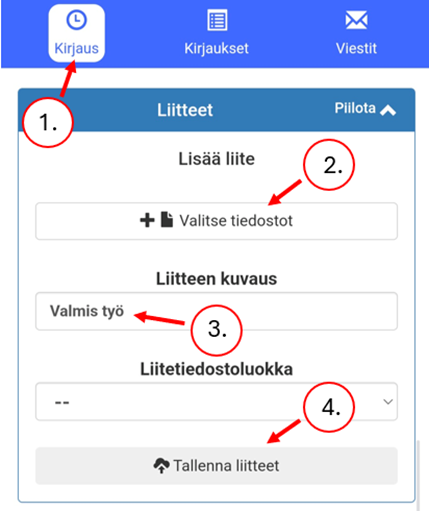
Adding an attachment to the mobile service is done as follows:
- Add a description of the attachment if necessary.
- From the drop-down bar, select the attachment category you want to associate the attachment with.
- Press Save new attachment and select the file you want to save
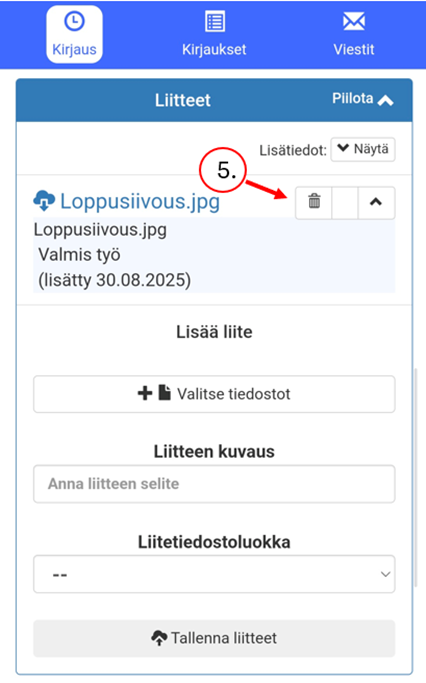
- The file saved for the job appears on the screen as shown in the image.
- You can delete a file by double-clicking the trash can icon.
Note! Attachment categories appear in this view only if they have been defined in the web service (Administration > Attachment Categories > Create a new attachment category)