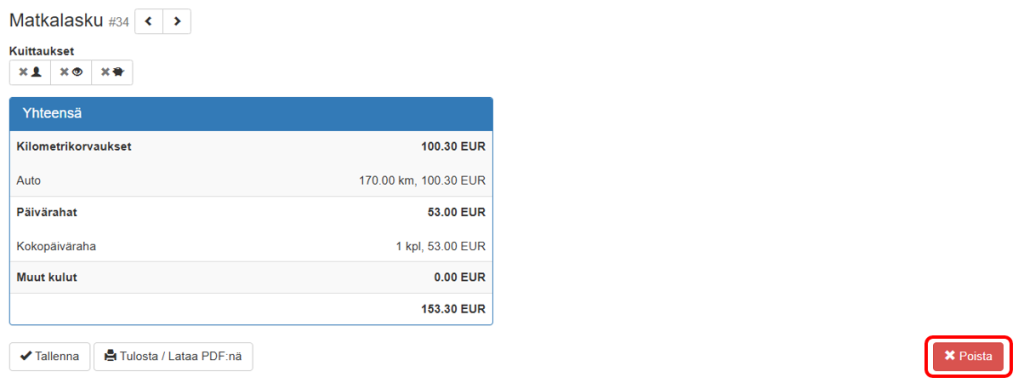


The travel invoice service is an electronic system that allows employees to easily report and claim reimbursements for work trips, such as mileage reimbursements and daily allowances. The service automatically saves driving information in the driving logbook and helps with entering the information into the travel invoice template, and calculates daily allowances if necessary. It is also easy to add trips and expenses to the travel invoice template yourself, and it can be created either from scratch or driving logbook data by.
Per diems recorded on a travel invoice can be calculated automatically based on distance and time requirements when a travel invoice is created based on a driving logbook. The system takes into account distance requirements between home and the actual place of work (optional setting). Based on these distance and time requirements, the service automatically adds per diems. If multiple work trips have been made in the same time period, a separate travel invoice is created for each one according to the distance requirements.
Per diems are used by default in travel invoices. normal calculation method, which follows the guidelines of the Tax Administration. In this case, a daily allowance can be paid if the employee goes outside the distance limits during the working day. In the alternative In this calculation method, daily allowance can only be paid if the employee stays outside the distance limits for the entire required time. Choose the calculation method that best suits the practices of your organization or industry. If you are unsure which method to use, contact your tax authority.
There are three different access levels that can be assigned to a user. The most common access levels are:
- Administrative user sees all users' travel invoices.
- Employee/Basic User only sees their own travel expenses
- Predecessor sees the travel expenses of his subordinates
Note! If you need license customization, please contact Navicom customer support at sales@navicom.fi
Determining your home address and actual workplace #
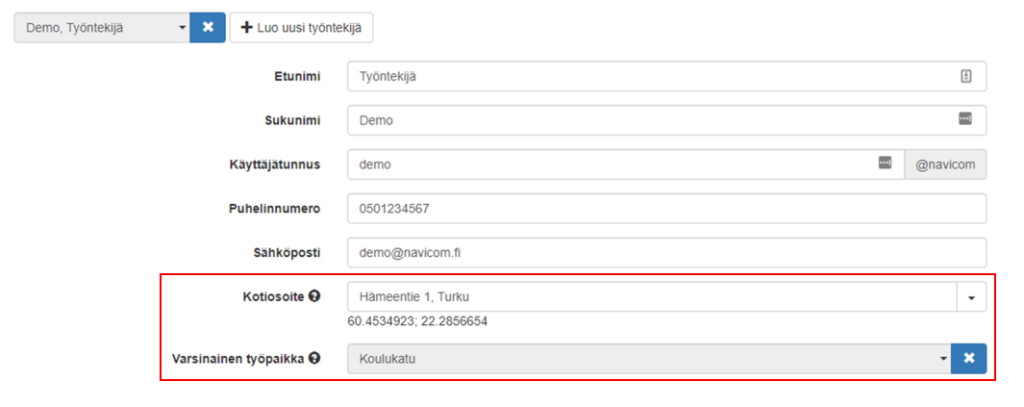
In order for daily allowances to be automatically created for travel invoices based on the information in the driving logbook, the employee's information must include both: home address that actual workplace.
The home address and actual workplace are added to the employee's information as follows:
- Open Employeestab
- Select an employee from the list
- Press Edit
- Enter your home address and actual place of work.
- Press Save
Note! Only administrative users can specify an employee's home address and actual workplace.
Creating travel invoices based on the driving log #
When creating a travel diary, the distance requirements to home and the actual place of work (optional) are taken into account. Daily allowances are automatically added based on the distance and time requirements.
Note! Please make sure that work and private trips are separated before you start creating travel invoices.
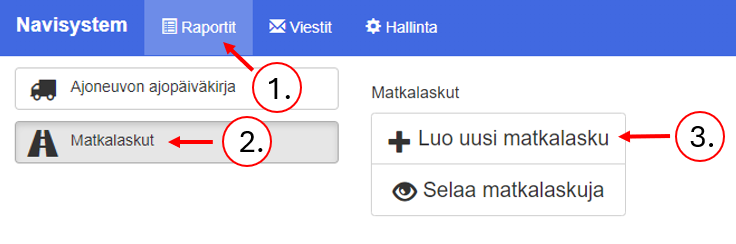
- Open Reportstab
- Press travel expenses
- Click Create a new travel invoice
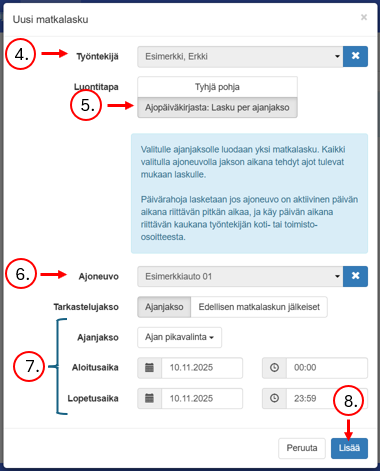
- Select an employee. (For basic users, a travel invoice is always created for themselves.)
- Choose a creation method From the driving log: Invoice per period.
- Select a vehicle. (The vehicle list only shows vehicles that the user has permission to view.)
- Select review period
- Click More
Adding mandatory additional information to a travel invoice #
- Press Show them now, so you can immediately view the created travel invoice
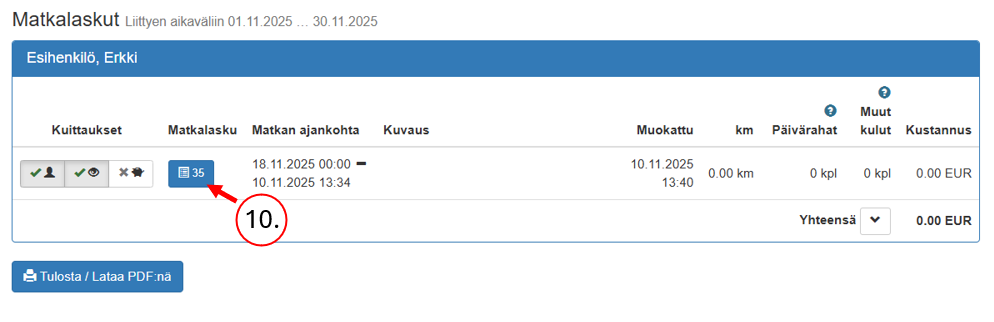
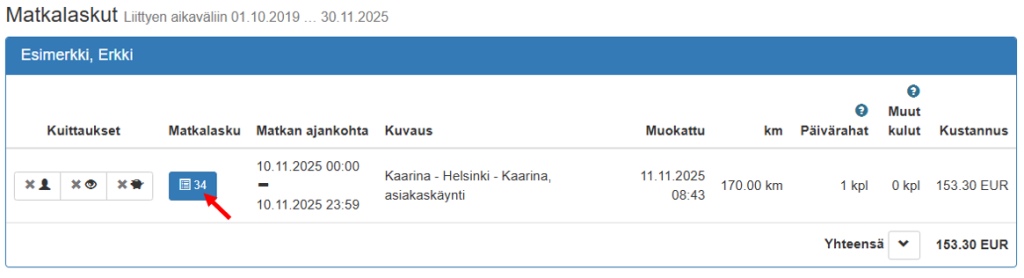
- Open travel invoices from the travel invoice button
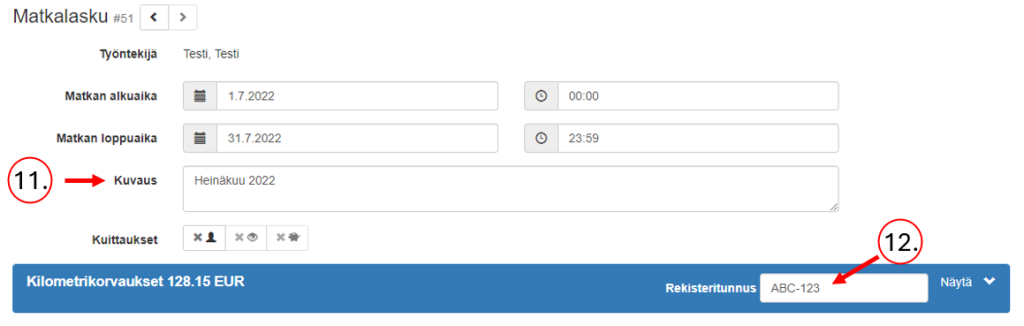
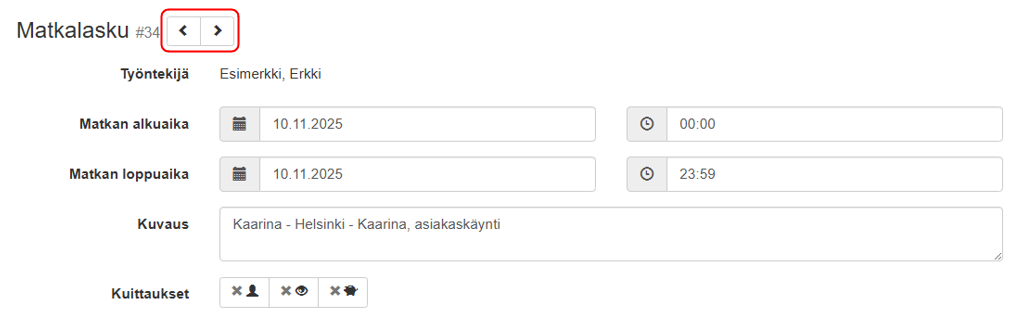
- Enter description
- Enter the registration number or registration numbers

Creating travel invoices from scratch #
- Open Reportstab
- Press travel expenses
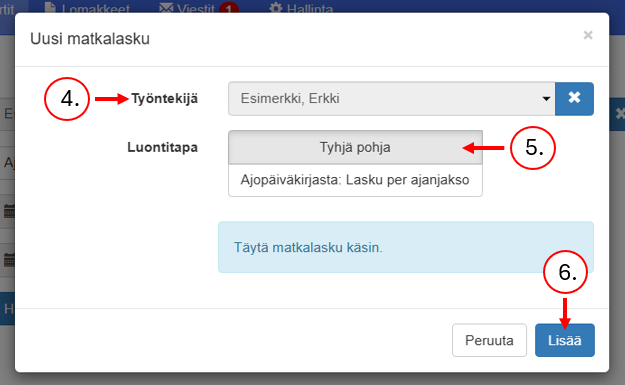
- Click Create a new travel invoice
- Select employee
- Select creation method Empty base
- Click More
Note! When using a blank template, travel distance requirements are not compared and daily allowances are not automatically added to the travel invoice.
Viewing created travel invoices in list view #
This is how you can view travel invoices:
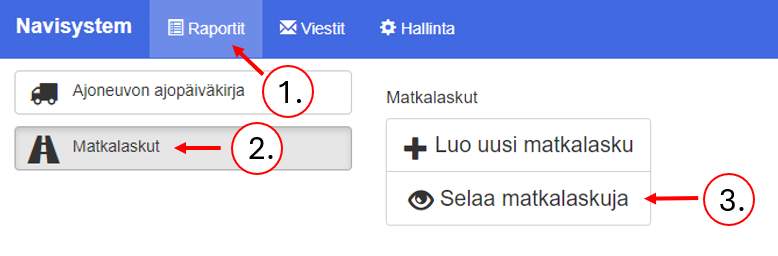
- Open Reportstab
- Open travel expenses
- Click Browse travel invoices
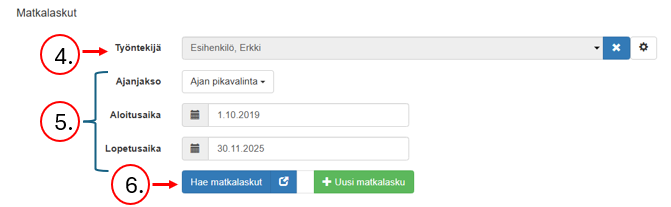
- Select employee
- Select a time interval
- Press Search for travel invoices
Tip! Without employee selection, you will see all travel invoices that you are entitled to see.
Travel invoice receipts #
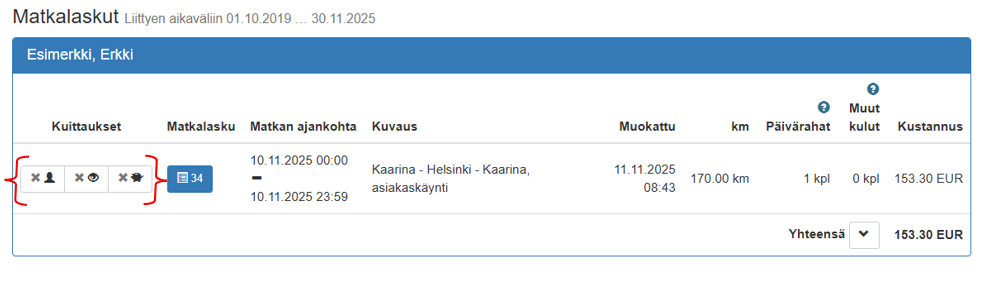
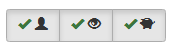
You can view and make a travel invoice acknowledgement by pressing the acknowledgement button corresponding to your position. The acknowledgement buttons have three different meanings:
- Employee acknowledgement (left side)
- Supervisor's acknowledgement (middle)
- Payroll clerk's acknowledgement (right-hand side)
Opening a travel invoice for viewing and editing #
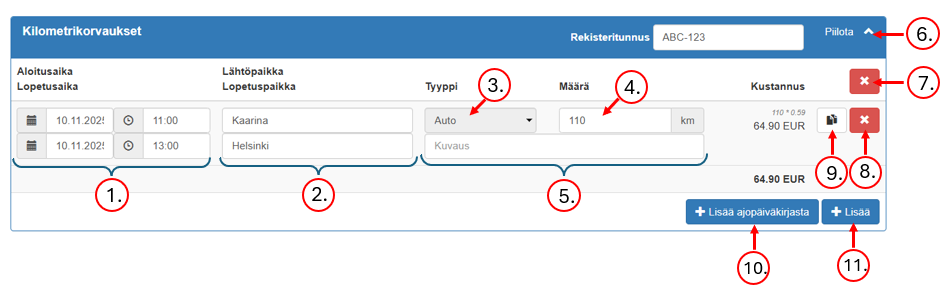
Mileage reimbursements #
- Mark the period and time of day when the ride will take place
- Specify the starting location in the first field and the ending location in the next field
- Add vehicle type
- Report mileage
Optional functions:
- Add a driving license
- Hide mileage reimbursements
- Delete all rows
- Poista ajorivi
- Kopioi ajorivi (Rivin kopiointi on hyödyllistä, jos sinun on tarve lisät kilometrikorvaukset esim. peräkärry).
- Add mileage reimbursements from the driving log (only if the user has permission)
- Add a new blank line where you can add a new mileage allowance (only if the user has permission)
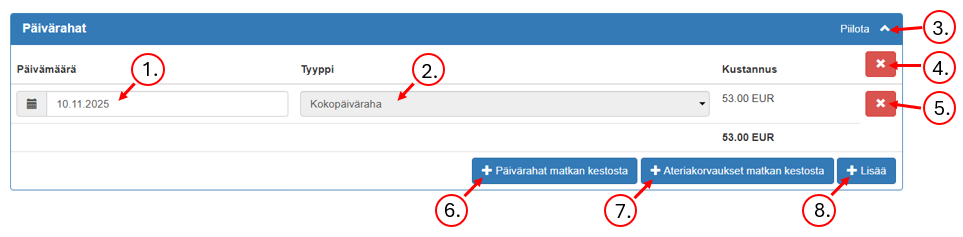
Daily allowance #
- Set a time
- Add the type of item, e.g. full-time allowance, meal allowance, accommodation allowance, half-day allowance
Optional functions:
- Hide Päivärahat-osion
- Poista kaikki rivit
- Poista vain kyseinen rivi
- Automatically calculates daily allowance based on trip duration
- Automatically includes meal allowance in the price based on the duration of the trip.
- Add a new blank line
Note! Daily allowances and meal allowances can also be added manually if the user has the right to do so.
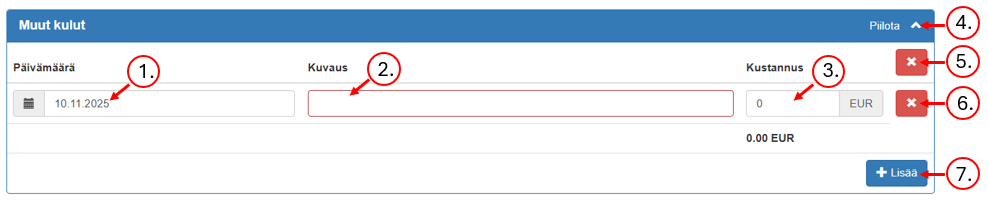
Other expenses #
- Set a time
- Enter a detailed explanation or description of the ride in the description field.
- Merkitse Hinta-kenttään kulun kustannus
Optional functions:
- Piilota tai avaa Other expenses-osio
- Poista kaikki rivit
- Poista kyseinen rivi
- Add a new line
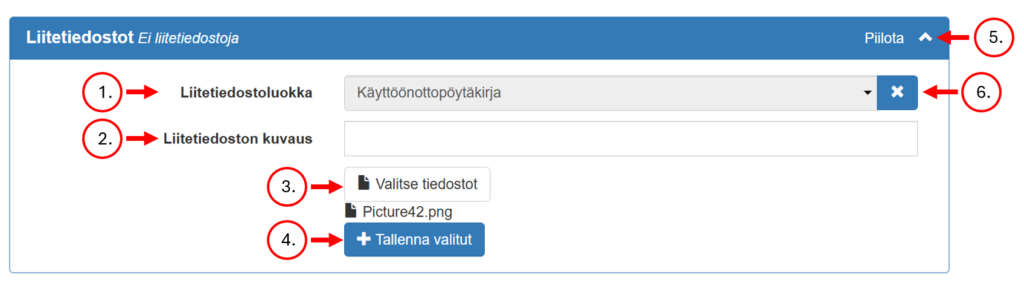
Attachments #
- Valitse liitetiedostoluokka
- Lisää tiedoston kuvaus
- Lataa liitetiedosto Valitse liitetiedosto-from the button
- Tallenna tiedosto Tallenna valitut-painikkeesta
Optional functions:
- Piilotta tai avaa Attachments-osio
- Tyhjentää valinta
- Avaa tai lataa tiedosto
- Poista tiedosto

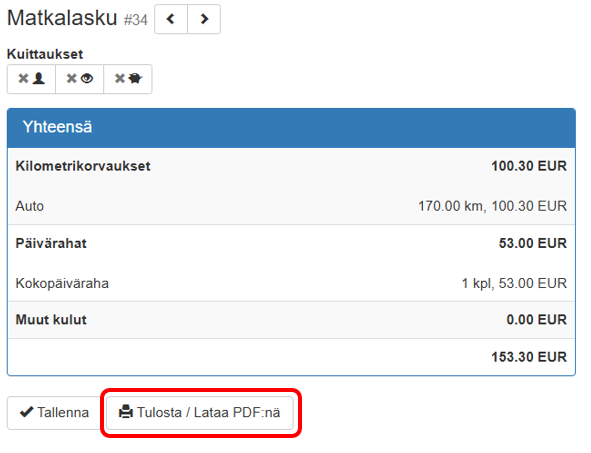
Printing a travel invoice as a PDF file #
Reportstab > travel expenses > Browse travel invoices > Search for travel invoices > press the travel invoice button > Print/Download as PDF
Deleting an incorrect travel invoice in the edit view #
Reportstab > travel expenses > Browse travel invoices > Search for travel invoices > press the travel invoice button > Delete > Confirm deletion