


Sliding balance provides a transparent way to monitor working time flexibility and makes it easier for both the employee and the employer to manage their time. This functionality is activated in Navisystem with the assistance of customer support. myynti@navicom.fiProvide them with a description of the sliding balance calculation required in your company and they will make the necessary system settings for you.
By sliding balance, we mean the balance that an employee accumulates from the hours worked in relation to their agreed working hours.
- Starting point: Regular working hours are defined for each working day. Normal working hours can be, for example, 7 h 30 min or 8 h.
- Tracking: When an employee logs in and out of the system, the program calculates the actual working hours for the day.
- Difference: The difference between actual working hours and regular working hours is recorded in the sliding balance.
- If an employee works more than the agreed working hours, the sliding balance increases to a positive value.
- If fewer working hours are accumulated, the sliding balance will decrease to minus.
- Accumulation: The sliding balance is automatically updated after each day and is visible to the user in their own Navisystem application (mobile and web service).
- Limitations: You can set upper and lower limits for the balance within which the balance can accumulate. Once the limits are reached, the employee cannot increase the balance any further without the approval of their supervisor.
Operating principles.
- The sliding balance is always updated as work clocks are completed, i.e. only after logging out of work.
- An employee's floating balance can be corrected either by editing the working hours in the employee's hourly report or by using the Administration tab. Accounts/Balances-section.
- Navicom customer support will help you configure the slide settings if necessary. Contact us myynti@navicom.fi
Setting up sliding scale #
Make sure that a possible base balance is added to the employee when the system is implemented. The base balance can be added in the section Accounts/balances. The sliding scale is activated for each employee separately from the employee settings:
- Employeestab
- Click on the name of the employee you want.
- Click Edit
- Select the employee you want to assign a sliding role to.
- In the list of selectable roles, select the appropriate sliding role for the employee:
- Finally, save your selections.
Tip! You can use the search function to help you find sliding roles.
Note! If the role does not exist, please contact Navicom customer service (myynti@navicom.fi). If there are multiple roles and you don't know which sliding role to set, please contact your company's administrator first.
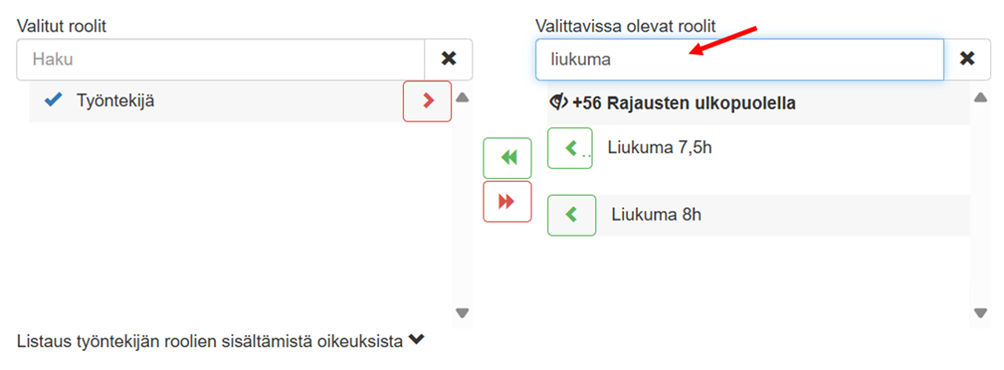
Note! The sliding scale starts as soon as it is set for the employee, so activate the role only on the same day the employee starts to record hours or use role scheduling function.
Note! If necessary, make sure that the appropriate sliding role for the employee is found in the list of selectable roles.
Disabling sliding scale #
If you want to stop an employee from sliding scale, remove the sliding scale role as follows:
- Select Employeestab
- Select the employee whose sliding role you want to remove
- Click on the employee's name.
- Click Edit
- In the list of selectable roles, remove the employee's sliding role(s):
- Finally, save your selections.
Reviewing moving balances #
To view moving averages:
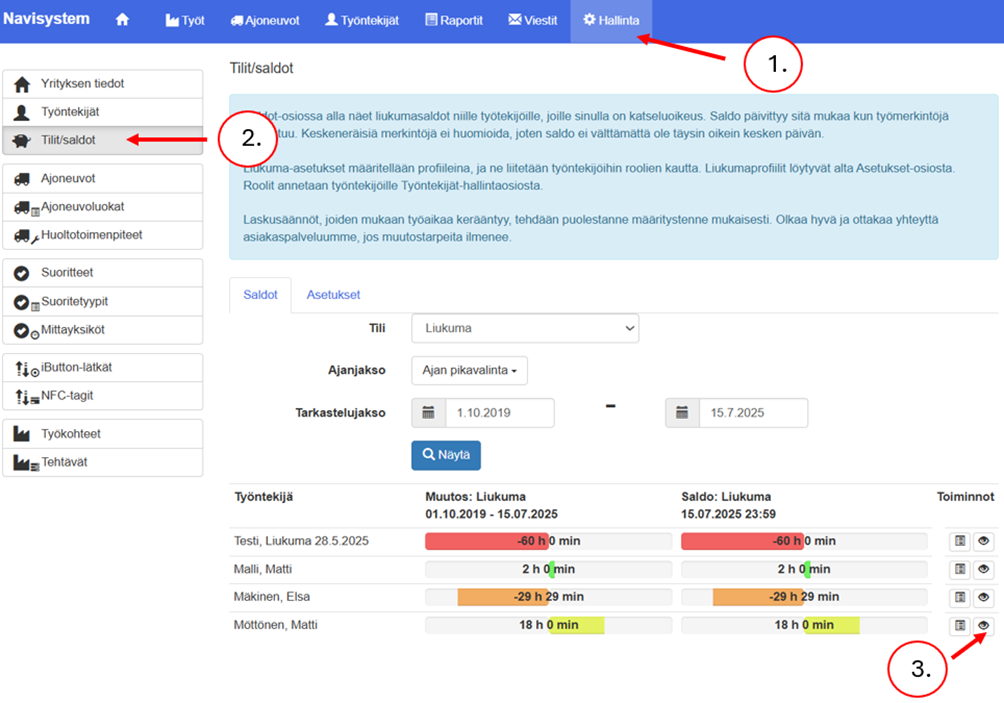
- Select Possession-tab
- Click on the left Accounts/balances
- Click the eye icon next to the desired user to open the time bank balance change history.
Manually editing the sliding balance #
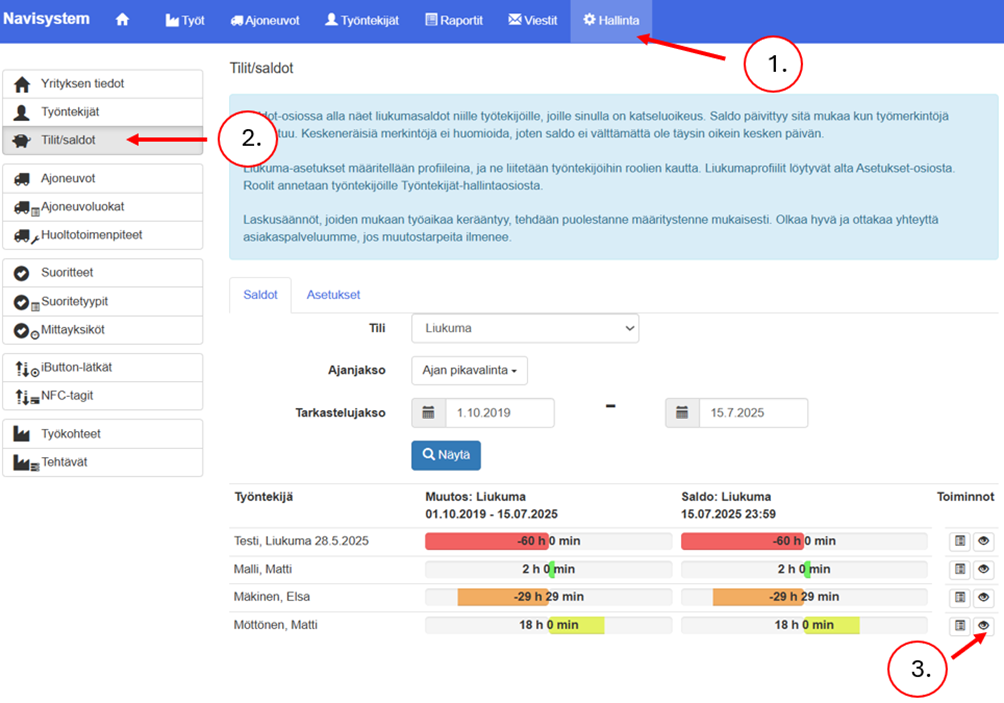
- Select Possessiontab
- Click on the left Slide
- Click the eye icon next to the user you want.
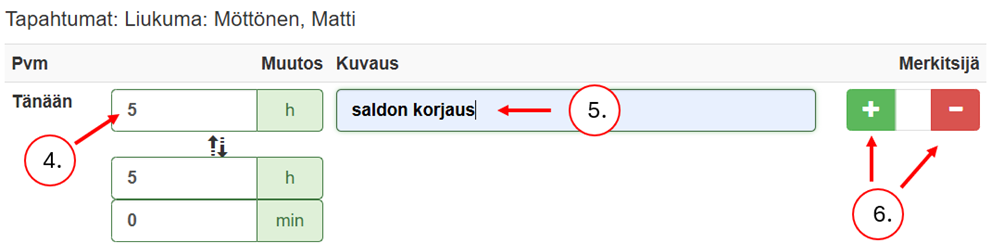
- Write Changefield, enter the number of hours you want to add or subtract
- In the Description field, enter the reason for the change (required)
- Click the plus button if you want to increase your balance or the minus button if you want to decrease it.
Role scheduling #
Role scheduling controls the validity of an employee's rights. You can set a role to start on a specific day and, if you wish, also to end on a specific day, when the role's use automatically ends. For example, a sliding role should be scheduled to start on the same day the employee starts work, so that sliding deductions/increases are not assigned to the wrong days.
You can find the timing of the roles as follows: Workforce- tab > select the desired employee > Edit > scroll down to Employee roles and rights > press Role scheduling
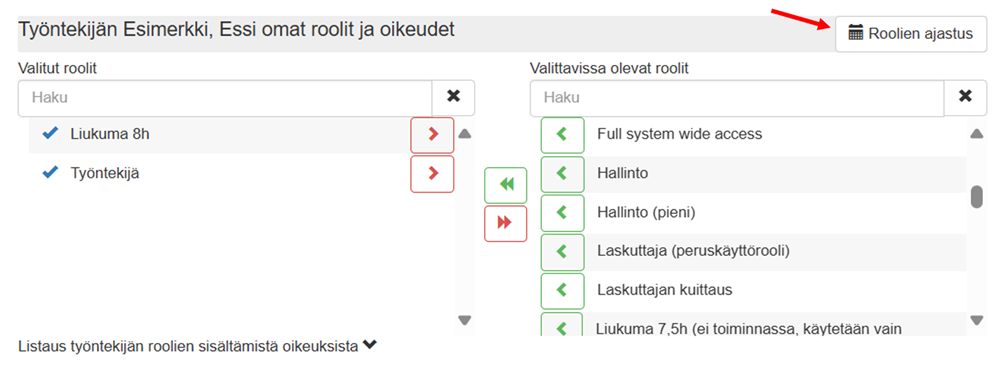
Scheduling roles:
- Press Plus button
- Select the desired role from the list
- Mark the first day the role will be implemented. (The system suggests this day by default)
- If you wish, you can also specify an end date after which the role will no longer be valid.
Tip! It is recommended to set the timing of the sliding role using the pencil icon on the right side of the role.
