


User information and sending mobile ID #
Navisystem mobile service user IDs can be delivered to the employee via email or phone via text message. Usually, the link is delivered to the employee's phone via text message, which is worth saving as a shortcut on the phone's home screen. The service is ready to use as soon as the user rights and company settings have been defined. Below is an example of settings tailored to the employee:
- Normal working hours are 8 am to 4 pm.
- A 30-minute lunch break is automatically deducted from workdays of more than 4 hours.
- Work entries must be timestamped in and out of work. The working hours of the timestamp cannot be edited afterwards.
- You can add your own comments to the timesheet (e.g. for the inspector's information)
- Location information is collected from each check-in/check-out and you can only check in to locations within 1 km.
Viewing the employee list #
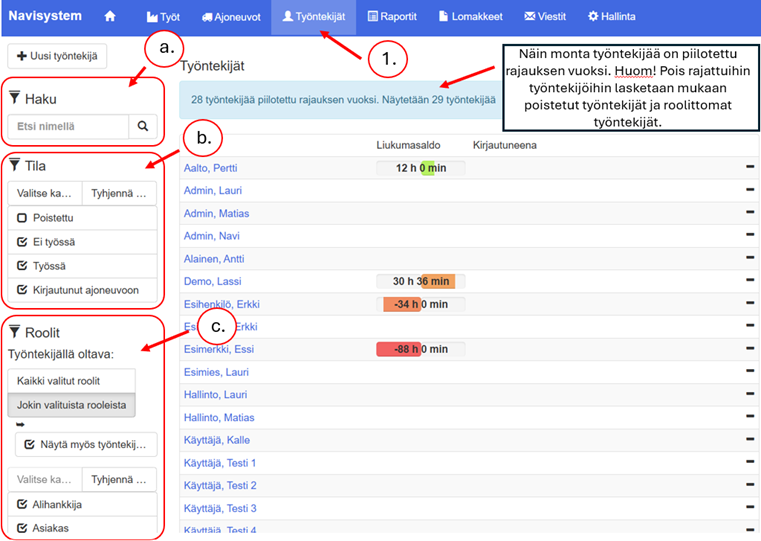
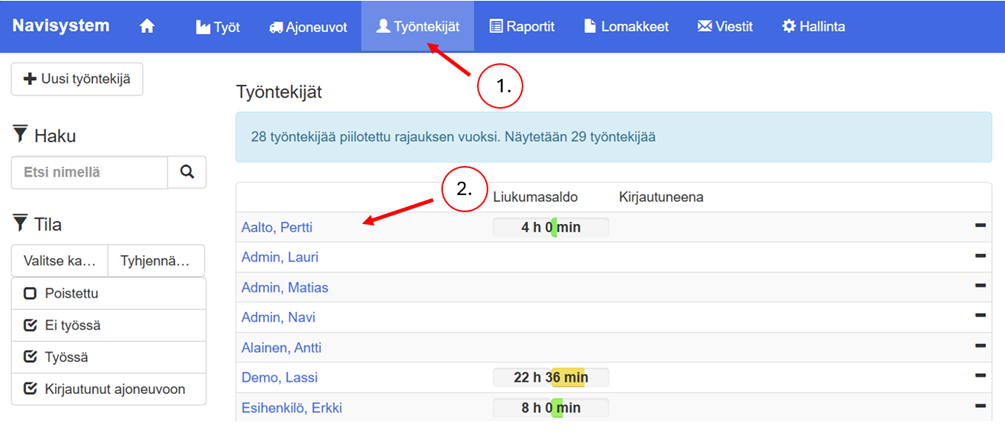
1. View the employee list by selecting Employeestab
The employee list makes it easy to see what employees are currently doing. You can also filter or search for employees. For example, you can limit the display to only all users who are logged in to work or those who have a specific role.
You can limit the employees displayed in the list in three different ways. You can use different limiting methods simultaneously. The number of excluded users is displayed above the list. The limits are used as follows:
- Search by name or part of a name. Set the search criteria and press the magnifying glass button.
- Limit the list based on the employee's current status. If you select multiple statuses, the list will show all people who currently have one of the selected statuses.
- Limit the list by roles. The list shows all people who have the selected role. If you select multiple roles, the list shows all people who have one of the selected roles. For example, if the Employee role and the Administration role are selected, the list shows all people who have either the Administration role or the Employee role (or both).
- Use Select all option if you want to activate all roles at once.
Adding an employee #
New employees are added in the online service. This chapter provides instructions on how to add an employee to Navisystem. See chapter Adding an employee when using an access control device, if employees log in to work using a fixed access control device.
There are two ways to add a new employee:
- Select Workforce-tab
- Click Unew employee button
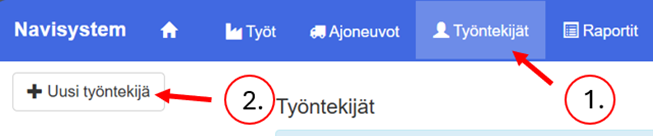
OR
- Select Possessiontab
- Click on the drop-down menu Employees
- Click Replacement
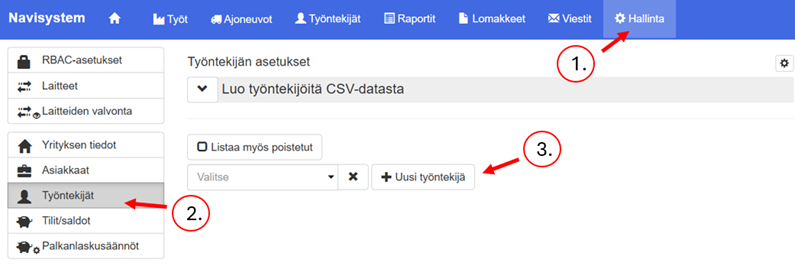
Either way will take you to the view where you can add a new employee. Then follow the instructions below:
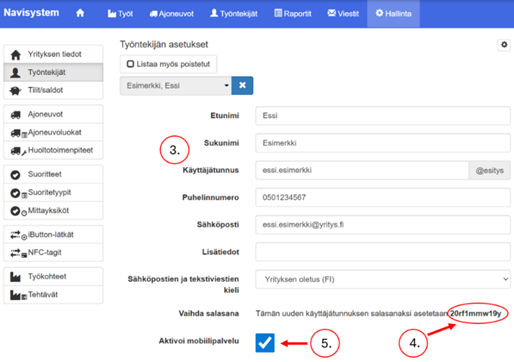
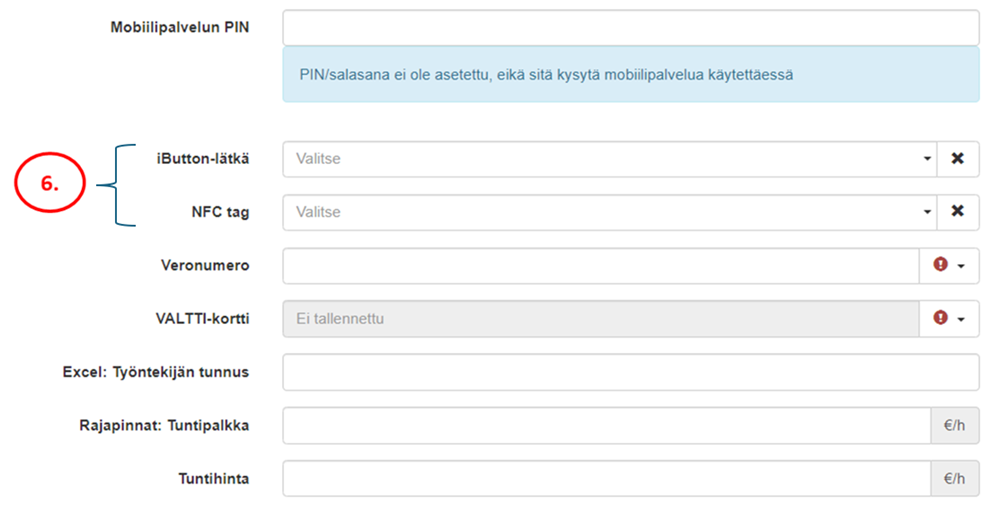
- Enter the employee's information in the fields. Only first name, last name and username are required fields.. The initial part of the username is by default in the form user. firstname.lastname. The @ symbol at the end of the username is company-specific and cannot be edited. Set the desired username for the user. Make sure the email and phone number are correct. If necessary, select the iButton or NFC tag number from the list. Enter other necessary information, e.g. tax number.
Note! An email address and a username are not the same thing.
- Copy the automatically generated password if the employee is also sent the online service credentials.
Note! Employees/basic users do not necessarily need online service credentials, as the mobile service has sufficient functionality for them.
- If you have a mobile time tracking service and an employee uses time tracking on a mobile device, check the box. Activate working time tracking. At the same time, choose whether the user is required to provide location information for mobile bookings (location information for mobile bookings is an additional service, not used by all companies).
- If necessary, select the iButton or NFC tag number from the list. Enter other necessary information, such as tax number.
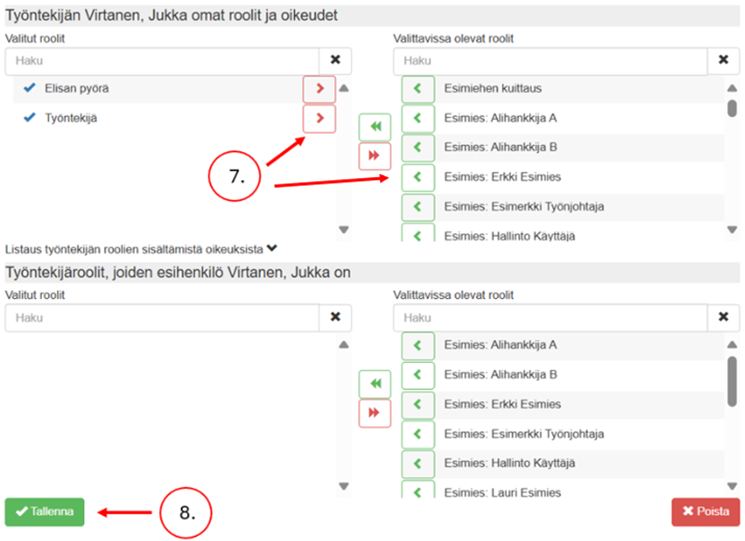
- Select roles for the employee. The Basic use/employee role gives the user basic rights depending on the services and settings in use, e.g. rights to make their own entries and view their own runs. The Administration role gives extensive rights to manage data in the system. (For more detailed instructions on roles, see the chapter User roles)
- Finally, press Save-button
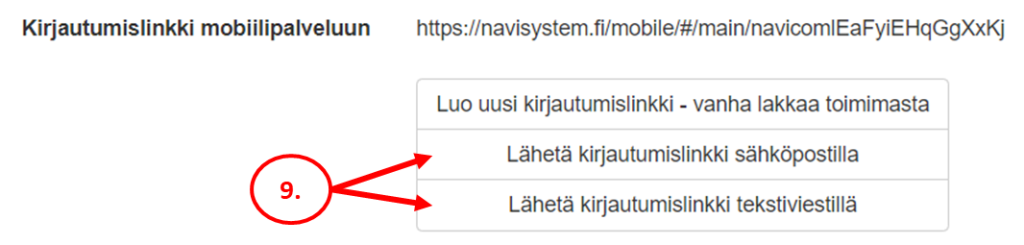
- Once the employee has been created, send them a login link to the mobile service if necessary (for more detailed instructions, see the chapter Sending a mobile login link)
Activating a domain name #
If the user also needs the online service credentials, they can be sent to the user by email.
Below is a sample message you can use to send the IDs.
Hello,
Welcome to Navisystem. This message contains your login to the Navisystem online service.
Logging in to the online service is done at: https://navisystem.fi/
User name: erkki.esimerkki@yritys.fi
Password: hasl48dha3jd1
We recommend that you change your online service password immediately. Employee users can change their password as follows: Administration tab > My information > Change password
Sending a mobile login link #
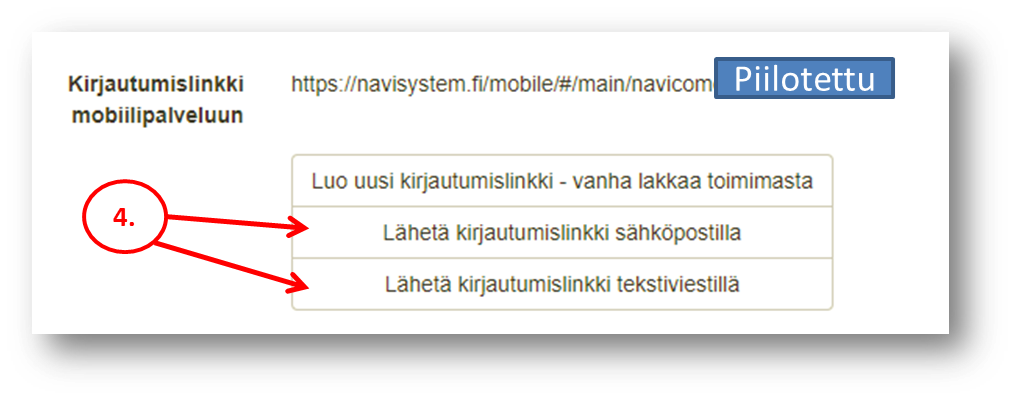
The employee must be sent a mobile login link via text message or email so that they can join the time tracking system.
Sending a login link is done as follows:
- Select Workforce-tab
- Select the pre-created employee from the list to whom you want to send the login link.
- Click Edit
- Send the login link either via email or text message by clicking the button
After receiving the link, the employee can save the link to the home screen of their mobile device. If Navisystem is to save the employee's location information every time they log in, location information must be enabled on both the mobile device and the browser. If necessary, contact our customer support. myynti@navicom.fi.
User roles #
During the employee creation phase, roles are added to the user that limit the user's rights in the service. Employee roles can also be modified later. A user usually has at least one basic role. In addition, there may be supplementary roles that allow, for example, to give the user additional rights in the system, set the collective agreement in use for the user, and define supervisor relationships.
Note! If the existing roles do not meet your needs, additional roles can be created as needed. If you want to customize access rights and views for a specific group of employees, please contact your sales representative.
By default, the service offers two basic roles to users:
Tip! There may also be other roles in use. You can view a model role definition from another employee with a similar job description.
Adding and removing roles #
You can add or remove roles from an employee according to the following instructions:
- Select Employees– tab
- Click on the desired employee
- Click Edit
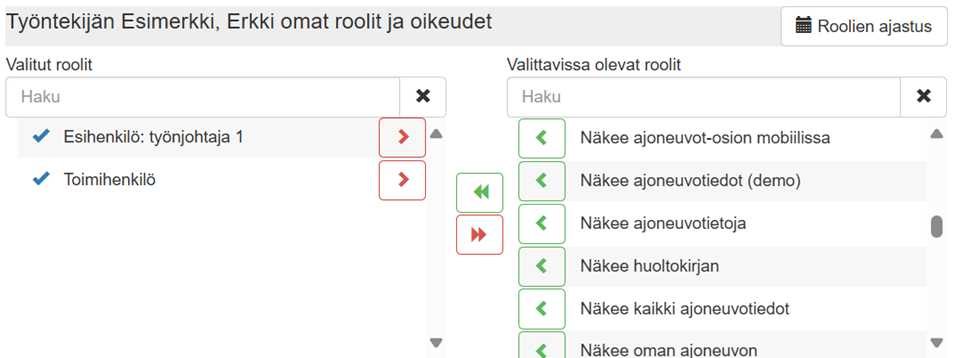
- Scroll down to Employee's own roles and rights
- In this section, you can add or remove roles, salary interpretations, and sliding scale treatments for the employee.
- The roles selected for the employee are shown on the left. Add new roles by pressing the green arrow.
- Remove a role by moving it back to the selectable roles by pressing the red arrow.
- Once you have selected the required roles, press Finish. Save
Supervisor and subordinate definitions #
The system allows you to define superior-subordinate relationships. At the moment, it is not yet possible for an administrative user to create new superior roles in the system, but this feature is coming in the future. If you need new superior roles, please contact your sales representative. Your customer service representative will set the necessary permissions to define the superior-subordinate relationship, which will regulate the individually limited subordinate visibility of superiors.
A supervisor can see the reports of his subordinates and, if necessary, he can transfer the right to view the subordinates' reports to another supervisor for a certain period of time. This feature can be used, for example, during holidays. A supervisor can be a supervisor and the same subordinate can have several supervisors.
This guide uses the person Erkki Supervisor as an example. In practice, supervisor roles are of the form ”Supervisor: First name Last name”.
Setting up a superior-subordinate relationship #
The supervisor role can be set as follows:
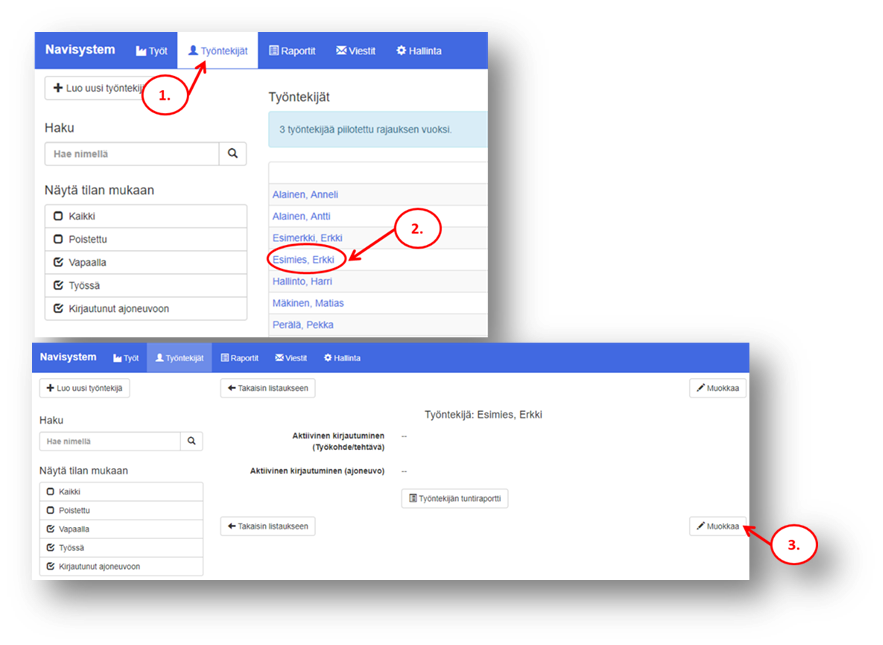
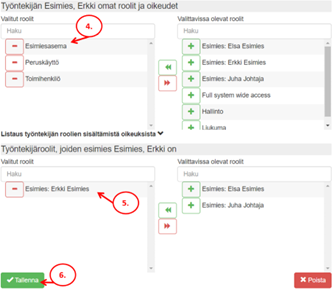
- Select Employeestab
- Select the person you want to set as your supervisor and click on the name.
- Click Editbutton.
- Set the person's own role in the upper role field Supervisor position
- In the lower role field, set the person's own supervisor role, e.g. Supervisor: Erkki Supervisor.
- Finally, press Save
Review of superiors and subordinates #
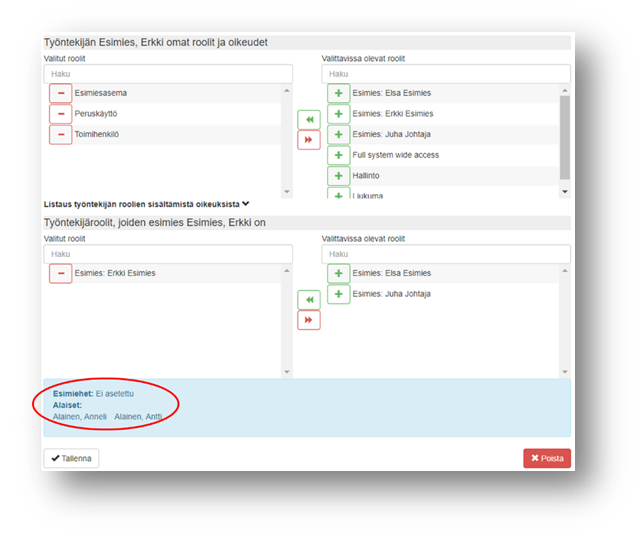
You can check the subordinates and superiors defined for a person as follows:
- Select Employeestab
- Select the person you want to view
- Click Editbutton.
- Scroll down to the role selection view
- The defined subordinates and superiors are listed as shown in the image below.
Editing employee information #
You can edit the information of an already created employee as follows:
- Select Employeestab
- Click on the employee whose information you want to edit from the list.
- Select from the view that opens Edit
A mobile login link is also sent in the employee data edit view.
Changing your password #
The administrative user can change the user's password (including your own) in the employee data editing view. See instructions for opening the editing view in the chapter Editing employee information
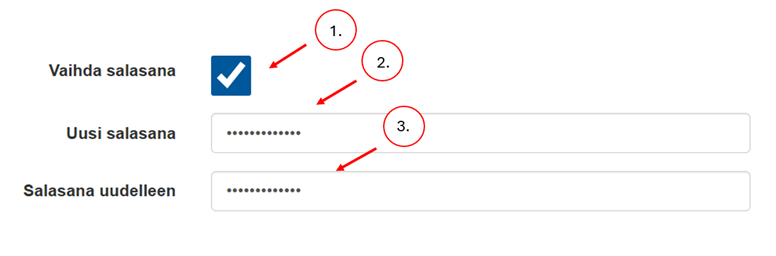
- Place a check mark in the Change password checkbox.
- Enter a new password
- Retype new password
- Scroll to the bottom of the page and press Save
Deleting a user #
The administrator can delete users if necessary. All entries of a deleted user remain in the system and can always be restored.
It is recommended to delete a user if the person has stopped working for the company. The user can also be deleted if the person is absent from their work duties for a long time and does not make entries in the working time tracking, for example (sick leave, care leave, training leave, seasonal employee)
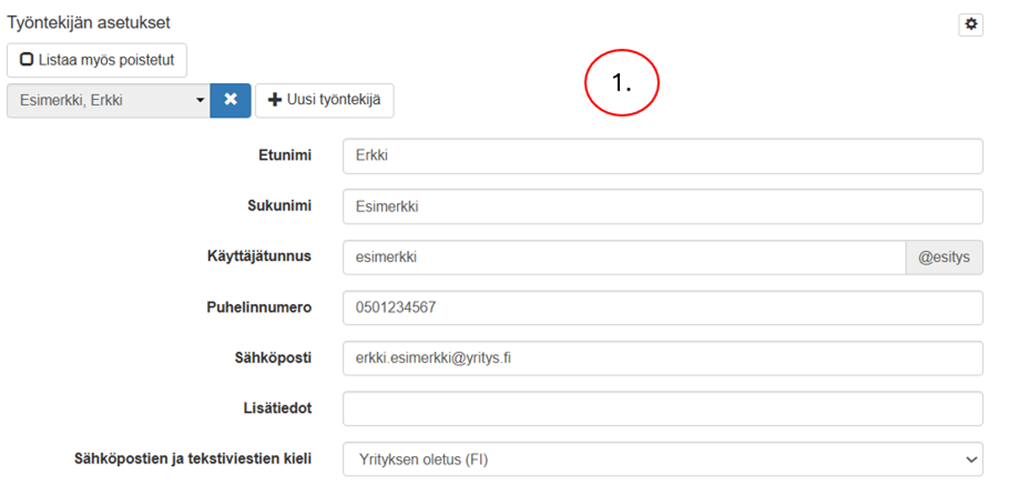
A user can be deleted as follows:
- Open the desired user's employee data editing view (see. Editing employee information)
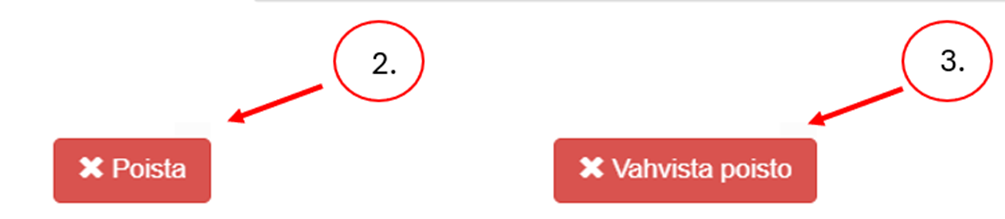
- Scroll down and press Deletebutton
- Confirm deletion by pressing Confirm deletion
Viewing deleted user information #
To view the information of a deleted user:
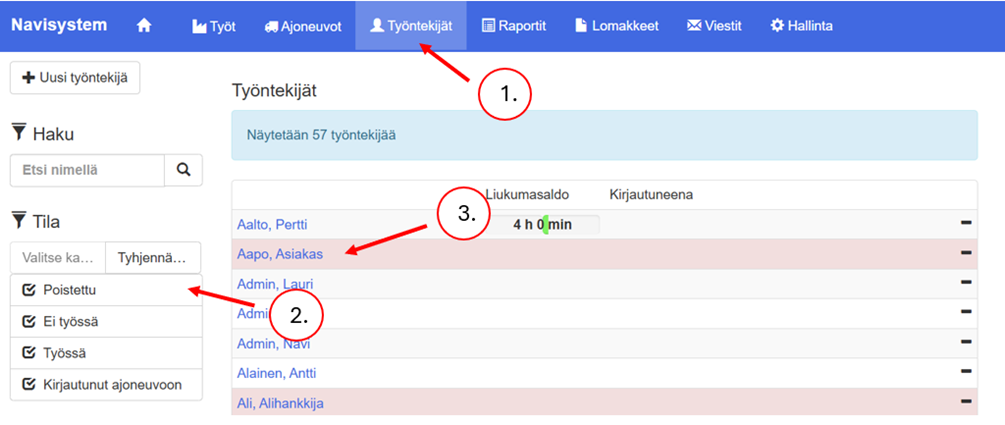
- Open Workforce-view
- Select from the left side Deleted
- Select an employee from the list by clicking on their name. If necessary, you can use the search function on the left side. Deleted employees are marked in red in the list.
- Select from the view that opens Edit
Restoring a user to active status #
- Open the desired user's employee data editing view (see. Viewing deleted user information)
- Scroll down and press the button Deleted - restore active
- Finally, change the username back to the desired format. This must be done because the system will modify the username upon deletion.
If necessary, resend the mobile link and domain names to the user.
