


The Jobs tab contains work items added to the system, which have three statuses: Open, In Progress, and Completed.

Jobs and tasks can be marked as completed by an administrative user in our online service in two different ways:
- Open Work-view
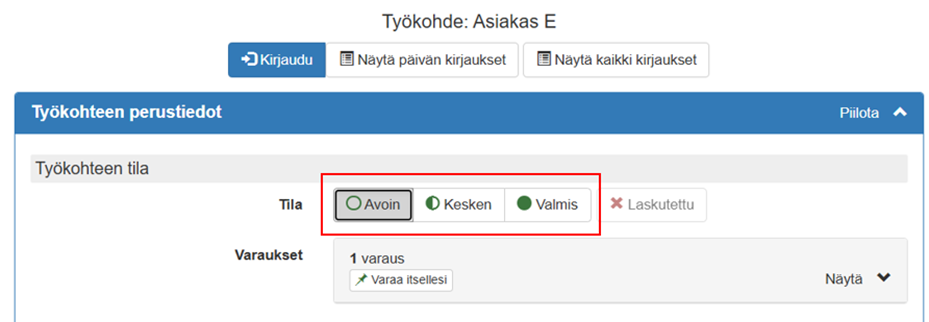
- Click on the task you want to mark as complete.
- Change Status-selection by selecting the mode Open, In progress or Ready
- Finally, select Save
OR
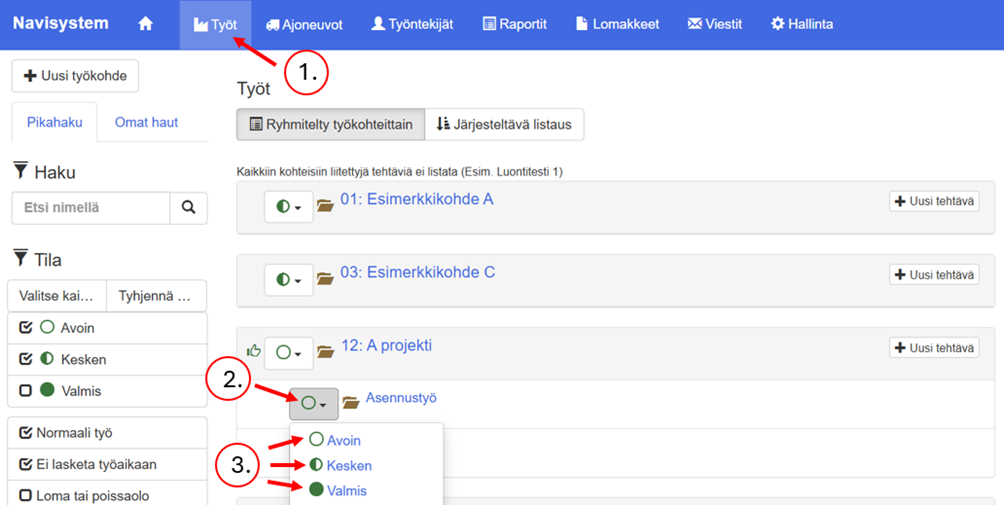
- Open Work-view
- Click the Status button next to the Work Item or Task.
- Select as status Open, In Progress, or Completed.
Tip! It is possible to give the employee the right to report work as completed. More information about this is provided in the chapter Reporting work completed
Searching for jobs #
In the Jobs section you can view job listings. Grouped by work item and Listing to be organized -sections.
Filters help you narrow down your view and find the desired job in the database. The following functions are recommended for searching for job positions:
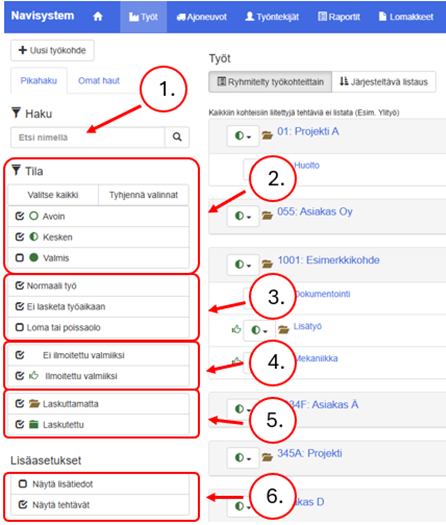
- Search: You can filter the displayed job listings by entering a search term. Search –to the field
- View by status: Narrow down work items based on their status: Open, In progress or Ready.
- Only those work items that match the selected modes will be displayed.
- A more detailed description of the facilities can be found in the chapter 3 Jobs and tasks.
- Based on working hours: Filtering divides jobs into three main groups
- Normal work: Normal working hours
- Not counted as working time: Work that is recorded in the system but not included in working time statistics or invoicing. This is useful for distinguishing break time when wages are not paid for it.
- Vacation or absence: Work items that describe an employee's absence, such as vacation, sick leave, or other time off. These are not counted as normal working hours, but they are clearly visible in reporting and working time tracking.
- Reported as completed
- If you just choose Not reported completed, work items that have not been reported completed are displayed.
- If you just choose Reported completed, you will see the work items that have been reported (”thumbed up”) as completed.
- See chapter for more details 3.5.3 Reporting work completed.
- Invoice receipts
- Show all invoiced work sites.
- Show all unbilled work sites.
- More information can be found in the chapter 3.5 Invoice confirmations and marking completed work items.
- Advanced settings
- Show more information: shows the creation date of tasks. Items marked as complete also show the completion date and the name of the person who marked the item as complete.
- Show tasks: shows tasks marked for the selected work item.
Listing to be organized In the section, finding work items is easier because you can organize them by creation or completion date, for example.
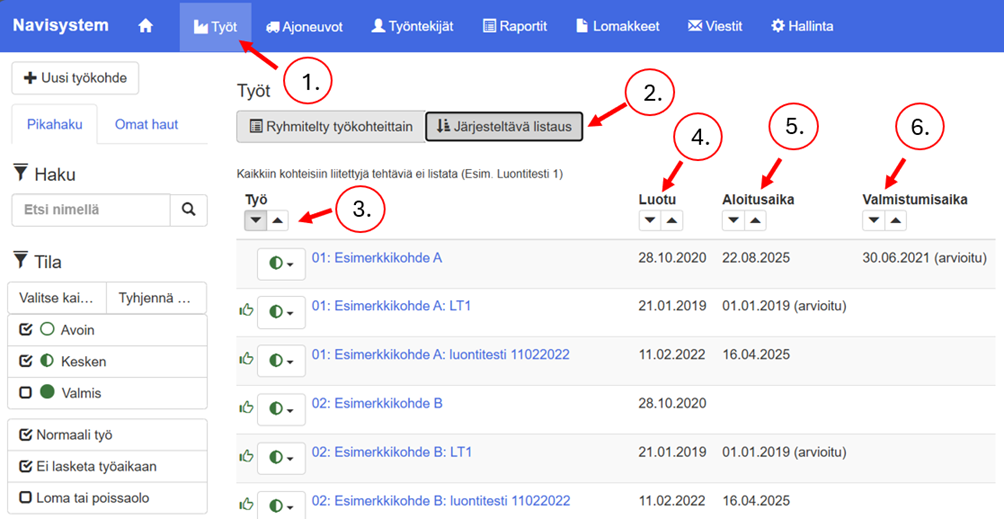
- Open Worktab.
- Choose the order of the listing.
- Work: arrange the jobs in alphabetical order.
- Down arrow = AZ
- Up arrow = ZA
- Created: displays jobs by creation date, either newest to oldest or vice versa.
- Down arrow = newest to oldest
- Up arrow = oldest to newest
- Start time: organize work by start time.
- Down arrow = newest to oldest
- Up arrow = oldest to newest
- Completion time: organize work according to completion time
- Down arrow = newest to oldest
- Up arrow = oldest to newest
Adding a new work item #
There are two ways to create a work item:
- Open Work-tab
- Press the button in the upper left corner Unew job
OR
- Open Possession-tab
- Select from the left side Work sites
- Press New job
First, give the work item a name. Then fill in the other information about the work item according to the following instructions. Remember to save the work item at the end. The minimum information allowed by the system is the work item name, but there may be several mandatory fields depending on the company environment. It is worth entering the work item address, especially if a location service and distance limitation are used. The address can be used to limit logging in/out of work based on distance.
Note! If your company uses salary interpretations and needs to add new vacation/absence items (or exceptional processing of other work items), please contact our customer service (myynti@navicom.fi) so that the new vacation/absence item is taken into account in the calculation. Items requiring exceptional treatment in salary interpretation should not be added on your own if salary interpretations are in use.
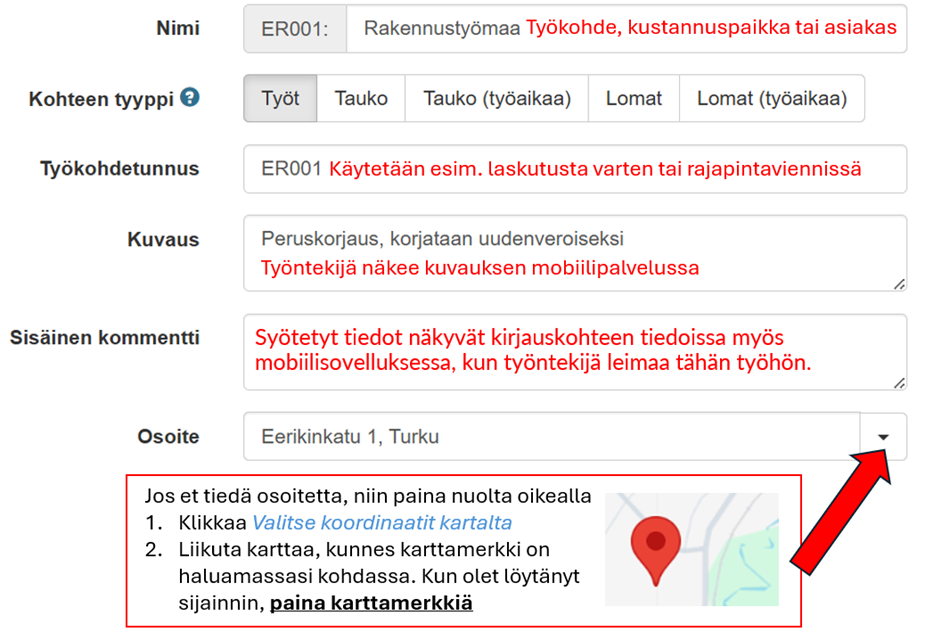
Address: Fill in the address information if any of the following conditions are met.
Meanings of object types
Work: Normal working hours for which wages are paid and invoiced
Break: a rest period that is not counted as working time and is not billed (e.g. lunch break)
Break (working time): rest time, which is counted as working time and possibly also invoiced
Holidays: Holidays and absences –type of item that is not counted as working time.
Holidays (working hours): Holidays and absences –type of item that is counted as working time.
Sequential numbering in the work item ID #
If you want to make sure that there are no two work item IDs with the same name in the system, one option is to use sequential numbering in the work item ID. The setting works as follows:
The sequential numbering of work items is defined in section Possession > Company information > Advanced settings > Consecutive numbering of work item IDs
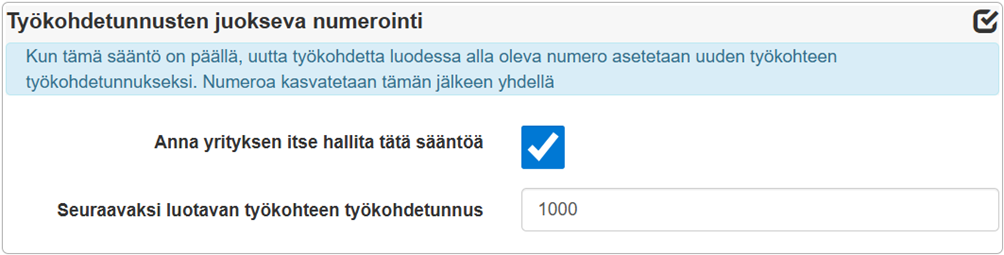
In the example, the numbering has been chosen to start from 1000.
Score:
- The new work item is named Project A.
- The job is automatically named as follows:
Work item ID + Work item name = 1000: Project A
- The next work item is named Project B.
- The job is automatically named as follows:
Work item ID + Work item name = 1001: Project B
Worksite employee connections #
Employee associations for a work item can be used to control the visibility of the work item to individual employees. By default, the work item is visible to all employees unless an employee has been selected for it. If the work should only be visible to certain people, then associate the employee(s). In this case, only the associated employees can log in to the item. Associate employees to the work item as follows:
Worksite employee connections
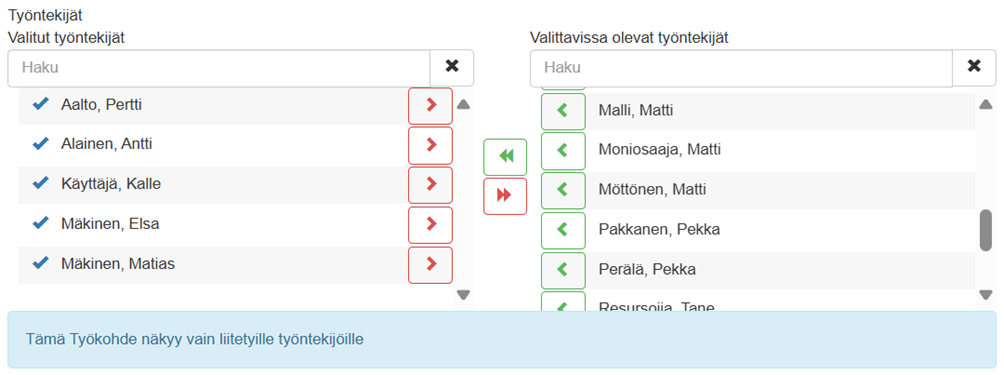
Note! Displaying a large number of work items on an employee's work listing can be made easier in two different ways:
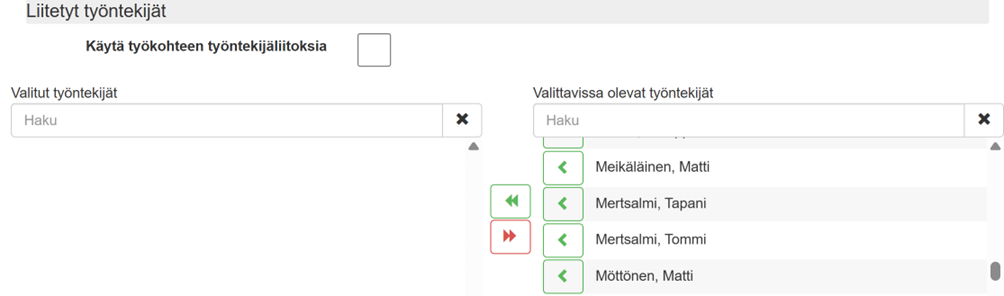
1. Assign employees to targets separately (Worktab > select a job from the job listing > Press Edit > scroll down to the employee association section.) Associate the desired employee(s) to the work item by clicking the green arrow on the employee item. The selected employees will see the job in their work list in the mobile app. The remaining employees will not see this job.
In the picture Worksite employee connections Employee connections have been made to the work item so that the following employees of the company can see the item in question in their own job listing: Pertti Aalto, Antti Alainen, Kalle Käyttö, Elsa Mäkinen and Matias Mäkinen (In addition to these, the administrative user can also see these items because they have full system privileges).
2. Enable the company setting Allow mobile check-in only for nearby locations (Administration > Company details > Advanced settings > Allow mobile check-in only for nearby locations > specify distance > Save).2.
The visibility of a work item in the mobile app is based on distance: the item is only visible if the employee is within the distance you select. All items further than this are excluded. Also, check-out is only possible when in the vicinity of the item.

Viewing employee connections for a job #
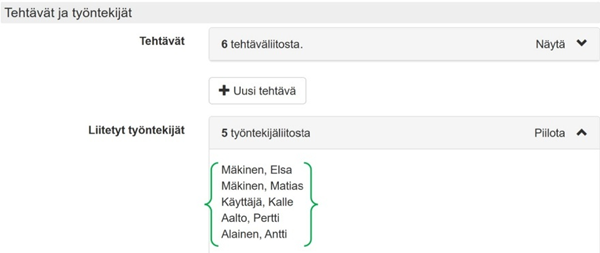
You can view the employees assigned to a work item as follows in the web application:
- Go Worktab
- Click on the work item whose employee connections you want to view
- Navigate Tasks and employeesto the section
- click Associated employees. You will now see a list of employees who can log in to the target.
Work item task employee connections #
If you wish, you can assign employees to a work item task.
You can find the employee connections for a work item task as follows: Select Work-tab > Select the desired task from any work item > Press Edit > Scroll to Connected employees > Uncheck the option Use work item employee connections
Attach the desired employee(s) to the task by clicking the green arrow next to the employee. After saving the setting, only the selected employees will see the job in their worklist in the mobile app. The remaining employees will not see this job.
Advanced work item settings #
Additional settings can be defined for a work item that support reporting, managing work data and work views, and tagging jobs. This section will go through all of the additional settings in detail.
Additional settings for the work item are defined in the section: Work-tab > select a job from the job listing > Press Edit > scroll down to the advanced settings section.
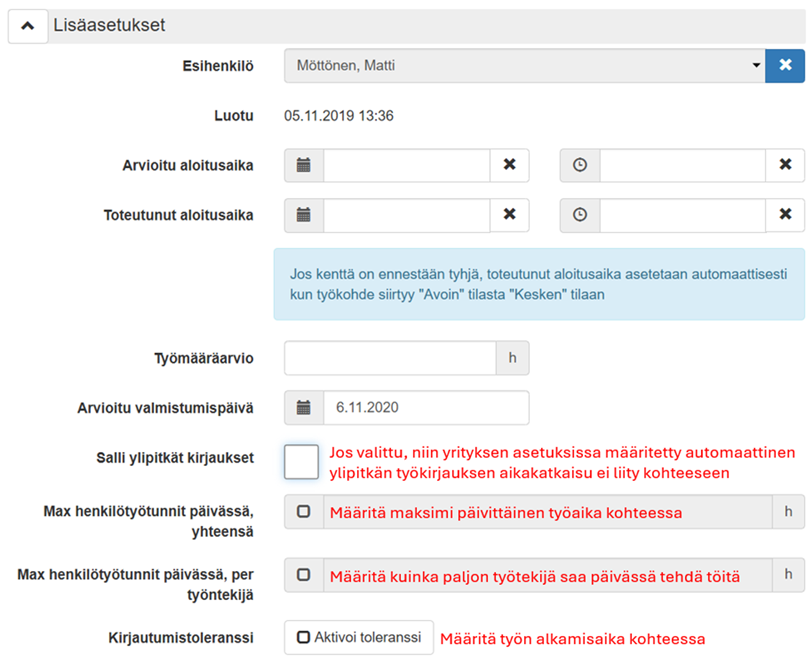
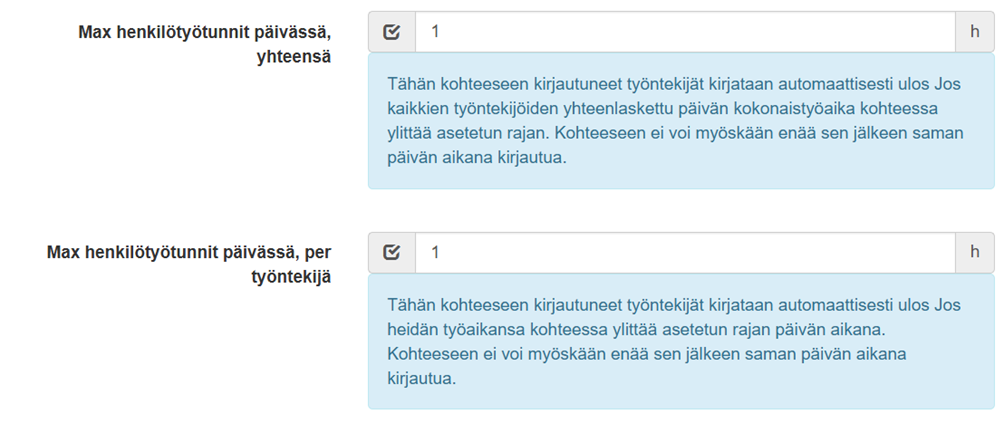
Max man-hours per day, total:
- Employees logged in to this location will be automatically logged out if the work location is marked working hours total exceeds The limit is set during the day. You will also no longer be able to log in to the site during the same day. This setting may be suitable for project work, for example.
Max man-hours per day, per employee:
- An employee logged in to this location will be automatically logged out if his/her working hours at the destination exceed The limit is set during the day. You will also no longer be able to log in to the destination during the same day.
- Note! No location information will be left on a check-out if this setting breaks the employee's timestamp. If you want location information on check-out, you can set the Payroll Information report to only consider the maximum working hours specified in this setting in payroll. In this case, the employee's location information will be saved normally in the system and entries made beyond the allowed working hours will not be considered in payroll. Below are instructions for turning on the setting, but we recommend contacting customer support if you want to turn on this setting.
- Make sure the Salary Data report is turned on
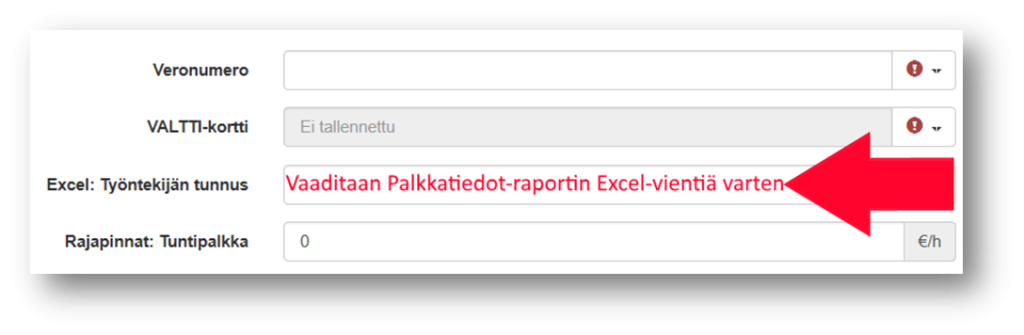
- Make sure that the payroll ID is entered for all employees: If the payroll ID is Salary information Excel: Employee ID then proceed as follows:
- In the employee information (Select employee > Edit), enter the Excel ID for all employees in the "Salary information Excel: Employee ID" field (see the figure Entering an Excel ID). Note! the ID must be unique for all employees.
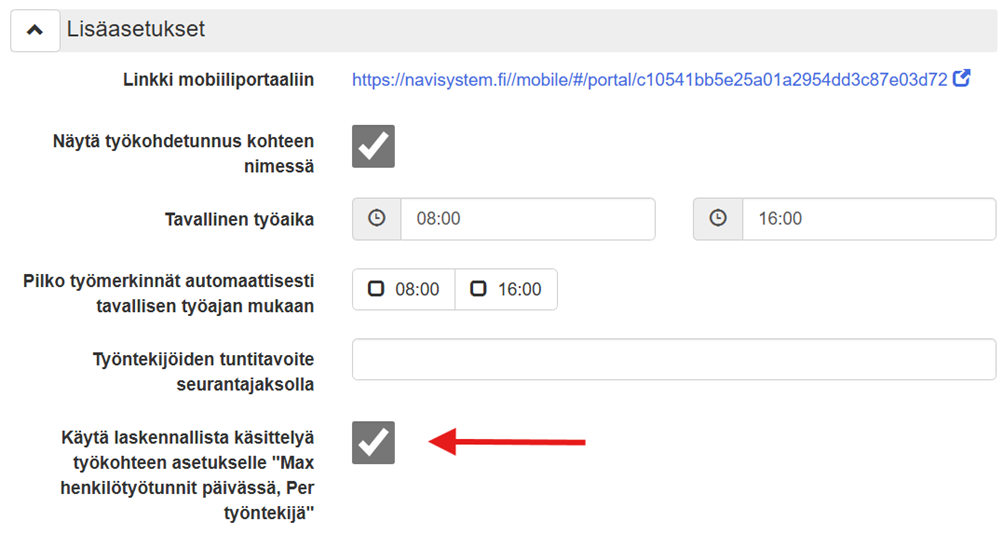
Turn on the setting Use computational processing for the work item setting ”Max person hours per day, Per employee”
Advanced settings are defined in the section: Possession > Company information > Advanced settings)
Tip! If additional work may be done on an item, attach an additional work task to it that does not have a maximum posting time limit.
In the image, the salary information report takes into account Max man-hours per day, per employee-approved working time (2h) according to the regulation, even though the working time is marked as 7h 2 min. 30min of additional work has been done on the site, from which the working time is also calculated.
Worktab > Edit > Advanced settings > scroll down.
Login tolerance:
- Defines the start time of the work. For example, if the work is scheduled to start at 7:00 AM and the login occurs at 6:45 AM, the system records the work as having started at 7:00 AM.
Login tolerance can be set both for the company and for the job. Below you will find instructions on how to make these settings.
- Setting a company-specific login tolerance
- This login tolerance setting is automatically made to all work items that are newly created in the system.
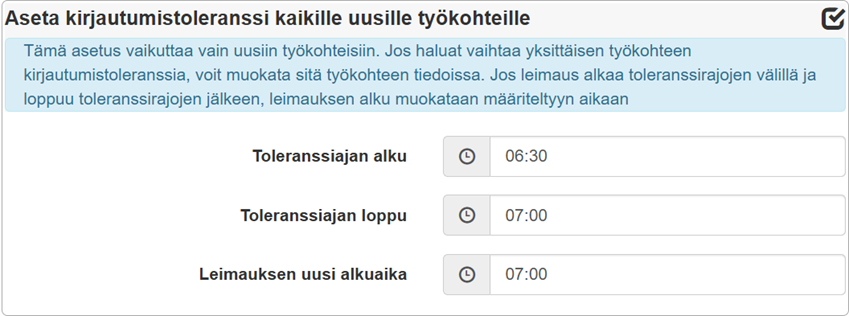
- Set the working hours between which timestamps made will be automatically corrected to the official start time of the work. According to the example setting in the image, when timestamping for work is done between 6:30 and 7, the entry will always be corrected to start at 7:00. The automatic correction will always be made after logging out of the work location.
Detailed login tolerance is defined in the section: Possession > Company information > Advanced settings > Set a login tolerance for all new work items)
- Setting a work item-specific login tolerance
- Set the working hours between which timestamps made will be automatically corrected to the official start time of the work. According to the example setting in the image, when work is stamped between 6:30 and 7:00, the entry will always be corrected to start at 7:00. The automatic correction will always be made after logging out of the work location.
The work item-specific login tolerance is defined in the section: Possession > Select the work item for which you want to set the login tolerance > Edit > Advanced settings > Activate login tolerance > Login tolerance > Save

Note! The login tolerance setting set for a work item also affects the work item's task timestamping processing.
Adding a new task #
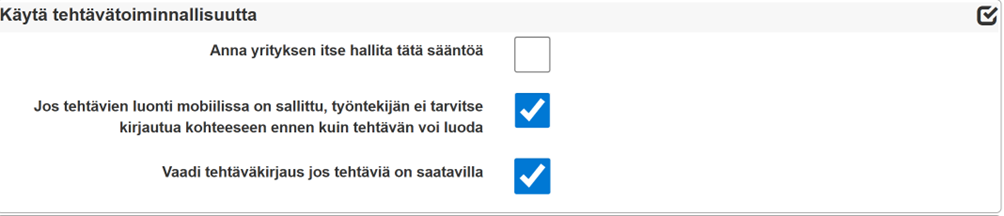
Tasks can be added to a work item, allowing employees to timestamp their work to different tasks within the work item. This is useful, for example, when you want to invoice a customer on a task-by-task basis. You can turn on task separation in your company settings by activating the setting Use the task functionality
The new task is defined in the section: Possession > Company information > Advanced settings > Use the task functionality
There are two ways to create a task:
- Open Work-tab
- Select the work item you want to add the task to.
- Then press the + button to the right of the job title.New task-button.
- You can then add the necessary information and settings for the new task. Finally, remember to save your selections.
OR
- Open Possession-tab
- Select from the left side Functions
- Select New task
Fill in the task details if necessary and remember to save the task settings at the end.
Attaching a task to work items #
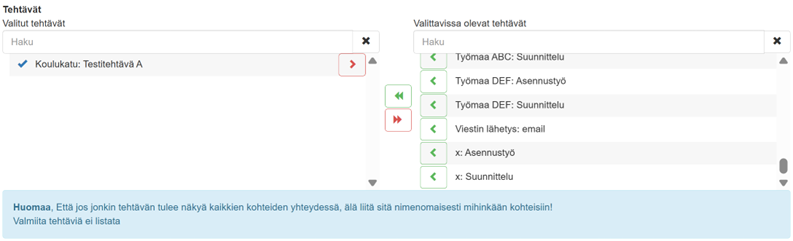
A task is related to all work items if no tasks are associated with it. You can optionally associate a task with work items, in which case it will only be visible in those work items. Note that if a task should be visible in connection with all items, do not explicitly associate it with any item.
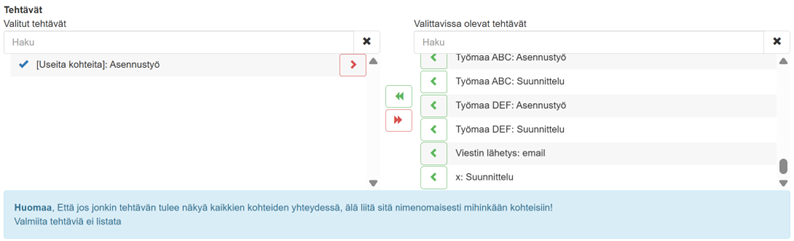
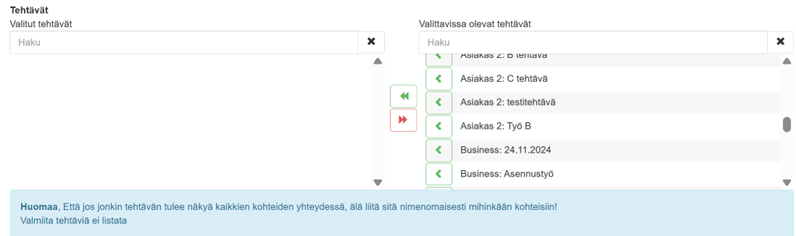
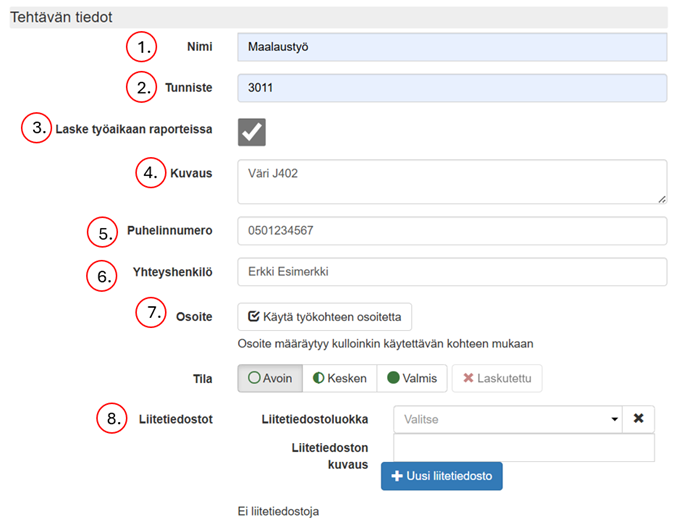
Fill in the information as necessary:
- Task name: setting a name is mandatory
- Identifier: used for e.g. invoicing
- Working time calculation with reports:
When this setting is selected, reports regarding working time, such as the employee's hourly report, work item report, and monthly report, interpret the time clocked into a task as working time. If this setting is not selected, the time logged into a task is not considered working time in Navisystem reports. - Description: a description of the task (the recipient of the task will see this in the mobile view)
- Phone number
- Contact
- Address: fill in this field if you want to assign a different address to the task than the work item.
- Status: You can change the status of the task using the buttons
- Open (unstarted work)
- Between
- Ready
- Invoiced
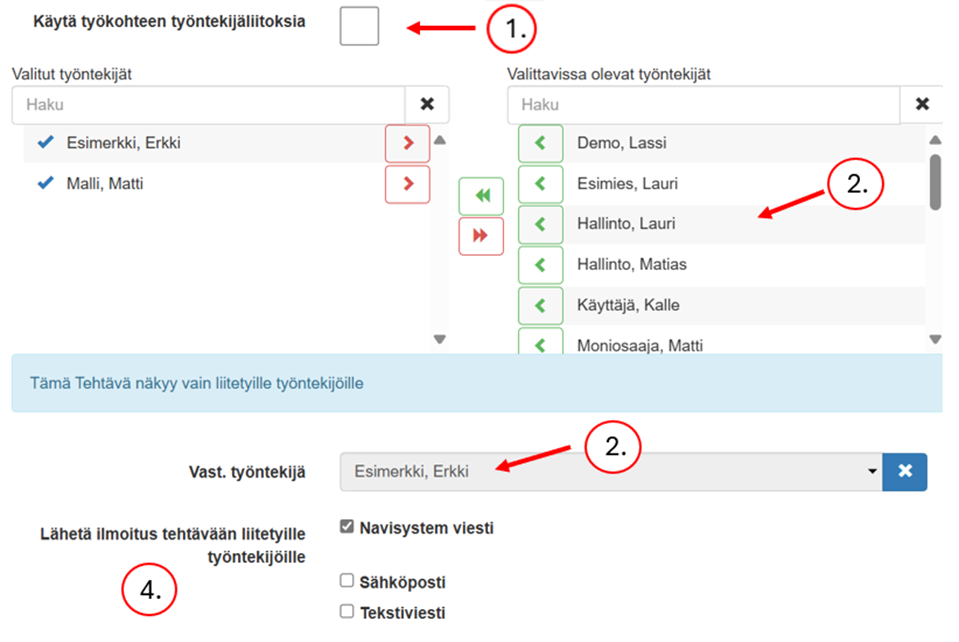
If you want to define employee connections for a task, attach employees to it. By default, the task uses the employee connections for the work item. Only attached employees can log in to the item.
Employee connections are defined as follows:
- Uncheck the box. Use work item employee connections
- Select 1 or more employees from the list
- Select the corresponding employee (when the corresponding employee logs into the work item for the first time, the work item status changes)
- Select notifications to send (sent to all selected employees)
Projektimalli #
Tehtävien manuaalinen lisääminen saattaa olla työlästä, kun tehtäviä on paljon ja ne toistuvat useissa työkohteissa. Navisystemissä projektimallitoiminnon avulla on mahdollista kiertää ongelma luomalla automaattisesti vakiotehtävät kaikkiin uusiin työkohteisiin. Uuden työkohteen tehtävät kopioidaan olemassa olevasta työkohteesta, jonka valitset projektimalliksi. Työtehtävien tila on avoin, eikä niihin ole tehty työmerkintöjä ennestään.
Löydät projektimalliasetuksen seuraavasti: Possession > Advanced work item settings > Projektimalli > siirry kohtaan Mallina käytettävä työkohde. Valitse työkohde, jonka tehtävät haluat kopioida.
Note! Työkohteen lisäasetuksissa tulee olla vähintään yksi kohde valittuna projektimalliksi. Kts. seuraava vaihe.
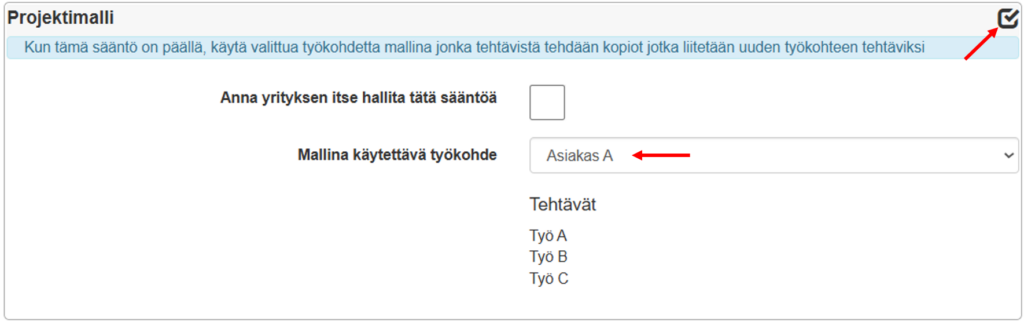
Jos sinulla ei ole asetettuna työkohdetta, jonka haluaisit projektimalliksi toimi seuraavasti:
Työt-välilehti > valitse työkohde, jonka haluat asettaa projektimalliksi > Edit > Advanced settings > Valitse Projektimalli aktiiviseksi > työkohde näkyy mallina olevien työkohteiden listassa

Advanced task settings #
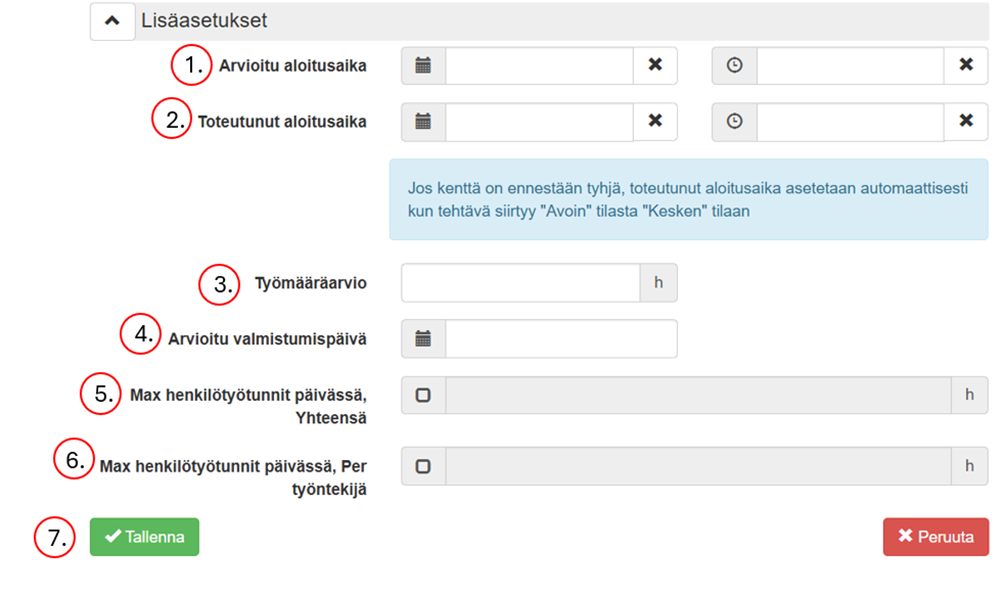
If you wish, you can use additional settings:
- Start time
- Actual start time
- Workload estimate
- Estimated completion date
- Max man-hours per day, total
- Max person-hours per day, per employee: you can define how long an employee can be logged in to the work item per day
- Save
Holidays and absences #
Holidays and absences –The function is always available to the administrative user without restrictions. Other system users need the right Holidays and absences –to use the feature so they can mark or correct these types of work entries. If you want to activate it for a group of employees in your company Holidays and absences –function, please contact your sales representative or our customer support if necessary myynti@navicom.fi
Vacation times can be conveniently marked for several days at a time in the online service and mobile service using Holidays and absences –function.
Marking holidays and absences in the online service #
You can mark holidays and absences as a mass mark for several days or as a single day mark. In the work item report creation view, click Holidays and absence button and fill in the holiday editor with a holiday or absence entry for the desired time period.
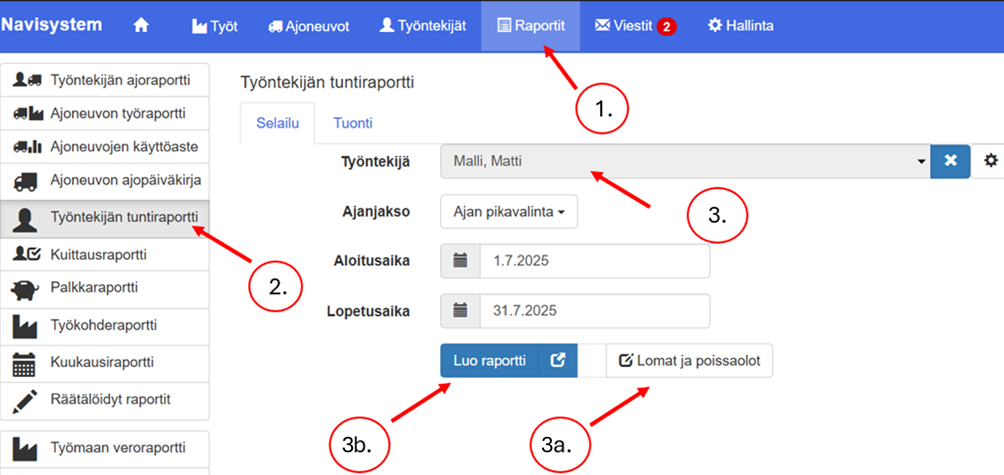
- Select Reports-tab
- Select on the left side of the page Employee time report
- Two options Holidays and absences –to the entry:
- Mass holiday registration for several days
- A single entry for a specific day
Holiday or absence marking for several days at once #
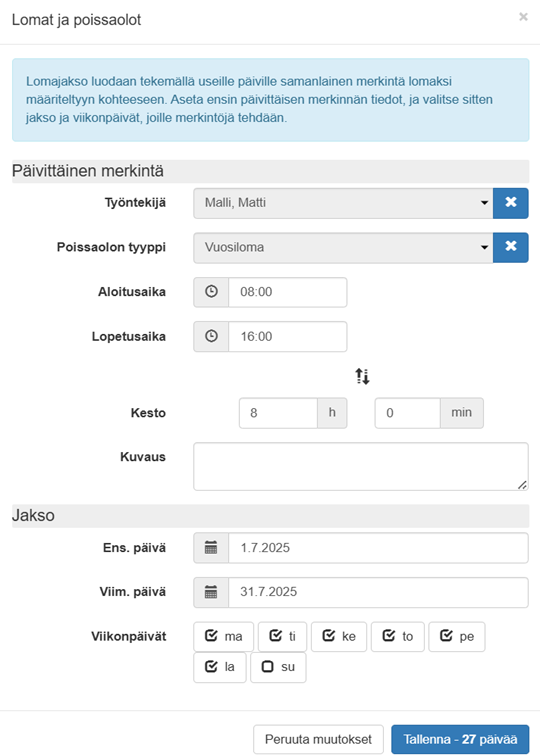
A vacation period is created by making a similar entry for multiple days in a work item defined as a vacation. First, set the daily entry information, and then select the vacation period and days of the week for which entries will be made.
- Valitse työntekijä, jolle haluat merkitä loma-ajan
- Select a vacation type from the list.
Note! Selectable holidays are work items that have a holiday setting added to their settings. For more information, see Creating a new vacation or absence type
- Valitse työaika, johon loma kohdistuu.
- Valitse loman ajanjakso
- Valitse viikonpäivät, joille loma lasketaan.
- Paina lopuksi Tallenna-painiketta
Single entry for a specific day #
- Make a correction in the hourly report for the date you selected (Click the pencil icon for the day in question)
- Change entry type to Holidays and absences
- Select a vacation type from the list.
Note! Selectable holidays are work items that have a holiday setting added to their settings. For more information, see Creating a new vacation or absence type
- Select the period and duration of your vacation
- Finally, press Savebutton
Marking holidays and absences in the mobile service #
In the mobile service, you can mark holidays as follows:
- Open Work-view (button can also be found Entriesview when you are not logged in to work)
- Tap Holidays and absences button
- Mark the vacation or absence period in the same way as in the chapter Marking holidays and absences in the mobile service
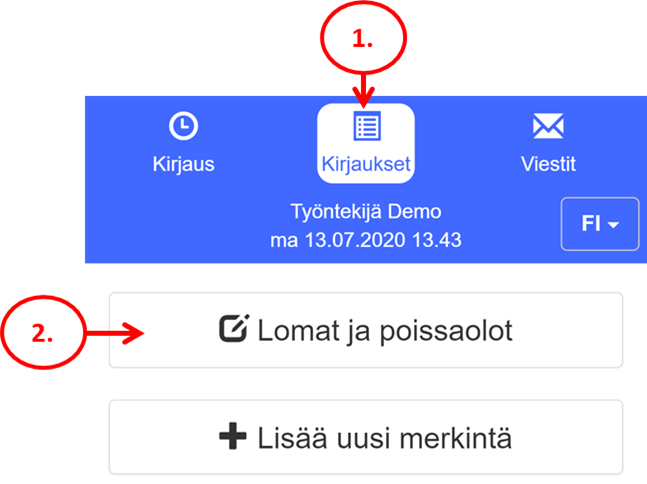
Creating a new vacation or absence type #
Holidays and absences are processed in the system as a separate work item, the type of which is defined as L.own. Here's how to create a new vacation or absence type:
- Go Workview and select New job.
- Give the work item a descriptive name, for example Annual leave, Sick leave or Holidays.
- Select to specify the work item type. Holidays or Holidays (working hours).
- Save.
The work item you created will appear in your holiday selections in the future and can be used to record absences.
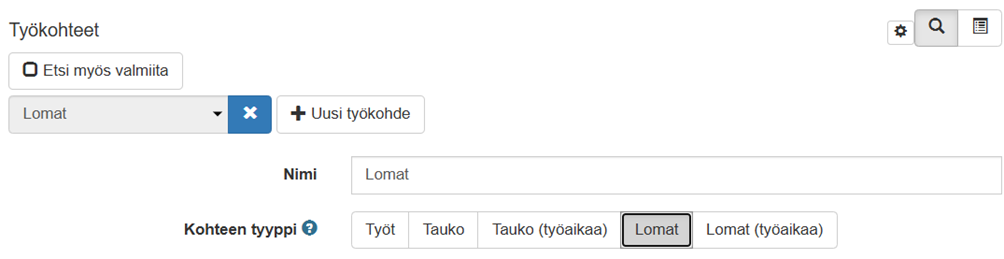
Types of vacation and absence type items
Break: a rest period that is not counted as working time and is not billed (e.g. lunch break)
Break (working time): rest time, which is counted as working time and possibly also invoiced
Holidays: Holidays and absences –type of item that is not counted as working time.
Holidays (working hours): Holidays and absences –type of item that is counted as working time.
Invoice confirmations and marking completed work items #
This chapter describes how to make invoice confirmations for work items and mark these jobs as completed. When all jobs related to a work item or its tasks have been confirmed as invoiced, the work item status is automatically updated to invoiced.
Invoice receipts are defined in the section: Possessiontab > Company information > Advanced settings >Use the acknowledgement function in reports > Select Invoicer's acknowledgement > Save.
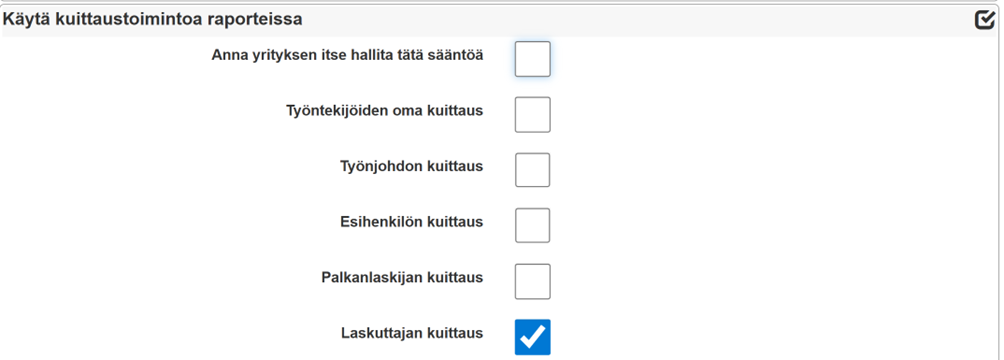
Invoice receipts and marking as completed are done in the following steps:
- Creating a work item report
- Making invoice receipts in the work item report
- Marking jobs as invoiced
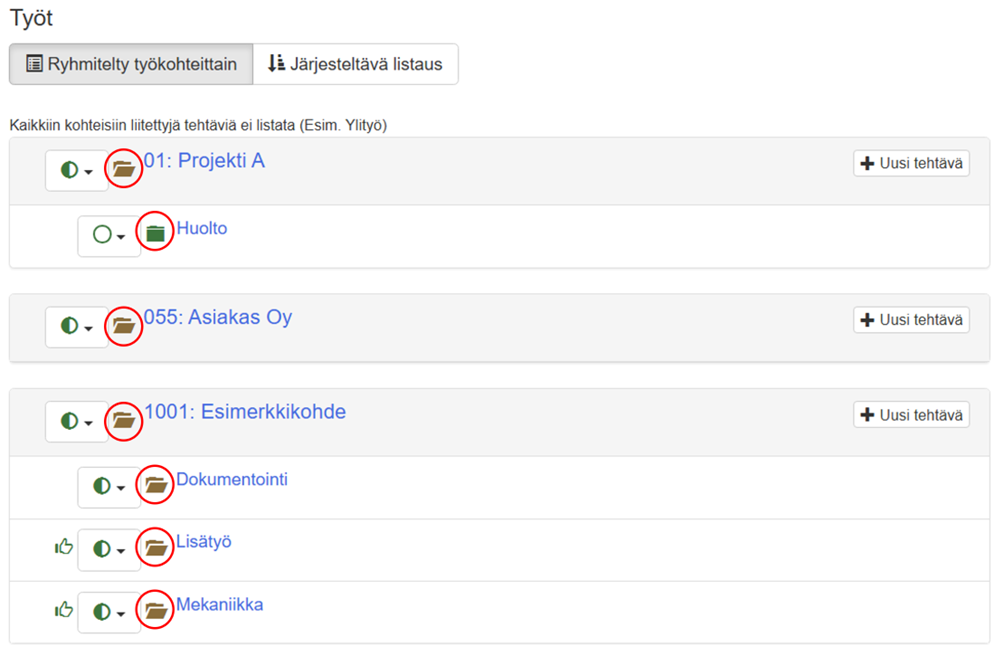
In the Jobs view, it is possible to view the invoicing status of work items and tasks. The symbols in the listing have the following meanings:
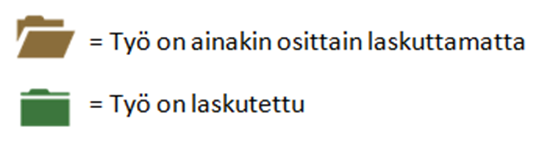
Picture Work-view, where some of the items have been invoiced and some are at least partially uninvoiced:
Making invoice receipts in the work item report #
First, create a work item report:
- Open Reports-view
- Select from the left side Work site report
- Select the work item for which you want to make invoice receipts
- Select a period The whole history, if you want to invoice for all work.
- Click Create a report
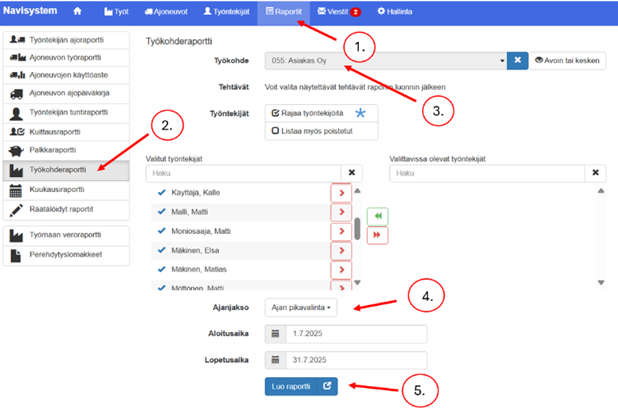
If necessary, select the task to be invoiced. If no task is selected, all entries for the work item will be displayed in the report.
Tee seuraavaksi laskutuskuittaukset työkohderaporttiin seuraavalla tavalla:
- Press Kfloats –button
- Confirm the jobs as invoiced by checking the checkboxes one row at a time. The Invoice Confirmations column has this symbol:
- Voit myös kuitata kaikki kohteen työt laskutetuksi laittamalla ruksin ylimpään laatikkoon
- Finally, press Save selected receipts
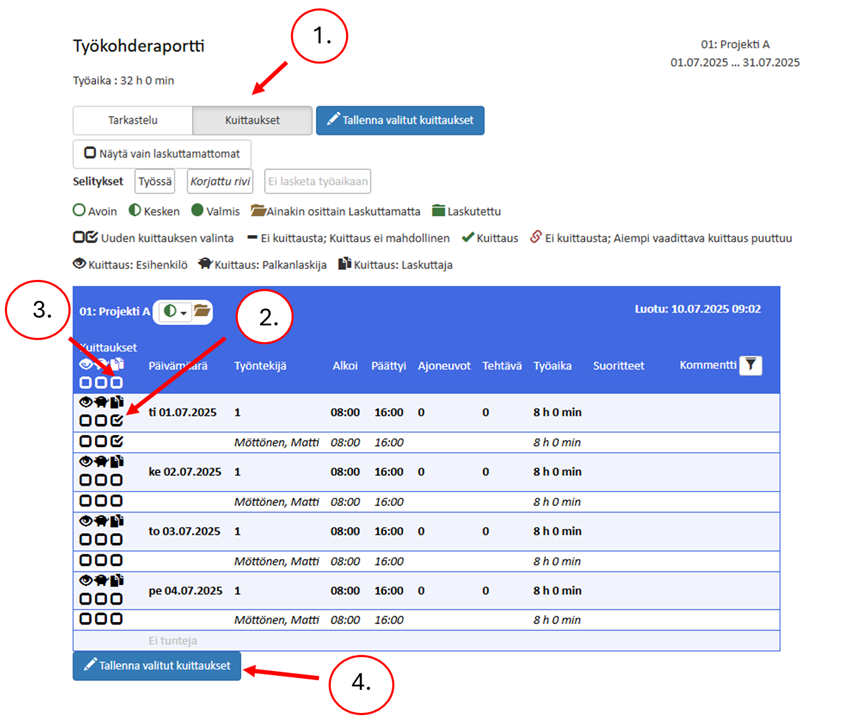
Note! The color of the billing folder changes to green only if the work done on the work item or task has been all marked as invoiced!

Marking a job as complete #
It is recommended to mark a work item as complete only when the work item has been fully invoiced and no more hours will be entered into it. Once a work item is marked complete, it disappears. Work-from the default listing of the view. Completed jobs appear in the listing of already marked work items.
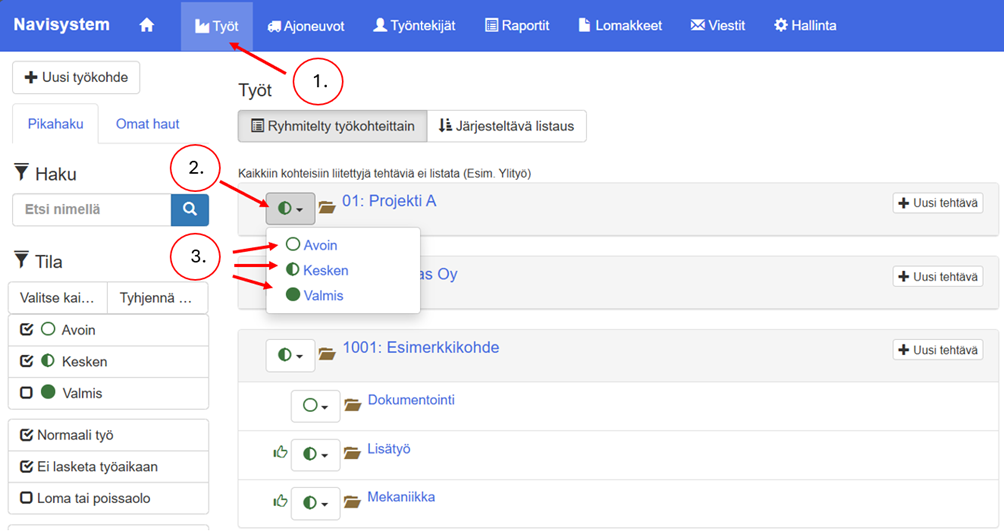
The status of work items is indicated by symbols as follows.
There are two ways to mark a work item as complete:
- Open Work-view
- Click on the task you want to mark as complete.
- Select Edit
- Change Status-selection by selecting the mode Ready
- Finally, select Save
OR
- Open Work-view
- Click on the task Acknowledge completed –button
- Select Open, In Progress, or Completed as the status.
Reporting work completed #
It is possible to give employees the rights to mark or report work as completed. If a job is marked as ready, then it will be completely removed from the work item list and will only appear in the list of already marked jobs. If the job is reported completed, it will still remain in all work item listings, making it easy for the supervisor to mark the work as complete. A completed work will be marked as complete. Work-view with a green thumbs up symbol. This makes it easy for supervisors to see when the job is complete.
The employee's right to mark work as completed #
The right to mark work as completed is granted to employees as follows:
- Select Possession-tab
- Select Company information from the left edge of the page
- Open Advanced settings
- Select the checkbox TNight workers can report work completed

Reporting jobs completed in the mobile service #
The employee can then report work completed in the mobile service as follows:
- Select Entries-view
- Log in to the item you want to mark as completed.
- Tap Report the job as completed –button, which appears in the posting item information
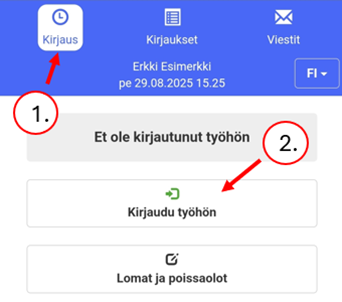
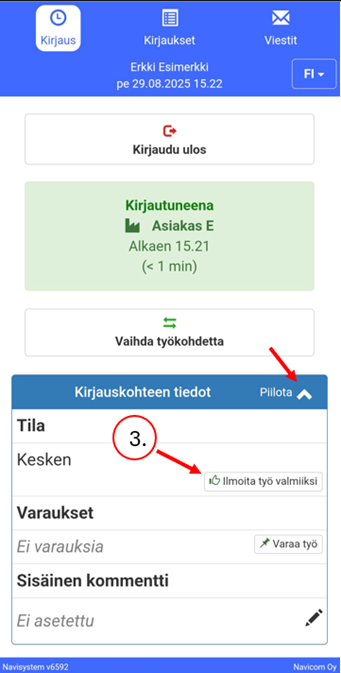
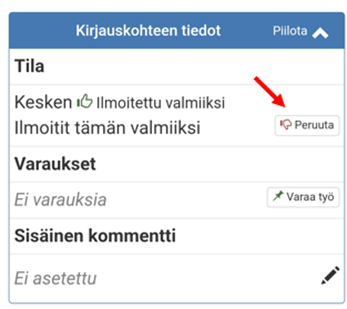
Thumbs up can be canceled Cancel– from a button
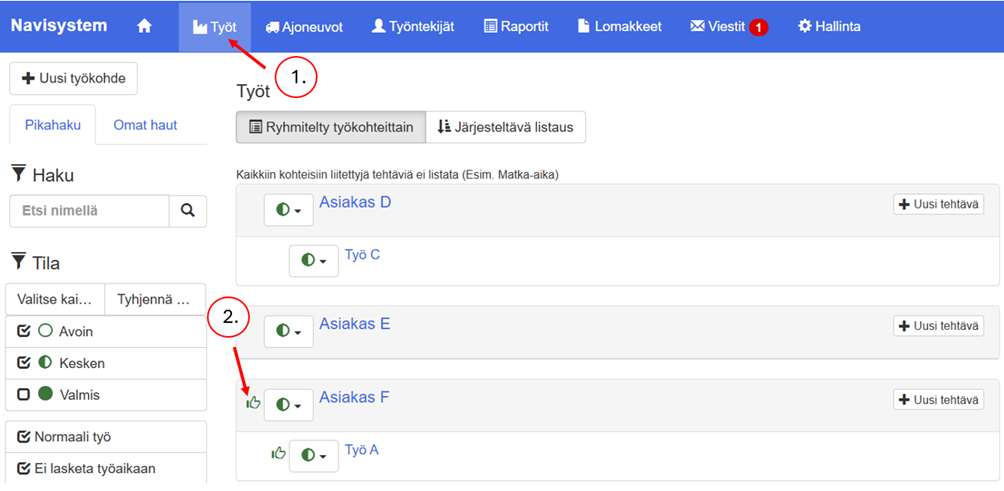
Viewing pinned tasks #
Thumbed-up tasks can be viewed in the online service as follows:
- Go to the jobs tab
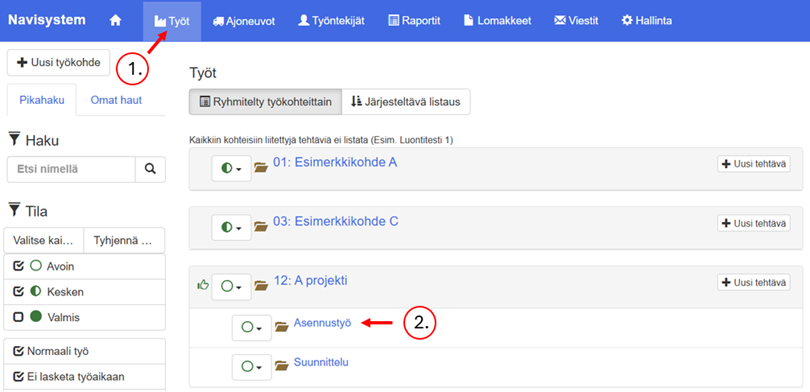
- You will see a thumbs up symbol next to the task or work item
Thumbing up work items and tasks in an online environment #
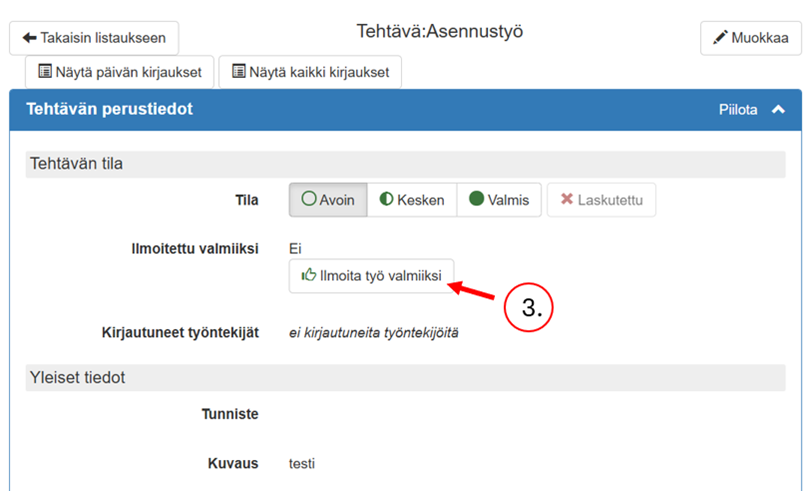
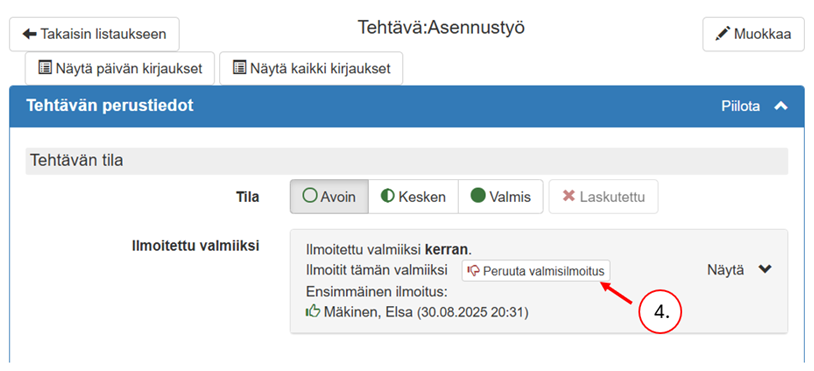
An administrative user can thumb through work items and tasks in the online environment as follows:
- Open Worktab
- Choose what you want work item or task
- Press Report the job as completed
- You can cancel a reported job by pressing Cancel completed notification
Note! The adjustment of employee rights is usually done with the assistance of our customer support (myynti@navicom.fi), so we recommend that you contact us if you need to give employees additional rights in our service.